
The Luxafor CO₂ Dongle is a small USB stick that measures the carbon dioxide level, temperature and humidity in the room. It sends the readings over Wi-Fi to the Luxafor CO₂ app on your phone, so you can check the air from anywhere. The app also shows graphs for the past day, week and month. This manual covers setup, the app, sharing, settings and specifications.
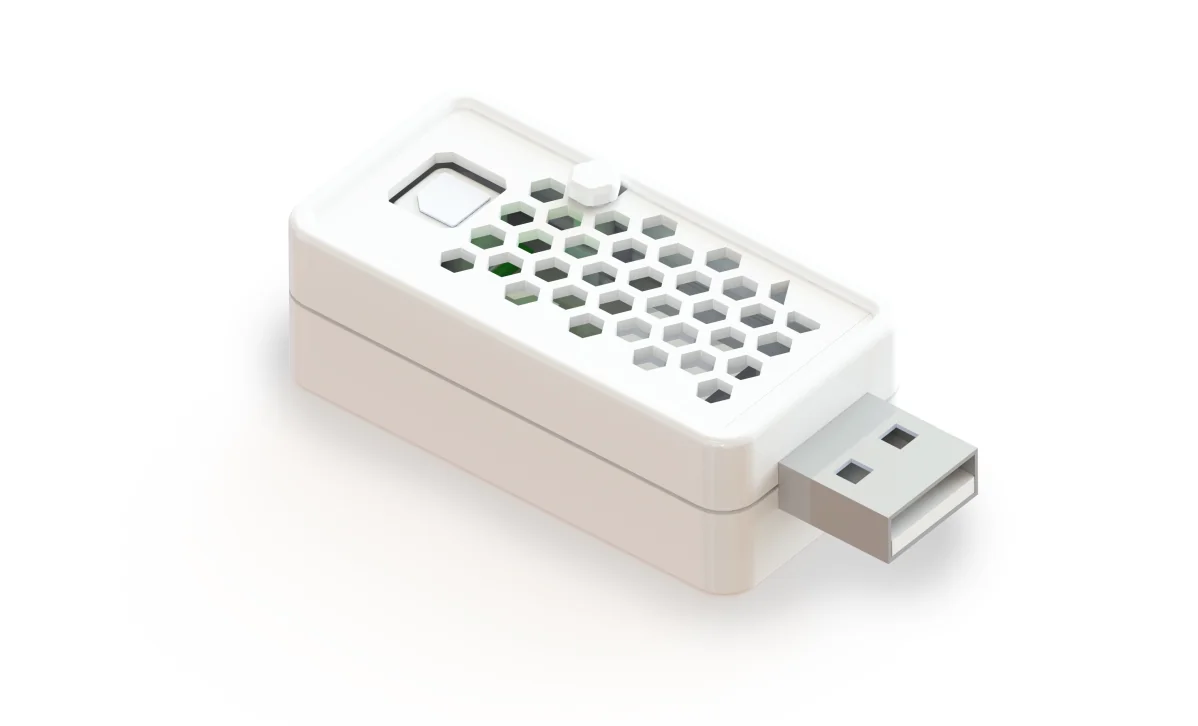
What’s in the box #
- 1 Luxafor CO₂ Dongle
Set up the dongle #
You need a phone with Bluetooth, and a 2.4 GHz Wi-Fi network. The dongle does not work with 5 GHz Wi-Fi. Your phone must be on the same Wi-Fi network that the dongle will use.
- Install the Luxafor CO₂ app on your Android phone or iPhone.
- Plug the dongle into a USB port. You can use a computer, a car USB port or a USB wall charger. The dongle turns on when it gets power.
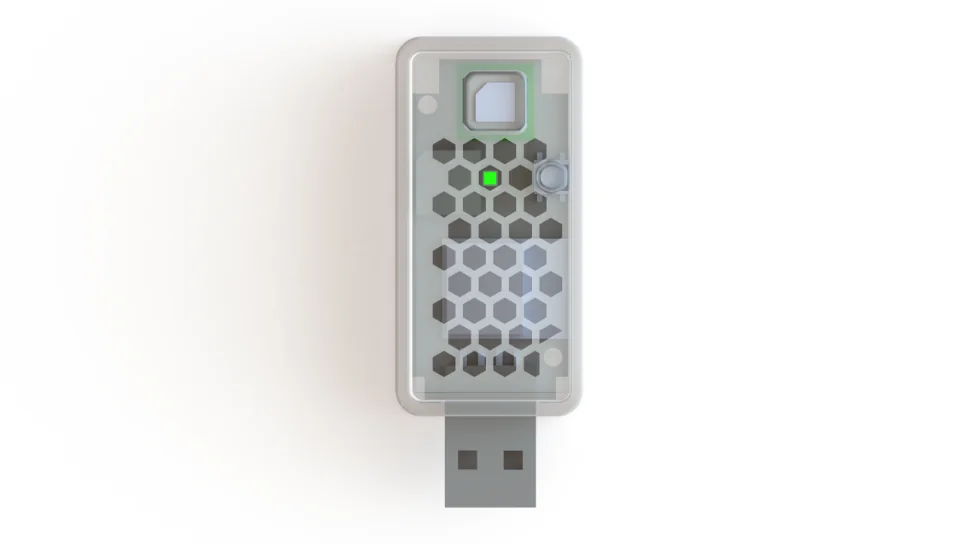
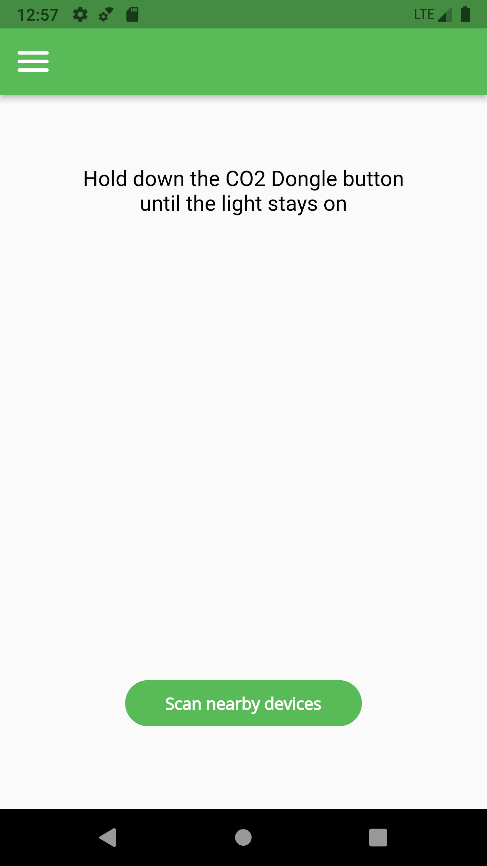
- Hold down the button on the dongle until the light stays on.
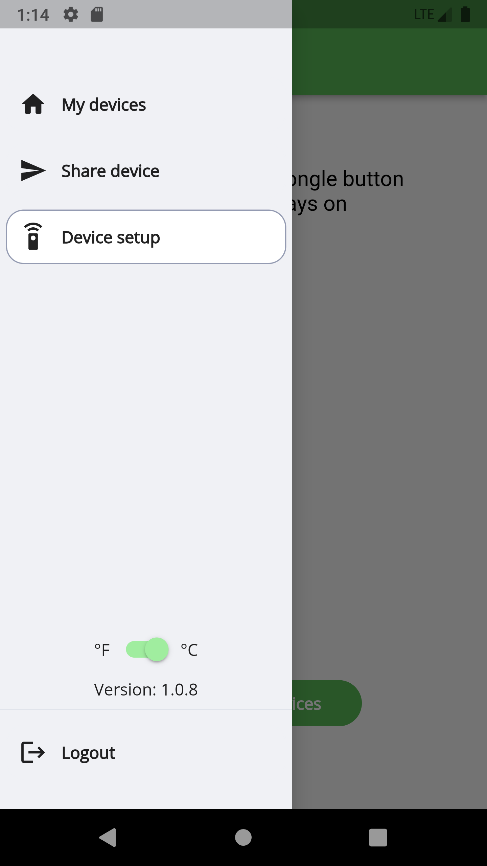
- Open the app. Open the menu and tap Device setup.
- Turn on Bluetooth on your phone, then tap Scan nearby devices.
- Tap the device named LUXAFOR DONGLE when it appears.
- Enter the name and password of your Wi-Fi network. The dongle uses this network to send data to the Luxafor servers.
Turn the dongle on and off #
Plug the dongle into a USB port to turn it on. Unplug it to turn it off.
Use the app #
The app shows the latest readings and the data from the past day, week or month. Each dongle has its own card. You can add as many dongles as you like. Give each one its own name, so you can tell them apart.
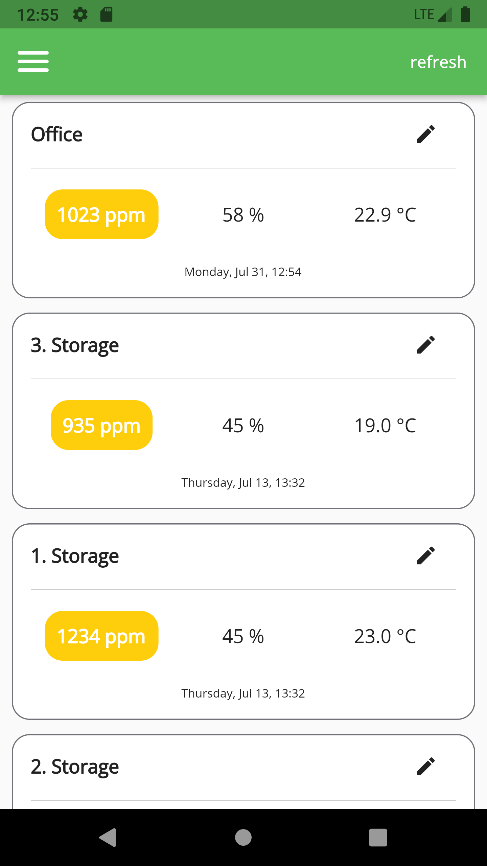
Tap refresh to get the latest data. Tap a dongle to see its readings.
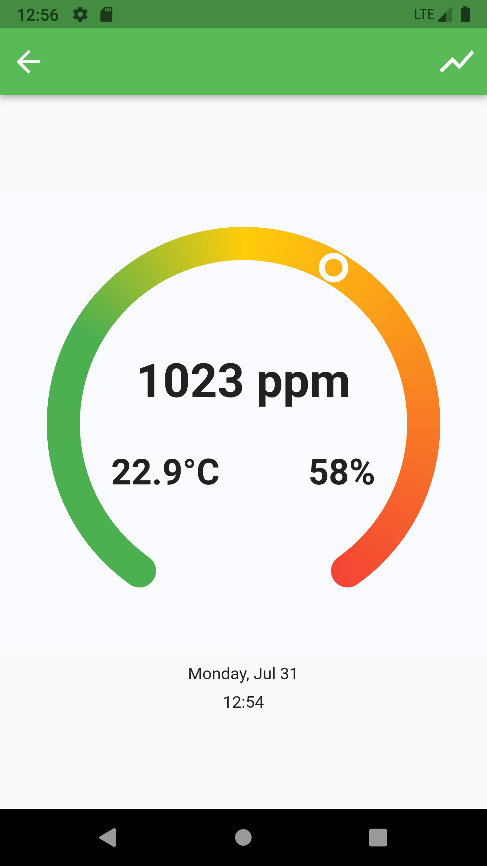
- CO₂ level in ppm (parts per million).
- Level indicator. The marker on the color scale shows how high the level is.
- Relative humidity of the air in percent (% RH).
- Air temperature in °C or °F.
- Alarm icon. It shows only when the CO₂ level notification is on.
What the colors mean #
| Color | CO₂ level | Meaning |
|---|---|---|
| Green | Below 800 ppm | Normal |
| Yellow | 800 to 1200 ppm | Average |
| Orange | 1200 to 1400 ppm | High |
| Red | Above 1400 ppm | Extremely high |
See graphs #
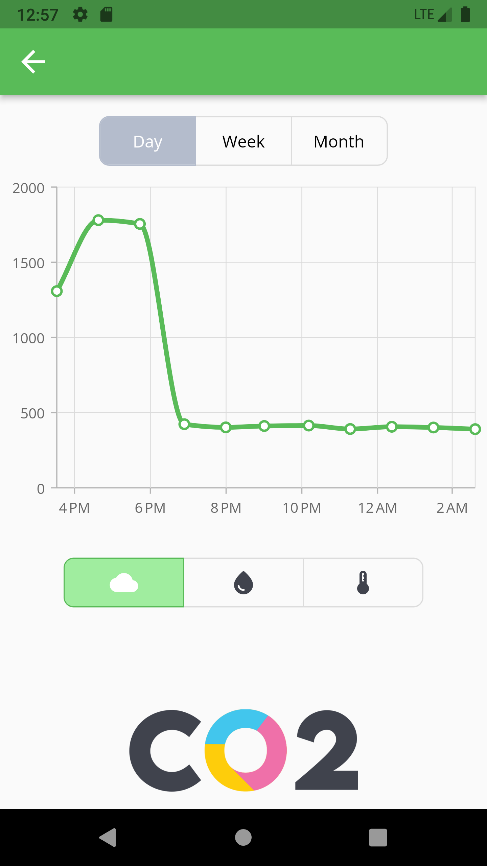
Tap the graph icon at the top right of the readings screen. Choose Day, Week or Month. Use the three buttons under the graph to switch between CO₂, humidity and temperature.
Switch between °C and °F #
Open the menu and use the °F / °C toggle at the bottom.
Change the settings #
Only the owner of a dongle can change its settings. The owner is the person who set it up. Tap the edit icon on the dongle’s card to open them.
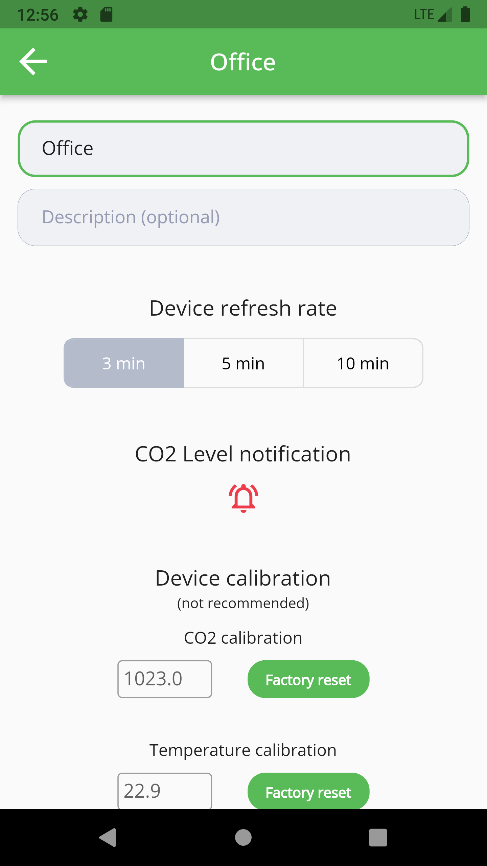
- Name: give the dongle a name, such as “Office”.
- Device refresh rate: choose 3, 5 or 10 minutes. This is how often the dongle sends new readings.
- CO₂ level notification: turn it on or off. When it is on and the CO₂ level goes above 1200 ppm, you get a warning every 3 minutes.
Without the notification, the app shows the CO₂ level, temperature and humidity in real time and gives no warnings.
Share readings with others #
The app has two kinds of users:
- Owners set up a dongle and can change its settings.
- Guests can see the readings but cannot change settings.
To give someone read-only access:
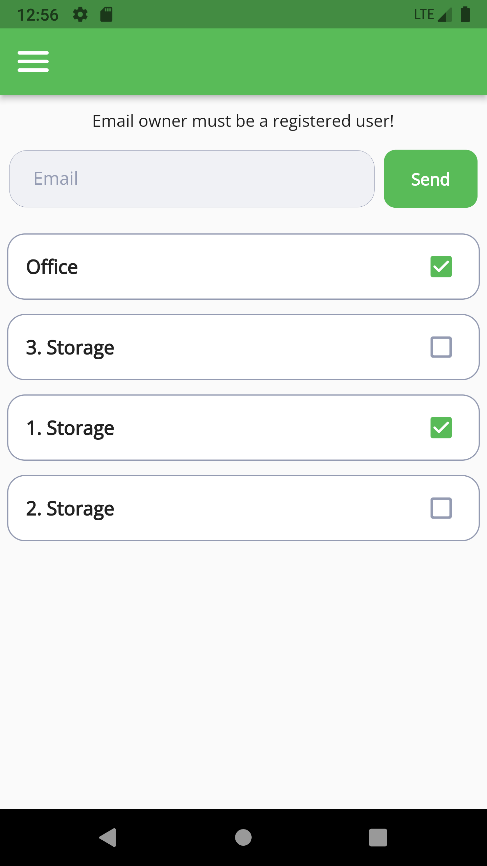
- Open the menu and tap Share device.
- Enter the email address of the person. They must already have a Luxafor CO₂ app account.
- Tick the dongles you want to share.
- Tap Send.
Where to place the dongle #
For the most accurate readings, use one dongle for each room of up to 100 m² (1,080 sq ft). CO₂ spreads evenly through the air, so the size of the room matters less than you might expect.
How the CO₂ measurement works #
The dongle measures CO₂ with a dual wavelength NDIR (nondispersive infrared) sensor. This type of sensor makes up for aging, resists dirt and stays accurate over a long time. Each dongle is adjusted at the factory at several CO₂ and temperature points. This keeps the CO₂ reading accurate across the whole working temperature range.
Technical specifications #
| Dimensions | 25 x 63 x 17 mm (0.98 x 1.89 x 0.66 in) |
|---|---|
| Weight | 14 g (0.49 oz) |
| Measures | CO₂, temperature, relative humidity |
| Use | Indoors, with a USB port and a Wi-Fi network |
| Power | USB, up to 110 mA |
| Connection | 2.4 GHz Wi-Fi for data, Bluetooth for setup. No 5 GHz Wi-Fi. |
| CO₂ sensor | Nondispersive infrared (NDIR) |
| Calibration interval | 5 years |
| Update rate | 3, 5 or 10 minutes |
| Operating temperature | -10 °C to 60 °C (14 °F to 140 °F) |
| Operating humidity | 0% to 85%, non-condensing |
| Light and sound | 1 RGB LED and a buzzer |
| Material | ABS plastic |
Measurement range and accuracy #
Accuracy is given at 25 °C and 1013 mbar (77 °F and 14.69 psi).
| Reading | Range | Accuracy |
|---|---|---|
| CO₂ | 0 to 5000 ppm | 400 to 1000 ppm: ±(50 ppm + 2.5% of the reading); 1001 to 2000 ppm: ±(50 ppm + 3%); 2001 to 5000 ppm: ±(40 ppm + 5%) |
| Temperature | -10 to 60 °C (14 to 140 °F) | ±1.5 °C |
| Relative humidity | 0 to 100% RH | ±9% RH |
Still need help? #
Send us a message and tell us:
- which device you have and where you bought it
- what you see, and what you expected to see
- which steps on this page you have already tried
- your phone model, operating system and Luxafor CO₂ app version
- your order number, if you have one
A short video or photo of the problem helps us fix it faster. If the problem is with the connection, film the dongle while you set it up.