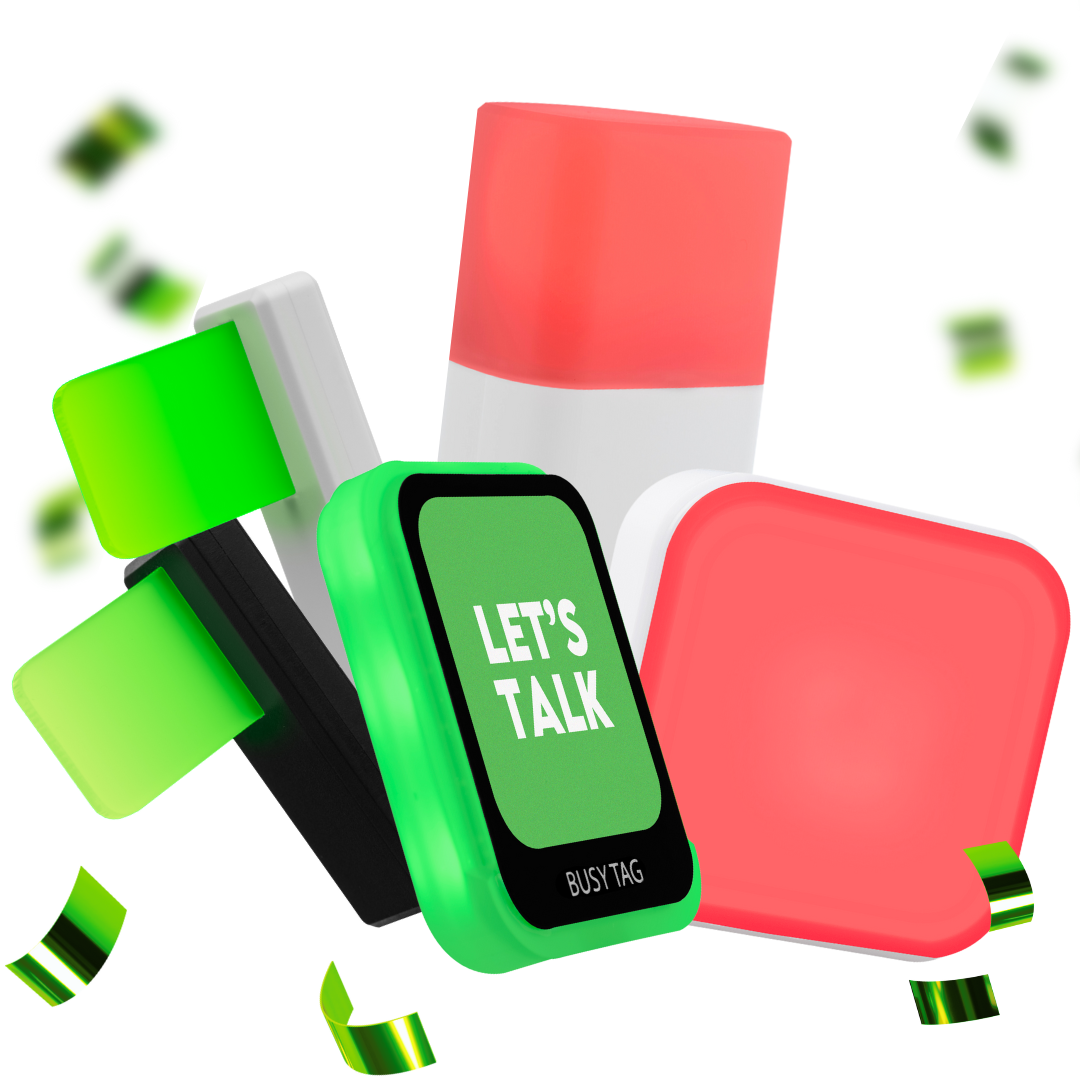

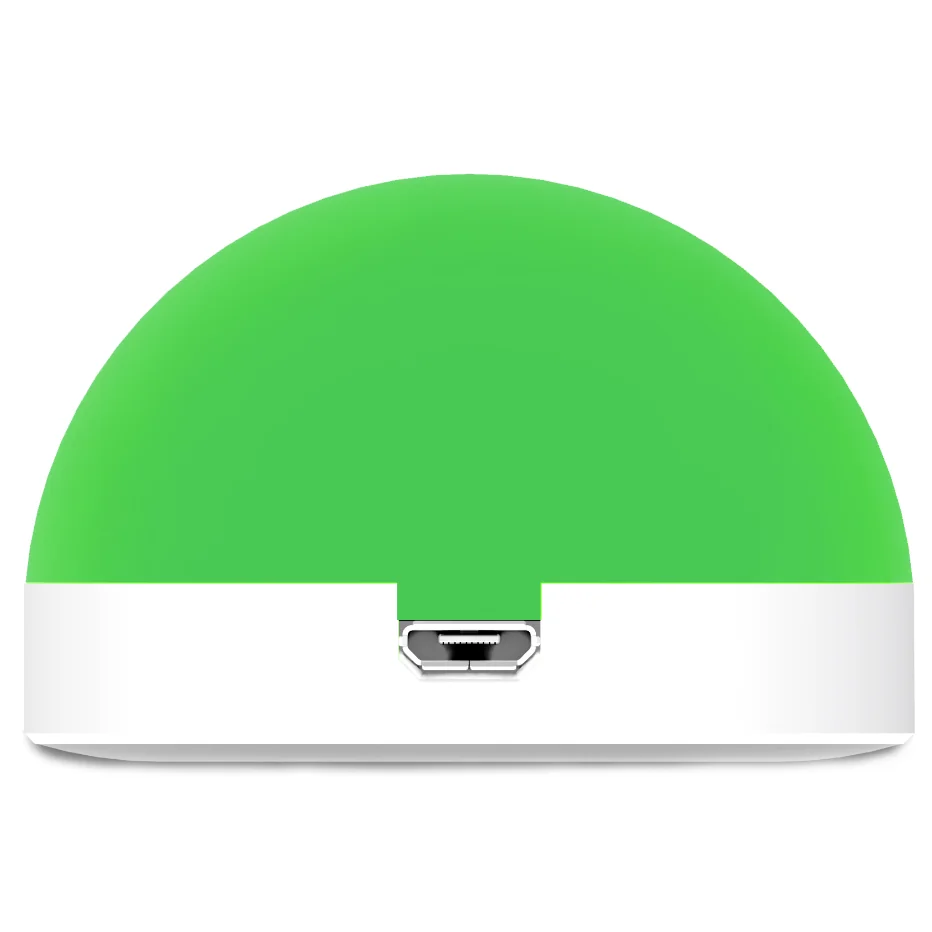
The Luxafor Orb is a small, dome-shaped busy light. It gets its power from your computer over USB, and a magnet holds it on a surface. This manual covers setup, the Luxafor desktop app, compatibility, troubleshooting and specifications.
What’s in the box #
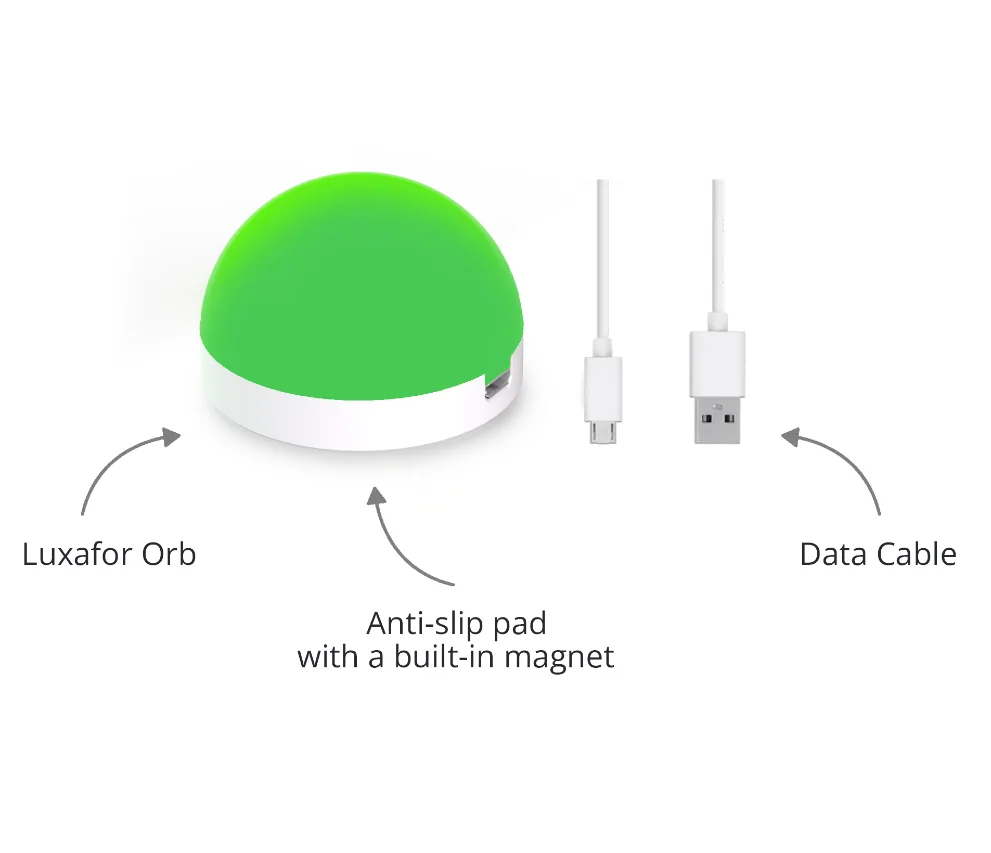
- 1 Luxafor Orb
- 1 micro USB data cable. It is USB-A to micro USB or USB-C to micro USB, in 0.5 m (20 in) or 1.5 m (60 in), depending on the version you ordered.
- 1 magnet with double-sided tape
Set up #
- Download the Luxafor desktop app for your computer from the Luxafor software page. Install the latest version.
- Remove the plastic from the double-sided tape on the magnet.
- Stick the magnet on the surface where you want the Orb. You can remove the magnet at any time. It leaves no residue.
- Open the Luxafor desktop app on your computer.
- Connect the Orb to your computer with the USB cable from the box. Use only this cable. The Orb does not work with other cables.
Use the Luxafor desktop app #
Choose a mode #
Open General in the app to choose a mode. Each mode takes control of the Orb, so only one mode can be active at a time. Notifications and Settings (hotkeys) work at the same time as the active mode.
Solid Color mode #
Choose a preset color, such as red for busy and green for available. For your own color meanings, use Custom Color and move the slider to pick from 16 million colors. Solid Color mode works on Windows and Mac.
Timer mode #
Use the timer to plan your day. Set the times when you cannot be disturbed and when you are available.
- Click Add new timer.
- Enter the times.
- Choose a color. The Orb changes color at those times.
Timer mode works on Windows and Mac.
Pomodoro mode #
Set the length of your Pomodoro sessions and breaks to fit your work pace. The Orb blinks in a pattern you choose when a session starts. It turns red during a session, so people know not to disturb you. It turns green during a break. You can start, pause or reset a session. Pomodoro mode works on Windows and Mac.
Microsoft Teams mode #
The Orb shows your Teams status. Follow the steps in Microsoft Teams mode. Teams mode works on Windows and Mac.
If you use Teams in Teams Only mode, use Zapier mode instead. Connect the services on the Zapier platform. The Orb can then light up when a new message is posted to a channel or a new channel is created.
Zapier mode #
Each action can be Play Pattern, Solid Color or Blink Color. Choose a color or pattern for each action.
- Copy your Luxafor ID from the Zapier tab.
- Paste it into your zap on Zapier.
- Test the connection on Zapier.
For more steps, read Luxafor integration to Zapier. Zapier mode works on Windows and Mac.
Webhook mode #
Webhook mode lets you build your own solutions and control other devices with the Luxafor Web API. Read the Webhook API basics. Webhook mode works on Windows and Mac.
Cisco Jabber mode #
The Orb changes color with your Jabber presence status and blinks red during a call. Follow the steps in Cisco Jabber integration. Jabber mode works on Windows only.
Zoom mode #
- Install Zoom and log in to your Zoom account.
- Install and open the Luxafor desktop app on your computer.
- Click Zoom in the left menu of the app.
- Click Log in with Luxafor. The button opens the Zoom login page. Sign in with your Zoom account.
- Click ALLOW when the app asks you to authorize the connection.
- Match each Zoom status to a color. For example, Busy is red and Available is green.
The Orb now follows your Zoom status. You can change the colors at any time in the app. The Orb shows your Zoom status only while the Zoom tab is open. To change the color another way, open a different tab, such as Solid Color. For more steps, read Luxafor integration with Zoom. Zoom mode works on Windows and Mac.
Email notifications #
The Orb can blink when you get email. Open Notifications in the app. Email notifications work on Windows and Mac.
- Click Gmail if you have a Gmail account. Click Mail for any other email account.
- Fill in the fields in the pop-up window.
- Choose when the Orb blinks: while there is an unread email in your inbox, or only when a new email arrives.
- To get alerts only for certain emails, set a keyword. For example, use the word
orderto see only sales emails.
Hotkeys #
Hotkeys change the color without opening the app, so you stay on your task. Define them in Settings in the app. Type the shortcut you want to use, and the light changes to the color you set. Hotkeys work on Windows and Mac.
Compatibility #
What you can use depends on the Luxafor app you run, not on the Orb itself. The Luxafor desktop app needs:
- Windows 7 or later
- macOS 11.5 or later
On Linux and other systems, use the Luxafor web app in a Chromium-based browser. It works on any system that supports one.
Technical specifications #
| Specification | Value |
|---|---|
| Dimensions | Ø 50 × 35 mm |
| Weight | 28 g |
| Light | 6 RGB LEDs |
| Viewing angle | 360° on the horizontal plane, 180° on the vertical plane |
| Port | Micro USB |
| Power | USB powered, through the USB data cable from the box |
| Power consumption | Up to 0.5 W |
Troubleshooting #
Nothing happens when I plug in the Orb #
- Use the USB cable from the box.
- Plug a keyboard or a mouse into the same USB port. If it does not work, the port has a problem.
- Plug the Orb into other USB ports on your computer or hub.
- Plug the Orb into another computer with the same operating system and version.
- Install the latest Luxafor desktop app from the Luxafor software page.
- Open the tab for the mode you want in the Luxafor desktop app. For example, to show your Zapier status, open the Zapier tab.
The Orb does not work after a cold start #
- In the Luxafor desktop app, open Settings and turn on Start Luxafor when I start Windows.
- On Windows, make sure the USB ports do not go to sleep. Open Device Manager and click the + next to Universal Serial Bus controllers. Click a Root Hub and select Properties. Open the Power Management tab and turn on Allow the computer to turn off this device to save power. Do this for each Root Hub.
- In the Control Panel, open Power Options, go to the Hibernation tab and turn off Enable hibernate support.
Gmail notifications do not work #
Use these steps if Gmail notifications fail on Windows, or if a pop-up asks you to log in to Gmail again.
- Turn on IMAP in Gmail. Read how to turn on IMAP.
- If you use two-step verification, make an app password. Use this password in the Luxafor settings, not your Gmail password. Read how to make an app password.
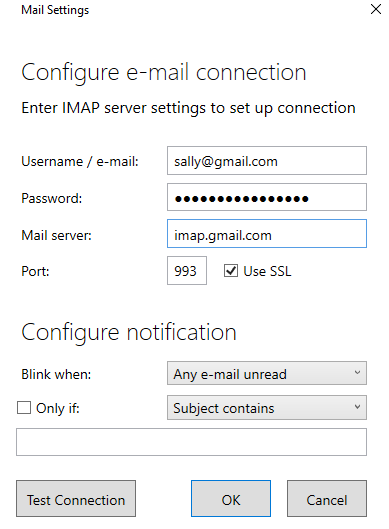
- In the Luxafor desktop app, open Notifications and click Mail.
- Fill in the fields as shown below. Click Test Connection to check, then click OK.
Still need help? #
Send us a message and tell us:
- which device you have and where you bought it
- what you see, and what you expected to see
- which steps on this page you have already tried
- your operating system and Luxafor app version, if it is a software problem
- your order number, if you have one
A short video or photo of the problem helps us fix it faster. If the problem is with the connection, film the device at the moment it tries to connect.