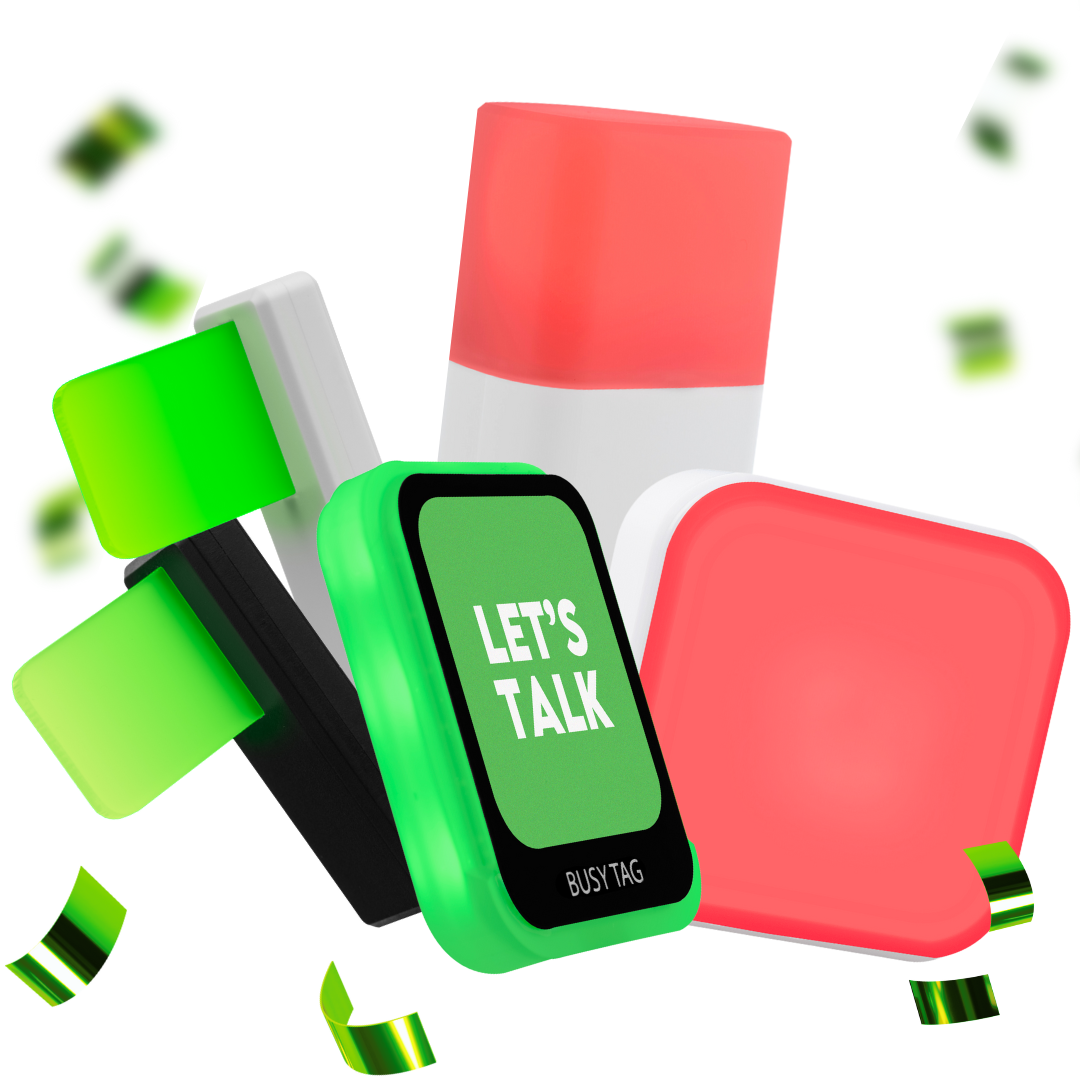

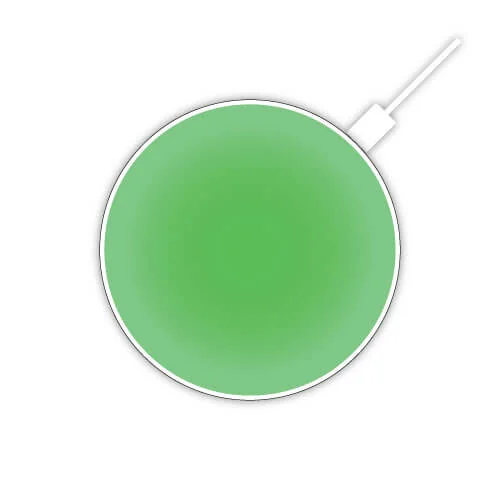
The Luxafor Mute Button shows whether your microphone is muted, and lets you mute and unmute it with a touch. It gets its power from your computer over USB. This manual covers setup, the Mute Button app, settings, compatibility and specifications.
What’s in the box #
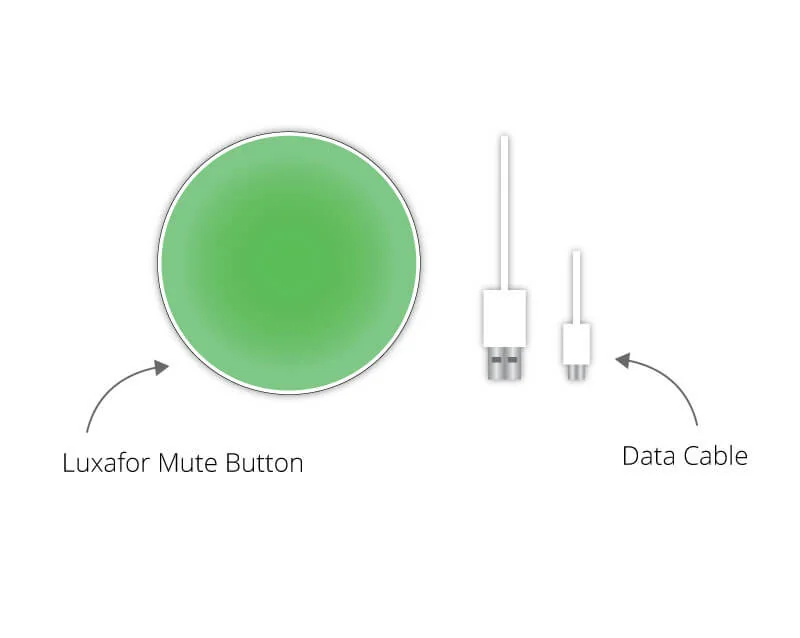
- 1 Luxafor Mute Button
- 1 micro USB data cable. It is USB-A to micro USB or USB-C to micro USB, in 0.5 m (20 in) or 1.5 m (60 in), depending on the version you ordered.
Set up #
- Download the Luxafor Mute Button app or the Luxafor Smart Button app from the Luxafor software page. The Mute Button works with either app. Install the latest version.
- Open the app on your computer.
- Put the Mute Button on the surface where you will use it.
- Connect the Mute Button to your computer with the USB cable from the box. Use only this cable. The Mute Button does not work with other cables.
Important: Do not hold the Mute Button in your hand when you plug in the cable. The button senses its surroundings, so it can switch between mute and unmute by itself.
Use the Mute Button with a Luxafor busy light #
To connect the Mute Button to a busy light that you control with the Luxafor app, open both the Luxafor desktop app and the Mute Button app. Keep both open while you use them together.
Use the Luxafor Mute Button app #
General #
The General tab shows the mute status of all your microphones, or of the ones you select. You can also mute or unmute all recordings with a click of your mouse.
The mute status shows in the Mute Button app and on the light of the Mute Button. Other apps may not show it. They show it only if they track the mute setting of your system and change their own mute icon.
Settings #
Open Settings in the app to change these options:
- Colors: choose preset colors for the muted and unmuted status.
- Push to talk (PTT): turn the microphone on for 60 seconds each time you press the button. The Mute Button has a touch sensor, so a light press is enough.
- Input device: choose whether the Mute Button controls all your microphones or one microphone.
Hotkeys #
Hotkeys change the mute status without opening the app or touching the Mute Button. Define them in Settings. Type the shortcut you want to use, and the light changes to the color you set.
Compatibility #
What you can use depends on the app you run, not on the Mute Button itself.
| App | Windows | Mac |
|---|---|---|
| Luxafor Mute Button app | Windows 7 or later | macOS 11.5 or later |
| Luxafor Smart Button app | Windows 7 or later | macOS 10.14 or later |
Technical specifications #
| Specification | Value |
|---|---|
| Dimensions | Ø 50 × 11.5 mm |
| Weight | 30 g without cable |
| Light | 6 RGB LEDs |
| Power | USB powered, through the USB data cable from the box |
| Power consumption | Up to 0.5 W |
Troubleshooting #
If the Mute Button does not work as you expect, read Luxafor Mute Button troubleshooting.
Still need help? #
Send us a message and tell us:
- which device you have and where you bought it
- what you see, and what you expected to see
- which steps on this page you have already tried
- your operating system and Luxafor app version, if it is a software problem
- your order number, if you have one
A short video or photo of the problem helps us fix it faster. If the problem is with the connection, film the device at the moment it tries to connect.