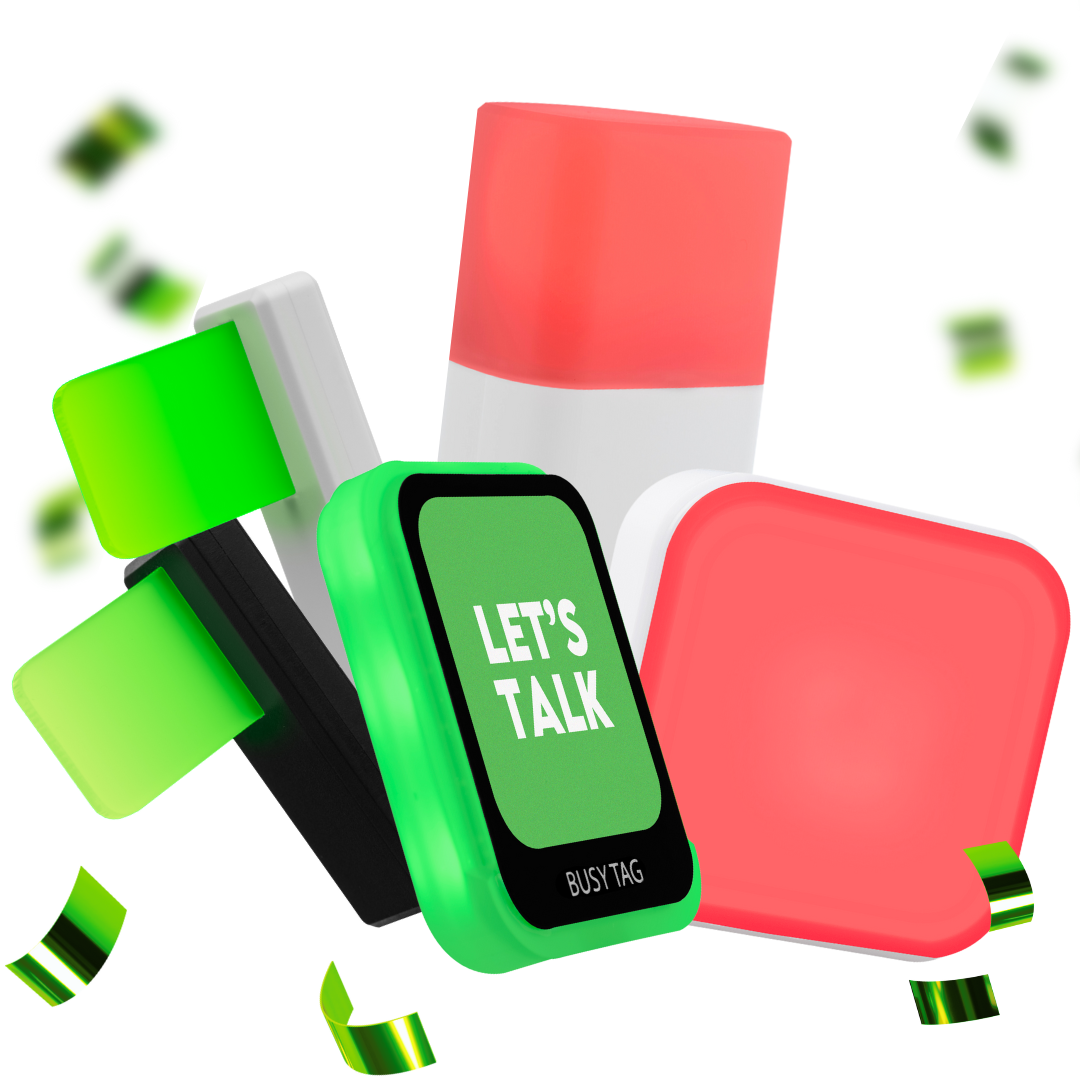

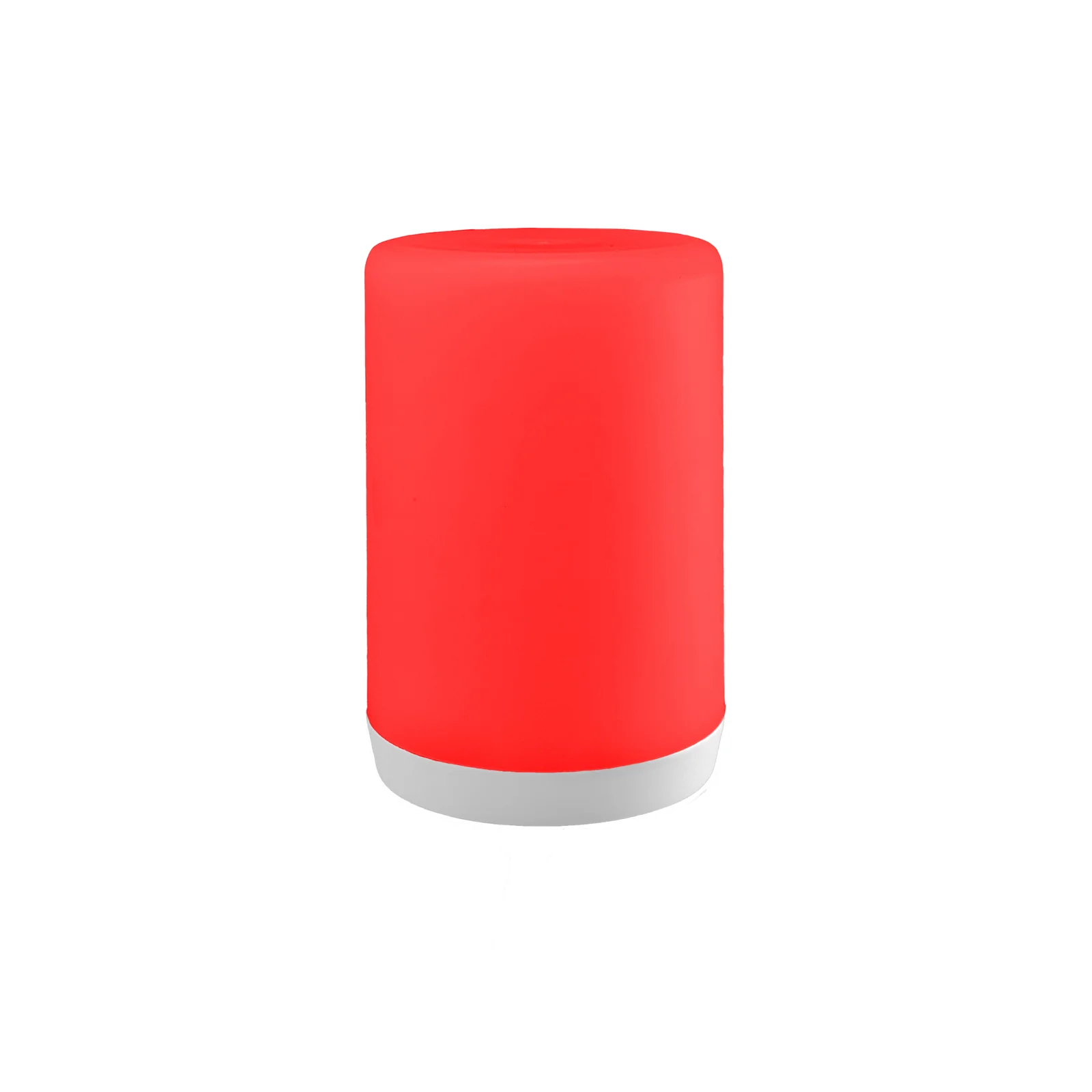
The Luxafor Signal is a notification light with a built-in speaker. It connects to Wi-Fi, and you control it from the Luxafor web app. This manual covers setup, the desktop app, sounds and specifications.
What’s in the box #
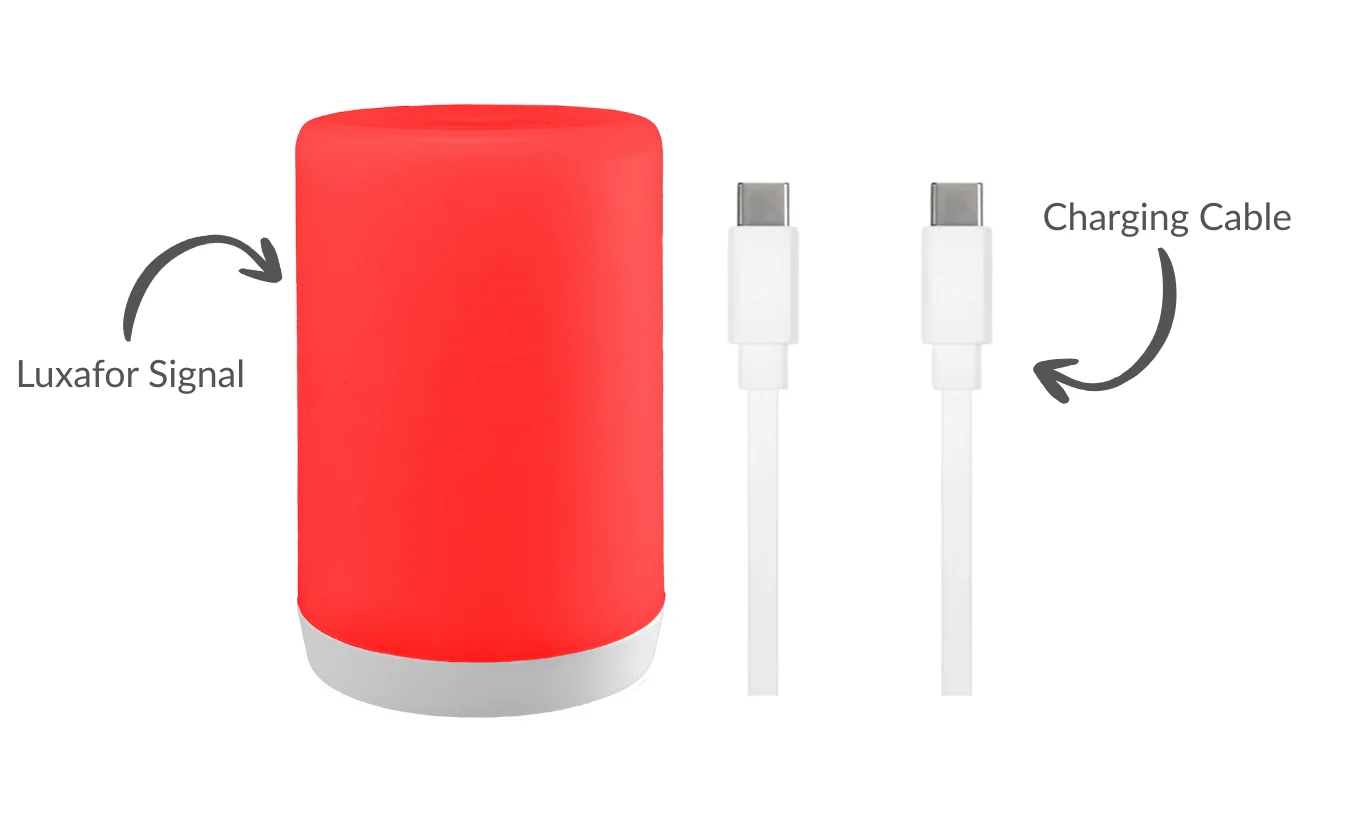
- 1 Luxafor Signal
- 1 USB data cable, 1.5 m (60 in)
Set up #
You set up the Signal once in the web app. After that, it connects to your Wi-Fi network by itself.
Before you start #
- Use Google Chrome or another Chromium-based browser, version 89 or newer. The setup needs a browser that supports USB connections.
- Use the USB cable from the box. The Signal works only with this cable. A charge-only cable does not work for setup.
- Have your Wi-Fi network name and password ready. The Signal connects to 2.4 GHz Wi-Fi.
You can also watch the setup video.
Connect the Signal to Wi-Fi #
- Plug the Signal into your computer with the USB cable.
- Go to the Luxafor web app.
- Click Add Device in the top right corner.
- Click the option for Signal lights.
- Click Configuration.
- Select your Signal when the browser asks you to choose a device.
- Wait while the Signal looks for Wi-Fi networks.
- Select your network and enter the password. You can also enter the details by hand.
- Click Continue.
The Signal now connects to the network and signs in. When this works, the web app adds the Signal to your dashboard. If the connection fails, the web app takes you back one step. Enter the details again.
Configuration and Remote mode #
| Mode | Use it when |
|---|---|
| Configuration | You have the Signal connected to your computer by USB. You set up its Wi-Fi network. You do not need a share code. |
| Remote | The Signal is already set up on another computer. You add it to your dashboard with a temporary share code from that computer. |
Note: If two browsers share one Signal, each browser overrides the light color the other one set.
Connect to the desktop app #
Set up the Signal in the web app first. Then connect it to the desktop app with a share code.
- In the web app, click your Signal.
- Click Create Share Code.
- Copy the share code.
- Open the Luxafor desktop app and go to Settings.
- Scroll down to the Signal section.
- Paste the share code into the Add a new device using a share code box.
- Click Add Device.
The Signal is now connected to the desktop app.
Add sounds #
The Signal stores its sound files on the device. Upload a file before you use it.
- Go to the Luxafor web app.
- Set up a new Signal, or select a Signal that is already on your dashboard.
- Open the device settings. You see the files on the device and the options to upload new files.
Important: The Signal plays only MP3 files under 1 MB.
Use the Signal with Shopify #
The Signal can react to events in your Shopify store, with light and sound. Follow the steps in How to connect your Luxafor Signal to Shopify.
To play a sound for an event, the MP3 file must be on the Signal. When you set up the event, change the audio from None to Sound, enter the file name and choose the volume. Keep the volume at 80% or lower, because louder sound is too loud. If the file is not on the Signal, nothing plays. The Signal reacts to events only while it is connected to Wi-Fi.
Compatibility #
What you can use depends on the Luxafor app you run, not on the Signal itself.
- Windows: the Luxafor desktop app needs Windows 7 or later.
- Mac: the Luxafor desktop app needs macOS 11.5 or later.
- Linux and other systems: use the Luxafor web app in a Chromium-based browser, version 89 or newer, such as Google Chrome.
The web app works on any system with a Chromium-based browser, so you do not need the desktop app to use the Signal.
Technical specifications #
| Specification | Value |
|---|---|
| Dimensions | Ø 72 mm × 106 mm |
| Weight | 72 g |
| Light | 11 RGB LEDs |
| Audio | Built-in speaker, custom sounds |
| Connection | Wi-Fi 2.4 GHz |
| Power | USB-C, 5 V, up to 1000 mA |
Still need help? #
Send us a message and tell us:
- which device you have and where you bought it
- what you see, and what you expected to see
- which steps on this page you have already tried
- your operating system and browser, if it is a setup problem
- your order number, if you have one
A short video or photo of the problem helps us fix it faster. If the problem is with the connection, film the device at the moment it tries to connect.