

The Luxafor Pomodoro Timer is a countdown timer that lights up in a different color for work time and for breaks. It vibrates when a new countdown starts. It works on its own with the default settings, and you can change the times and colors in the Luxafor Pomodoro Timer app. This manual covers setup, the default settings, the app and specifications.
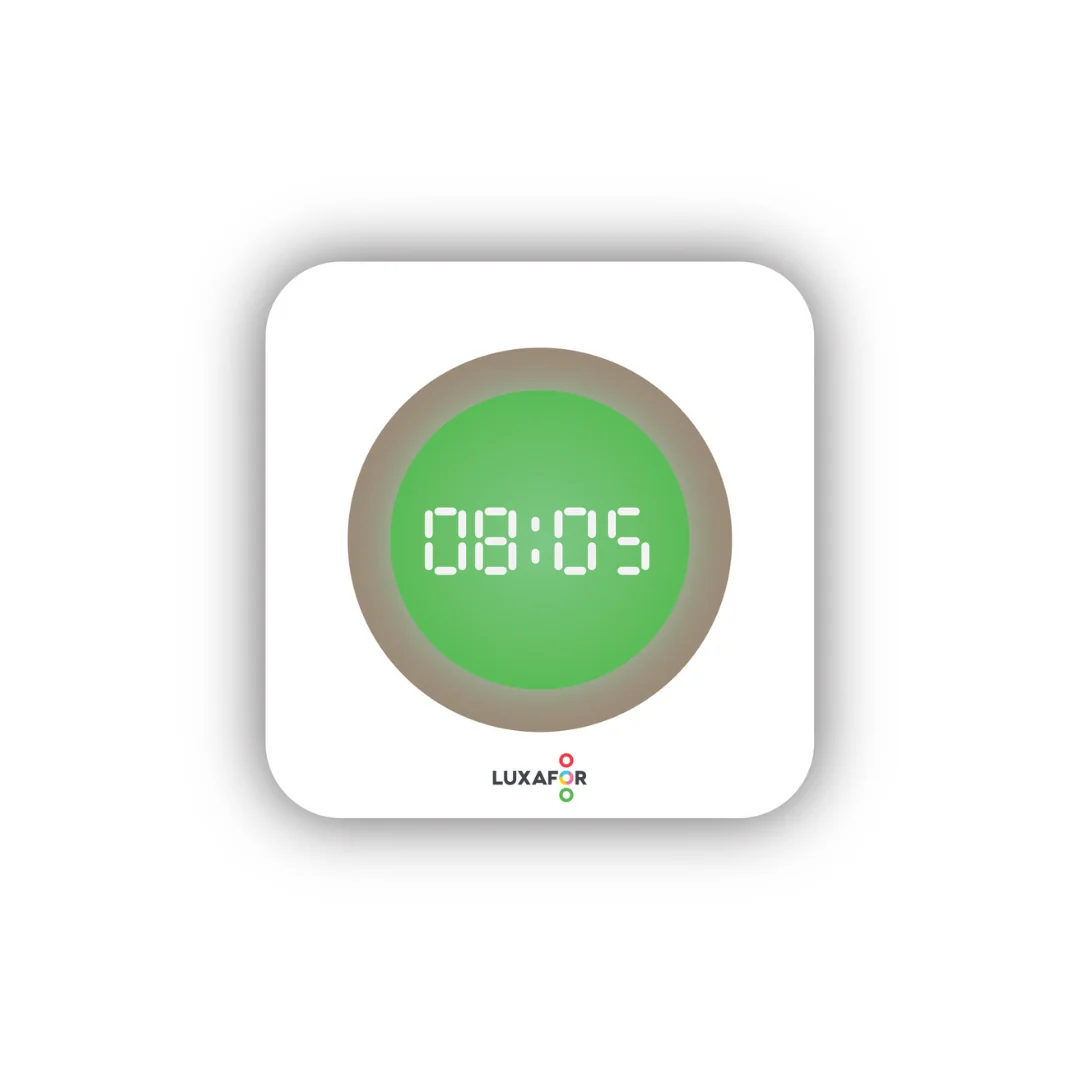
What’s in the box #
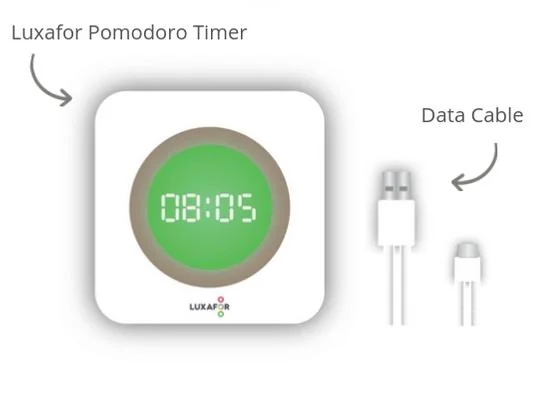
- 1 Luxafor Pomodoro Timer
- 1 USB data cable
Use the default settings #
- Connect the Pomodoro Timer to a power source with the USB cable from the box.
- Tap the top of the Pomodoro Timer to start or pause the timer. A short vibration confirms it.
- To skip to the next timer, touch the top and hold for 1 second. For example, you can skip a Short Break and go straight to the next Pomodoro time. Two short vibrations confirm it.
- To go back to the start of the sequence, press the button on the back of the Pomodoro Timer.
Default times and colors #
| Timer | Length | Color | Start signal |
|---|---|---|---|
| Pomodoro time | 25 minutes | Red | Blue flashes and a vibration |
| Short Break | 5 minutes | Yellow | Yellow flashes and a vibration |
| Long Break | 15 minutes | Green | Purple flashes and a vibration |
Default sequence #
The timers run in this order:
Pomodoro time → Short Break → Pomodoro time → Short Break → Pomodoro time → Short Break → Pomodoro time → Short Break → Pomodoro time → Long Break
Set up the app #
Use the app to change the times, colors and start patterns. The app works on Windows and Mac.
- Download the Luxafor Pomodoro Timer app for Windows or Mac from the Luxafor software page. Install the latest version.
- Open the app on your computer.
- Connect the Pomodoro Timer to your computer with the USB cable from the box.
- Change the settings. See Change the settings.
- Click SAVE TO DEVICE.
- Press the button on the back of the Pomodoro Timer, or click RESET in the POMODORO TIMER tab. The timer goes back to the start of the sequence.
Change the settings #
Open the CONFIGURE DEVICE tab in the app. You can change these settings:
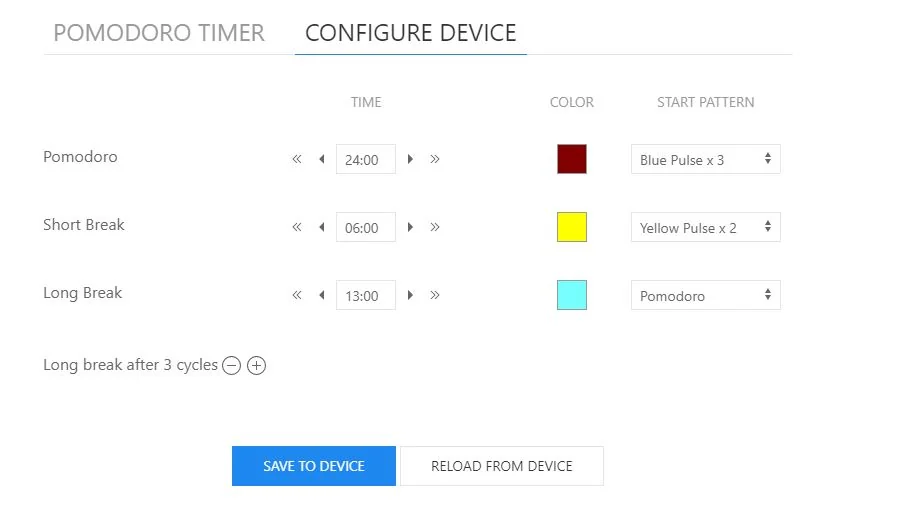
- Length: type the time you want for the Pomodoro time, the Short Break and the Long Break. You can also use the arrows.
- Long Break: use the + and – buttons to set how many Pomodoro times pass before the Long Break.
- Color: choose a color for the Pomodoro time, the Short Break and the Long Break under COLOR. The color sets the brightness too. The darker colors in the lower row are less bright. The lighter colors in the top row are as bright as the Pomodoro Timer can be.
- Start pattern: choose the pattern that plays when a new countdown starts under START PATTERN.
After each change, click SAVE TO DEVICE. Then press the button on the back of the Pomodoro Timer, or click RESET in the POMODORO TIMER tab, to start from the beginning of the sequence.
Control the timer from the app #
Use the POMODORO TIMER tab to control the Pomodoro Timer:
- Click START to start the countdown.
- Click PAUSE to pause the countdown.
- Click RESET to go back to the first Pomodoro countdown.
Technical specifications #
| Specification | Value |
|---|---|
| Dimensions | 52 × 52 × 27 mm |
| Weight | 31 g |
| Light | 6 RGB LEDs |
| Power | USB powered, through the micro USB data cable from the box |
| Power consumption | Up to 0.5 W |
Still need help? #
Send us a message and tell us:
- which device you have and where you bought it
- what you see, and what you expected to see
- which steps on this page you have already tried
- your operating system and Luxafor app version, if it is a software problem
- your order number, if you have one
A short video or photo of the problem helps us fix it faster. If the problem is with the connection, film the device at the moment it tries to connect.