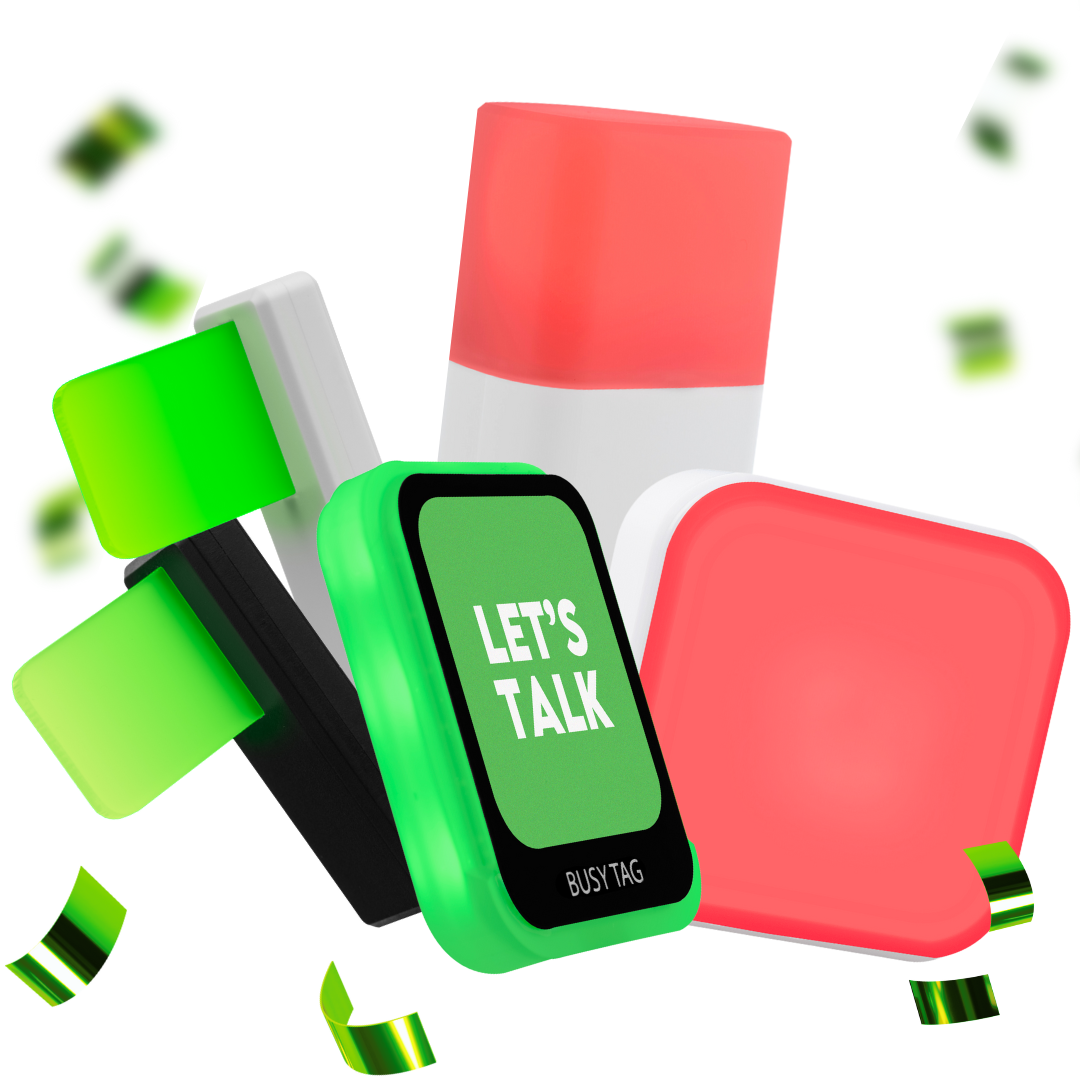

The Luxafor Switch is a busy light you control with a small remote. The light is the Dot, which plugs into the Power Bank. The remote is the Switch Cube. You turn the Switch Cube onto a different side, and the Dot changes color, with no computer or app. This manual covers charging, setup, pairing, turning off, Eco Mode, the battery indicator and specifications.
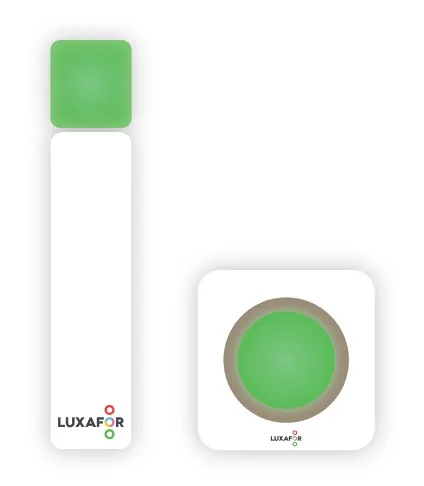
What’s in the box #
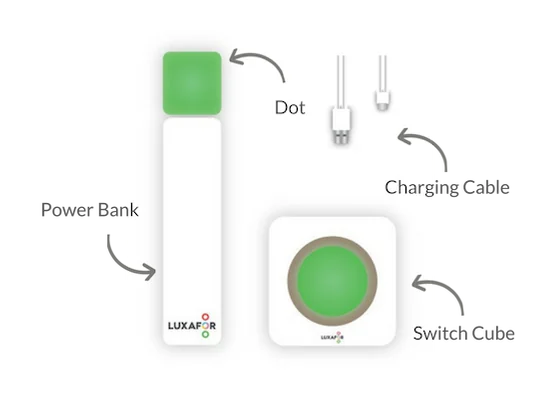
- 1 Luxafor Dot
- 1 Luxafor Power Bank
- 1 Luxafor Switch Cube
- 1 USB charging cable
Charge the Power Bank and the Switch Cube #
Charge both units fully before the first use.
- Plug the charging cable into a USB wall charger.
- Plug the other end into the micro USB port on the Power Bank or on the Switch Cube.
Power Bank #
The charging light is behind the magnet. You can see it best in the dark. It blinks red while the Power Bank charges and turns solid red when it is full. Charging takes about 3 to 5 hours.
Switch Cube #
Charging takes about 2 to 4 hours. The Switch Cube turns on as soon as charging starts. It then shows the battery level. See Check the battery level of the Switch Cube. You can use the Switch Cube while it charges, and it works as usual. If the battery is very low, the Switch Cube may not turn on right away. It charges for a short time first, then turns on and works as usual.
Set up #
- Plug the Dot into the Power Bank.
- Peel the plastic off the double-sided tape on the magnet. Stick the magnet on the surface where you want the Dot with the Power Bank. Without obstacles, the Bluetooth range is 25 m (82 ft).
- Press the button on the back of the Switch Cube once, briefly, to turn it on.
- The Switch Cube connects to the closest Dot by itself. A red running pattern shows that it is connecting.
- Turn the Switch Cube onto a different side to change the color of the Dot.
Stick the magnet only on a smooth, clean surface. A rough, dirty or uneven surface weakens the adhesive, and the Dot can fall. The warranty does not cover damage from a fall. See the warranty terms.
Connect the Switch Cube to another Dot #
The way depends on the version number of your Switch Cube. You find it on the carton, next to the bar code.
- Version 01, or no version number: press the small black button on the back once, briefly.
- Version 03: press and hold the button on the back for 10 seconds.
A green running pattern shows that the Switch Cube is searching for a Dot. It then connects to the closest one. If it finds no Dot in 1 minute, the Switch Cube turns itself off. Press the button on the back to turn it on again, then wait for 1 minute for it to find the Dot.
Turn the Switch Cube off #
- Version 01: press and hold the button on the back. Release it when the Switch Cube turns purple.
- Version 03: press the button on the back once, briefly.
Eco Mode #
Eco Mode makes the batteries last longer. The Switch Cube and the Dot both show colors that pulse slowly instead of solid colors.
- Press and hold the button on the back of the Switch Cube.
- Release it when the Switch Cube turns orange.
Do the same to turn Eco Mode off. Without Eco Mode, both units show solid colors.
Check the battery level of the Switch Cube #
Lay the Switch Cube face up. It shows a cyan blue color, and the number of LEDs that shine tells you how much battery is left. The Switch Cube also shows the battery level when you turn it on.
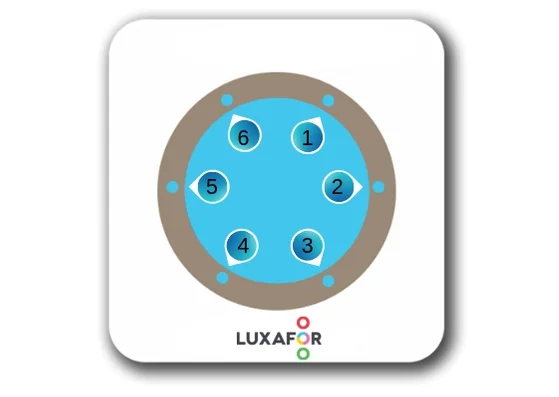
- All 6 LEDs shine: the battery is full. On newer versions, 5 LEDs shine.
- As the battery drains, the LEDs go out one by one. They start with LED 2 and go clockwise.
- Only LED 6 shines: the battery is almost empty. Charge the Switch Cube right away. On newer versions, this is LED 5.
What the lights mean #
| Light | Meaning |
|---|---|
| Green running pattern | The Switch Cube is searching for Dots nearby |
| Red running pattern | The Switch Cube is connecting to a Dot |
| Purple while you hold the button | Release the button and the Switch Cube turns off (version 01) |
| Orange while you hold the button | Release the button and Eco Mode turns on or off |
| Blinking red light on the Power Bank | The Power Bank is charging |
| Solid red light on the Power Bank | The Power Bank is full |
Battery life #
| Use | Dot with Power Bank | Switch Cube |
|---|---|---|
| Continuous use | 50 to 88 hours | 32 to 62 hours |
| Moderate use in a co-working space | About 3 weeks | About 3 weeks |
| Infrequent use | Up to 6 months | Up to 5 months |
Technical specifications #
Dot with Power Bank #
| Specification | Value |
|---|---|
| Dimensions | 124 × 24 × 23 mm (4.88 × 0.94 × 0.90 in) |
| Weight | 70 g |
| Light | 2 RGB LEDs |
| Power consumption | Up to 80 mA |
| Battery | Built-in, 2600 mAh, in the Power Bank |
| Battery life | 50 hours to 6 months, depending on mode. See Battery life. |
| Charging | Micro USB data cable |
| Power for the Dot | From the Power Bank |
Switch Cube #
| Specification | Value |
|---|---|
| Dimensions | 52 × 52 × 27 mm (2.05 × 2.05 × 1.06 in) |
| Weight | 50 g |
| Light | 6 RGB LEDs |
| Power consumption | Up to 40 mA |
| Battery | Built-in, 1200 mAh |
| Battery life | 32 hours to 5 months, depending on mode |
| Charging | Micro USB data cable |
Troubleshooting #
For more help, read Luxafor Switch Troubleshooting.
Still need help? #
Send us a message and tell us:
- which device you have and where you bought it
- the version number on the carton, if you can see it
- what you see, and what you expected to see
- which steps on this page you have already tried
- your order number, if you have one
A short video or photo of the problem helps us fix it faster. If the problem is with the connection, film the Switch Cube and the Dot while they try to connect.