How Luxafor Can Help Reduce Meeting Fatigue

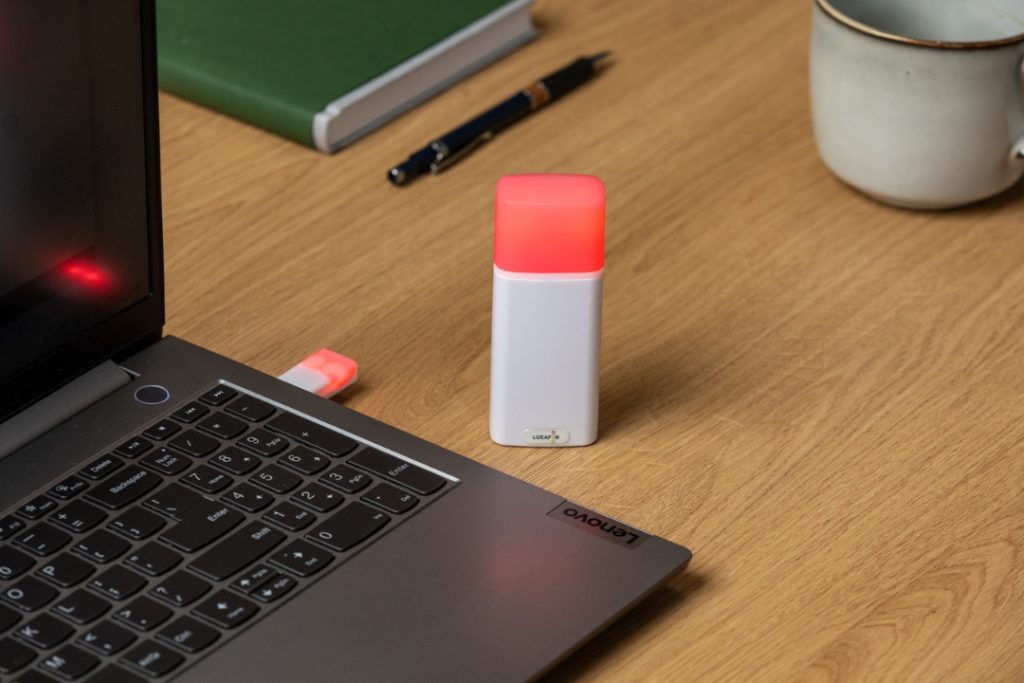
Image from Pexels
Luxafor provides a diverse selection of configurable productivity gadgets and productivity hacks 2026 that can be effectively used to alleviate meeting fatigue in a variety of work environments. Luxafor encourages team members to communicate, focus, and connect by giving LED status indications and focus tools. So, continue reading this blog to learn about the best practices for integrating Luxafor smart gadgets to reduce meeting fatigue and boost efficiency.
The Problem with Always-On Culture
Being available at all times does not imply high performance. It only takes one interruption. A quick glance at an email keeps you from enjoying your dinner. You press reply, and your gaze shifts to the screen, anxiously awaiting an answer. One task replaces another, and you’re back in work mode. The time you set aside to unwind really contributes to burnout.
Regardless of the motivations for working long hours, overwork will not benefit you or your team.
According to research, being constantly connected causes tension between our professional and personal life. Going through emails at odd hours brings about a lot of stress, and constantly using the internet as an addict shows the person is a workaholic. The unhealthy fixation on work as a virtue is a cultural problem that we have been facing for a long time.
Visual Indicators to Prevent Unplanned Interruptions
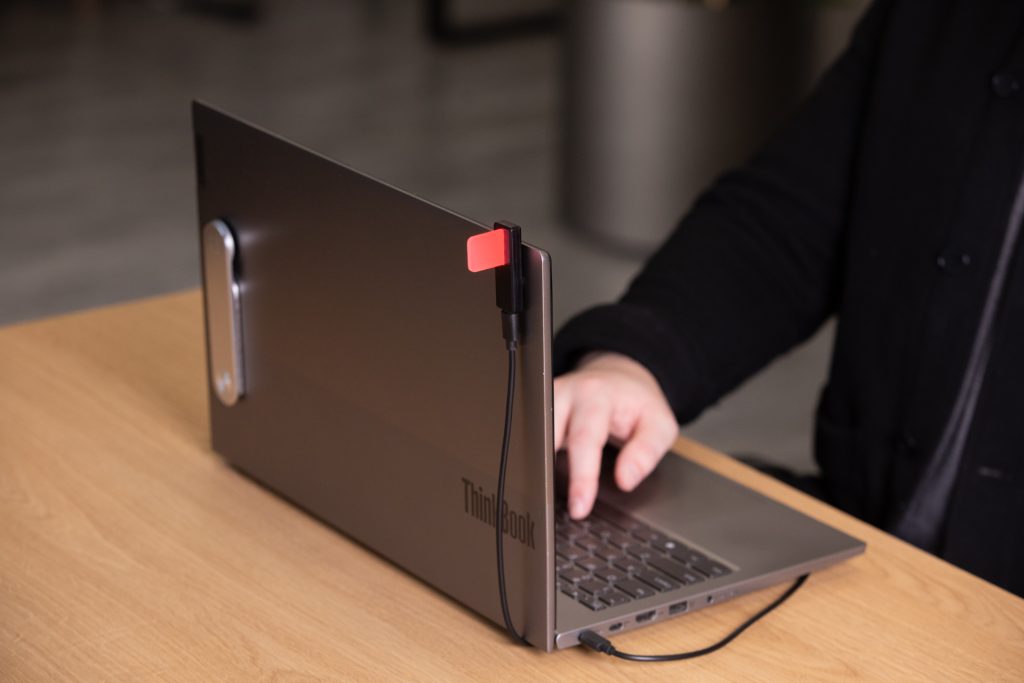
Luxafor technology has addressed this problem by using visual status lights which are very quick and clearly available to the customers. The LED lights representing human presence use Luxafor devices to help shared or hybrid offices to keep their concentration.
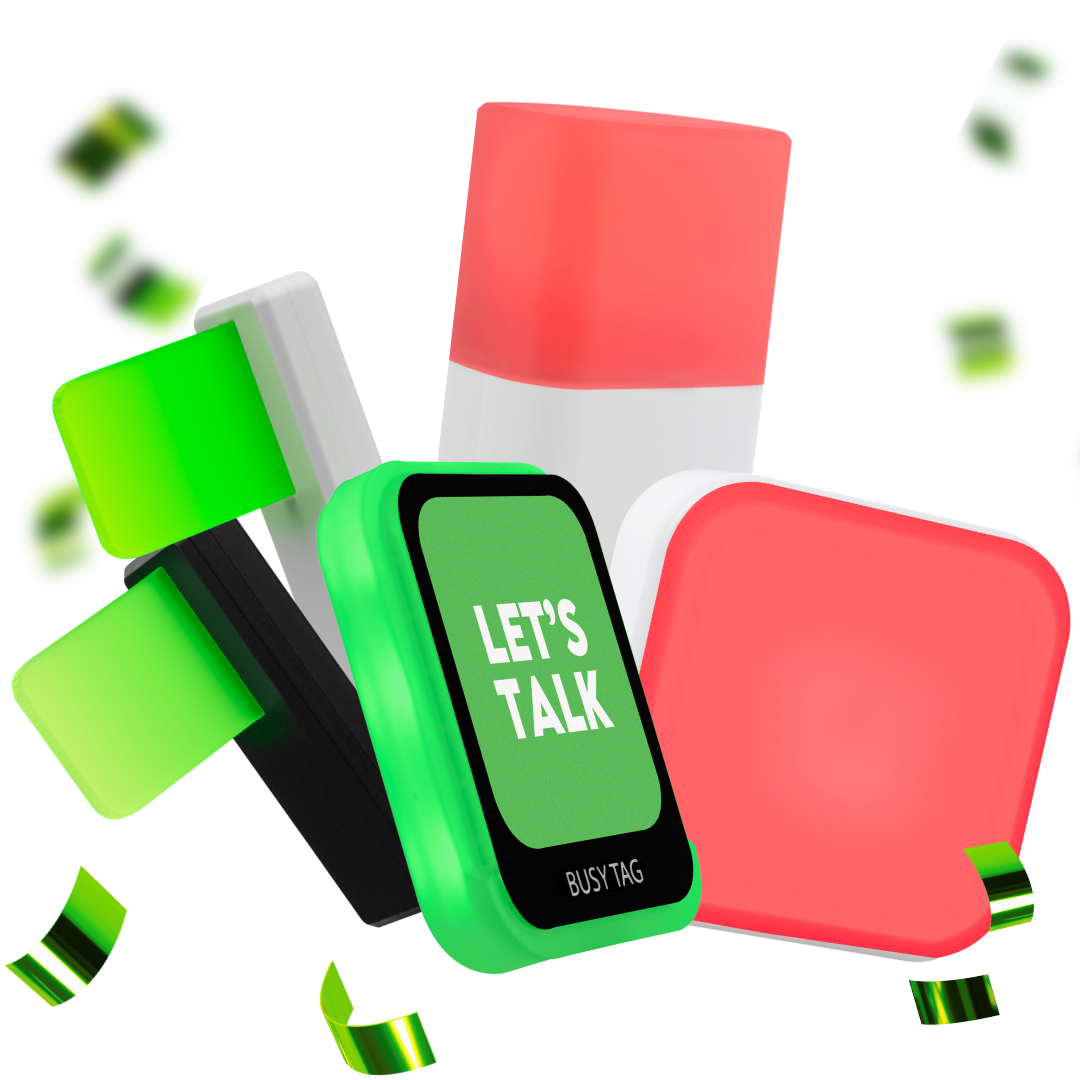
Luxafor gadgets cater to different tech and office needs:
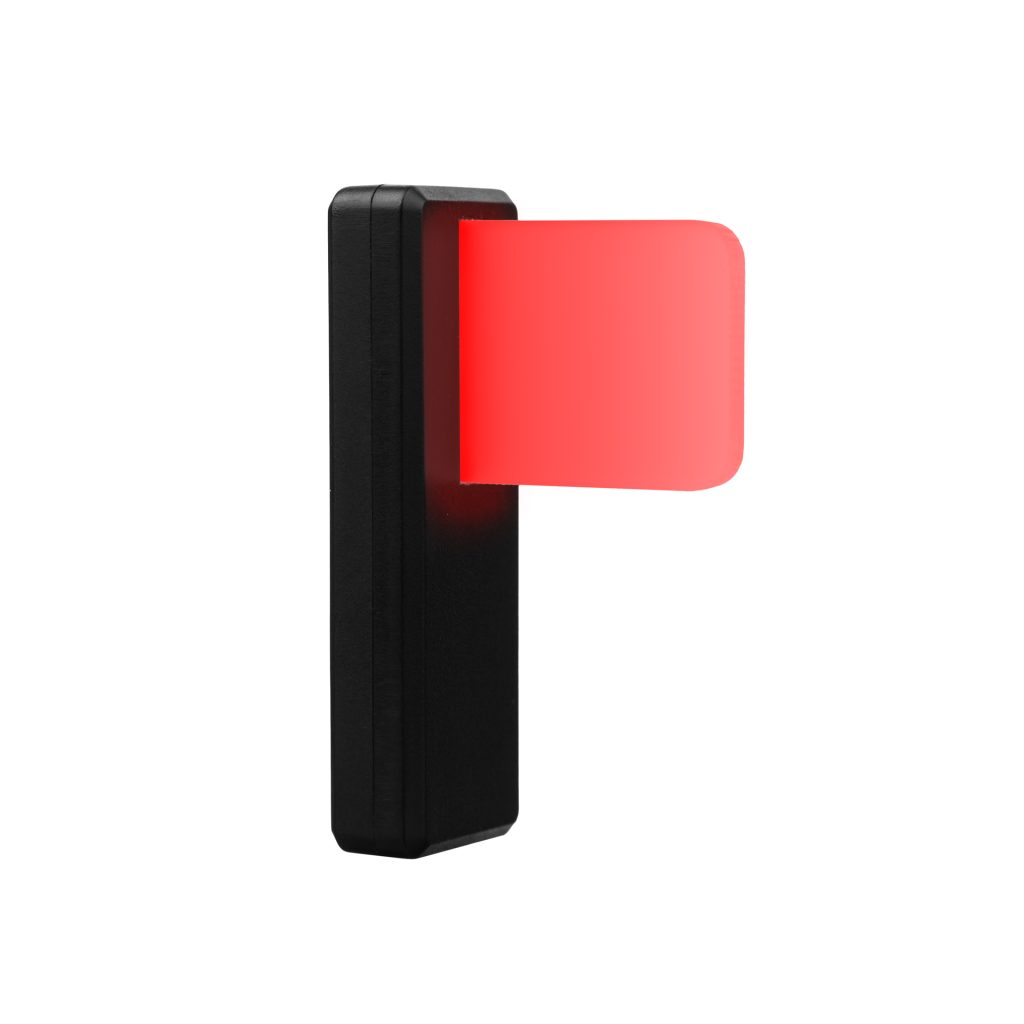
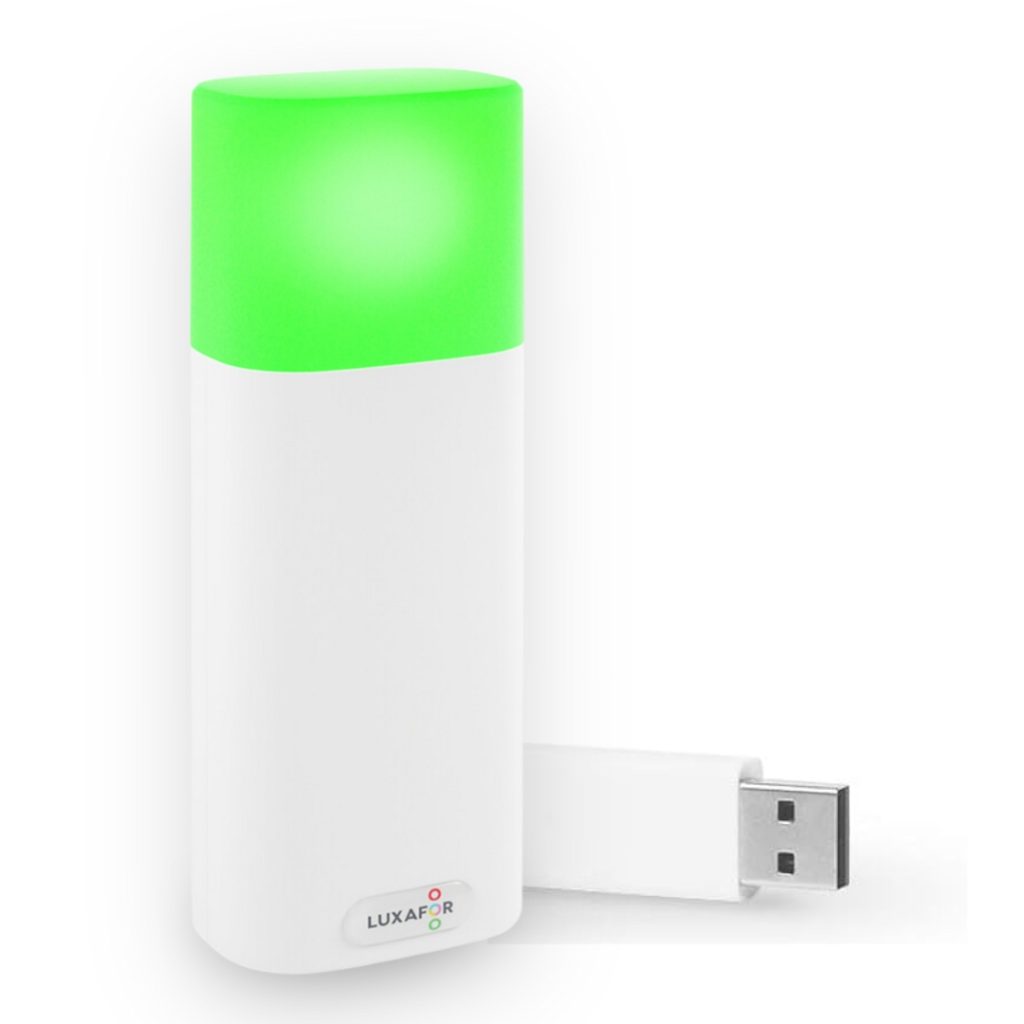
- Luxafor Flag is a USB powered LED indicator that directly displays availability from your computer.
- Luxafor Bluetooth is a cordless model made for adjustable workspaces and mobile setups.
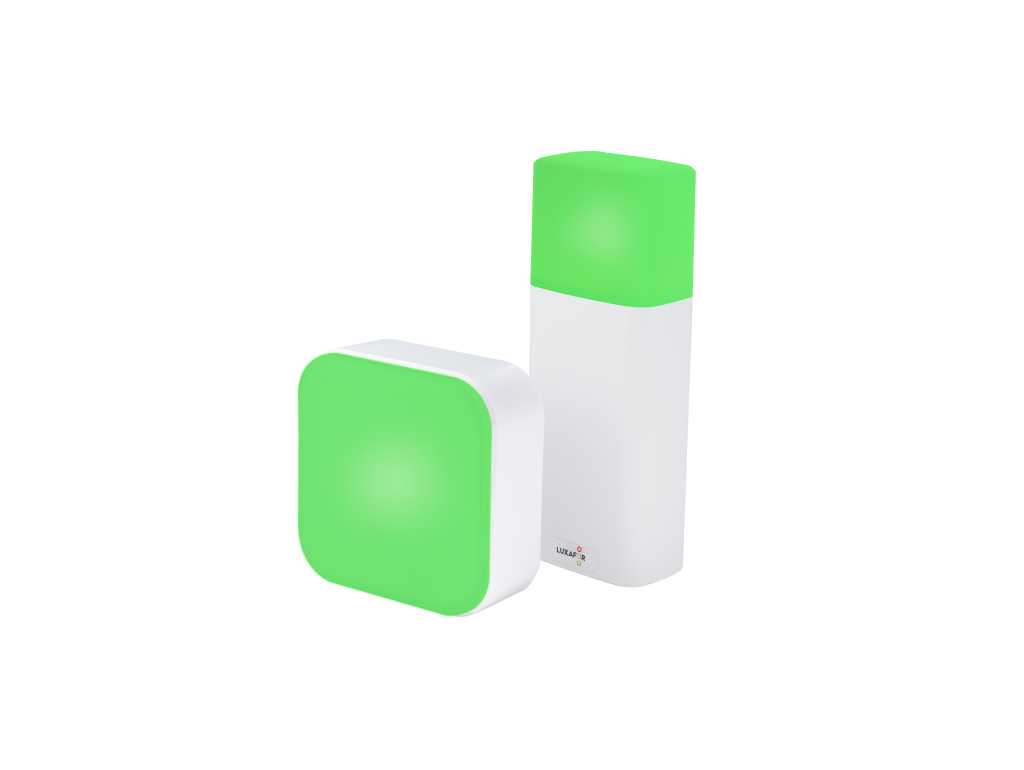
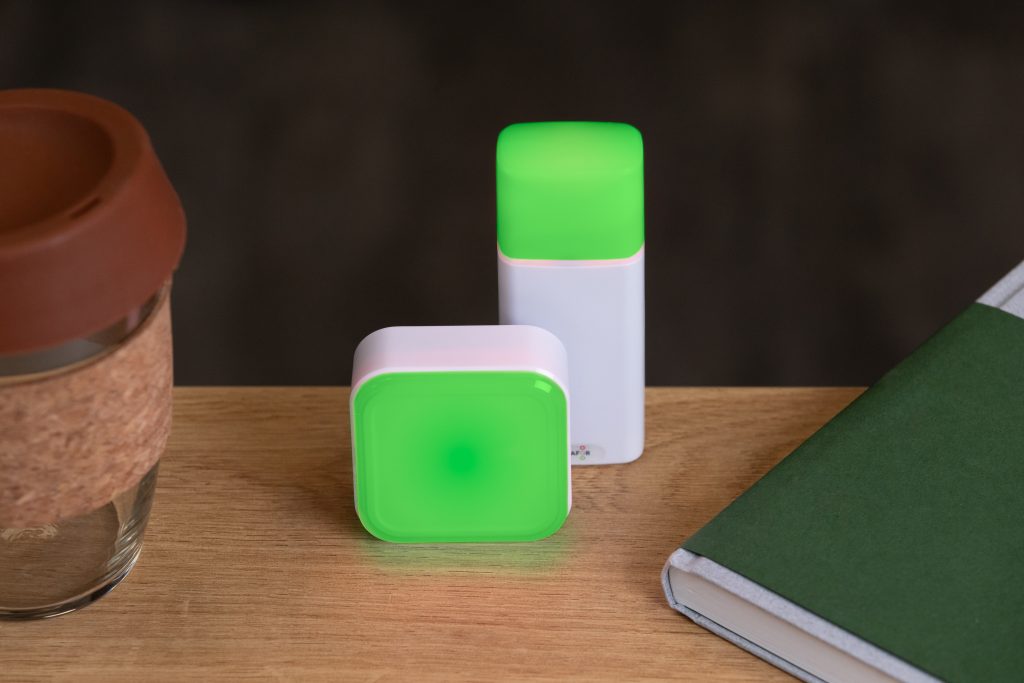
- Luxafor Cube is a light that is self-operated and controlled by touch which is great for quick or manual signaling.
- The Luxafor Switch and Software Suite provide functionalities for automation, scheduling, and integration with communication platforms including the likes of Microsoft Teams, Slack, and Zoom.
Each of the devices encompasses color mapping, access to API, and process automation via Zapier, IFTTT, or direct integrations. These solutions transform the presence system that is consistent and reduce meeting fatigue while increasing the effectiveness and continuity of the teams besides the fact that they are already doing so.
Best Practices for Setting Status with Luxafor
Most importantly, it is necessary to assemble up your colleagues and set the working hours and the schedule which all of you can work on together. While discussing the most suitable mode of working, bear in mind not only the needs of the team but also your own. When it comes to meeting individual preferences and groups, flexibility is the word.
Setting limits might not be your style, but that’s perfectly fine. It is a pity that we have been conditioned to let others control our time. Lead through your actions to slowly show the asynchronous style.
To make proper use of Luxafor light for Zoom at work, you need to establish habits that are constant and visible. These habits will not only help you but also your colleagues to work together without any sort of hassle. The coming recommended practices will ensure that your light is an accurate representation of your presence and will direct a disciplined, courteous flow of work. See you.
1. Define Clear Color Meanings
Start by developing a common color palette that is simple yet shared among your group. This eliminates confusion and makes it easy for everyone to recognize the meaning of each color instantly.
A proposed configuration is as follows:
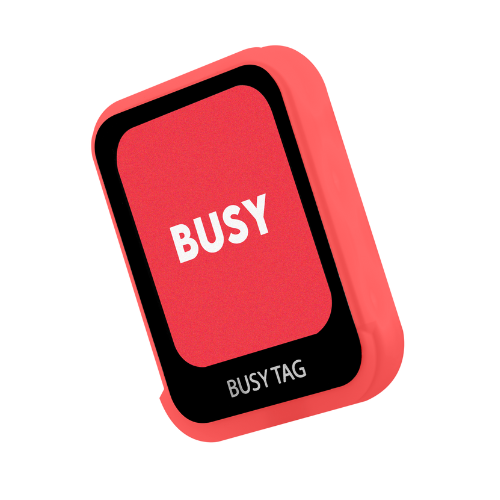
- Busy/Deep Work: No interruptions; only in emergencies, to be disturbed.
- In a Call/Meeting: Not available for a short period but might be able to check messages.
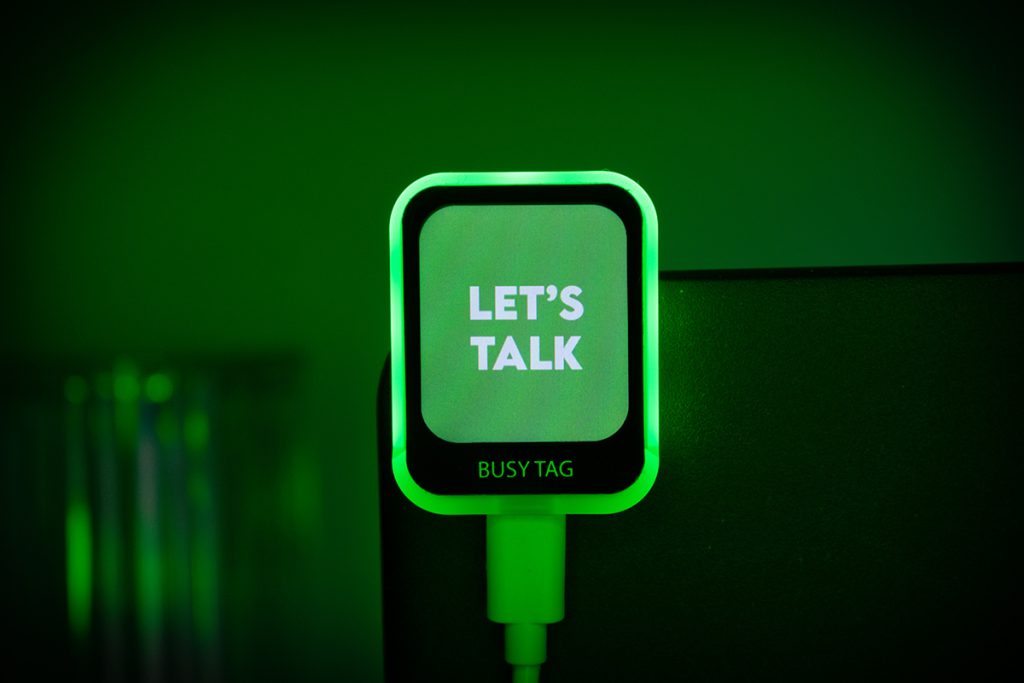
- Available: Ready for short questions or collaboration.
- Away/Break: I have gone out and I am not working anymore.
Tips: Keep the consistency throughout the tools (for instance, synchronize your Luxafor light with your Microsoft Teams or Slack presence).
Pick bold colors that are highly visible; soft tints might cause misreads in the areas where colors are shared.
2. Automate Where Possible
In case your device supports software integration or application connection, automation is there to help you keep your status right all the time as well as avoid unnecessary meetings and without much effort.
The following tasks can be automated:
- While on a call, change the color of your light to be the same as the application you are using; for instance, Teams, Zoom, or Google Meet.
- Make use of your calendar to create triggers that will turn your light on automatically during the times you have scheduled for focus or meetings.
- Link your light with task boards, email notifications, and workflow tools using Zapier, IFTTT, or webhooks.
- Let the in-built timers or focus modes change your status automatically between deep work and breaks.
Why this matters: Automation is like a frictionless slide. It means your status will always be in sync with your actual activities even if you are too busy to change it manually, and it establishes trust in team communication.
3. Be Intentional with Manual Use
If your set-up does not need the software or you are a manual control lover, then make your light adjustment a part of your work routine.
Good practices:
- When you are about to do some intensive or very technical work, use Busy.
- At the moment you are ready to collaborate or respond to queries, set your status to Available.
Pro tip: Placing your light in an easily accessible or visible spot is a good idea; the easier it is to use, the more you will use it.
Integration with Slack, MS Teams, Zoom
Luxafor’s integration with Slack, Microsoft Teams, and Zoom not only enhances digital presence but also communicates it through unmistakable real-world signals. In the case of Microsoft Teams, for example, the visual availability indicator automatically changes to the color that indicates your availability, thus turning red during calls or “Do Not Disturb,” and green when you are free, which ensures that hybrid teams are aligned without any manual adjustments.
Luxafor employs either Zapier or webhooks in Slack to react to the activity of the channel, mentions, and specific words. It has the ability to either pulse or switch colors to highlight important signals, thereby converting the flow of communication into a very subtle, ambient awareness system.
Luxafor light for Zoom changes instantly, turning red when one enters a meeting and green when it is done, plus there is also a choice of a pre-alert before sessions. Luxafor bridges the gap between digital activity and physical space across different platforms, thus reducing interruptions and providing clear visibility of who is busy, available, or in focus mode.
Final Thoughts
The exhaustion from meetings is often caused by disjointed communication systems, unclear signals of people being available, and constant disturbances from digital channels. The use of Luxafor throughout the teams facilitates the adoption of organized focus time and the practice of asynchronous cooperation.
Give your employees the Luxafor professional range of remote meeting solutions that are made for easy integration with the corporate systems. Check out Luxafor products tailored for business.
Show your colleagues when you're busy!
How Luxafor Can Help Reduce Meeting Fatigue
Tags
Archives
- March 2026
- January 2026
- December 2025
- November 2025
- October 2025
- September 2025
- August 2025
- July 2025
- June 2025
- May 2025
- February 2025
- January 2025
- December 2024
- November 2024
- October 2024
- September 2024
- August 2024
- July 2024
- June 2024
- May 2024
- April 2024
- March 2024
- February 2024
- January 2024
- December 2023
- November 2023
- October 2023
- September 2023
- August 2023
- July 2023
- June 2023
- May 2023
- April 2023
- March 2023
- February 2023
- January 2023
- December 2022
- November 2022
- October 2022
- September 2022
- August 2022
- July 2022
- June 2022
- May 2022
- April 2022
- March 2022
- February 2022
- January 2022
- December 2021
- November 2021
- October 2021
- September 2021
- August 2021
- July 2021
- June 2021
- May 2021
- April 2021
- March 2021
- February 2021
- January 2021
- December 2020
- November 2020
- October 2020
- September 2020
- August 2020
- July 2020
- June 2020
- May 2020
- April 2020
- March 2020
- December 2019
- November 2019
- October 2019
- September 2019
- August 2019
- July 2019
- April 2019
- March 2019
- January 2019
- December 2018
- November 2018
- October 2018
- September 2018
- August 2018
- July 2018
- June 2018
- August 2017
- May 2017
- April 2017
- February 2017
- January 2017
- November 2016
- October 2016
- September 2016
- August 2016
- July 2016
- June 2016
- May 2016
- April 2016
- March 2016
- February 2016
- January 2016