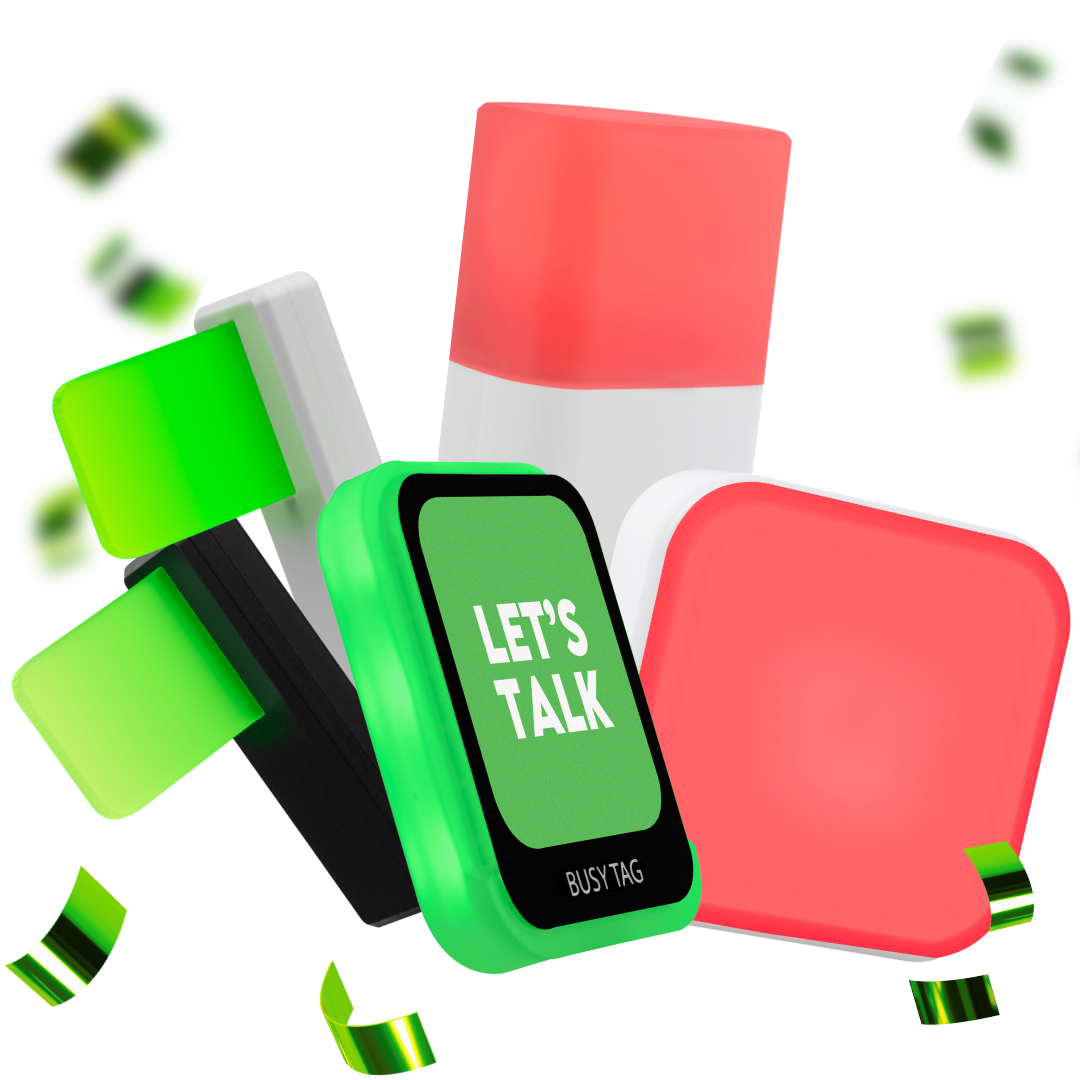
Luxafor Cube Explained: A Smart Light for Productivity and Team Coordination

Image from Pexels
An intelligent building's smart building controls include smart lightning. This teamwork enhancer operates by determining the ideal lighting conditions for a particular area and then making adjustments to reach those conditions. Smart lighting employs artificial intelligence and machine learning to record user preferences and typical responses to environmental changes, like dwindling natural light, or the reverse, in addition to real-time data gathered by Internet of Things (IoT) sensors. Then, using this data, it builds automations that respond to evolving needs without requiring human involvement.
According to a University of California research, workplace disruptions have a significant impact on employees' productivity. Because it takes an average worker roughly twenty-five minutes to resume work after being interrupted sixteen times in an eight-hour day, The Guardian even calculated that you might as well stay in bed. As a result, we developed the Luxafor Cube to address this issue that people in open offices and co-working environments so commonly encounter.
What is Luxafor Cube?
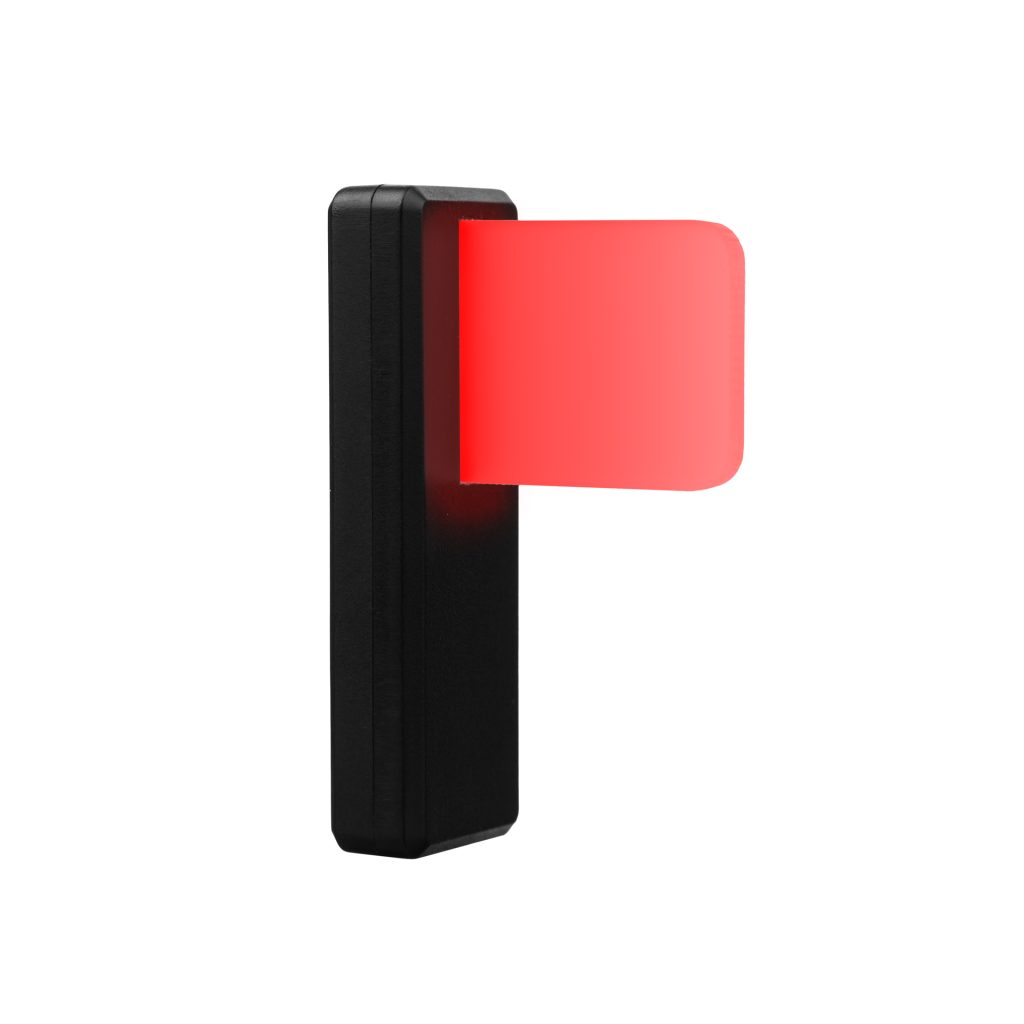
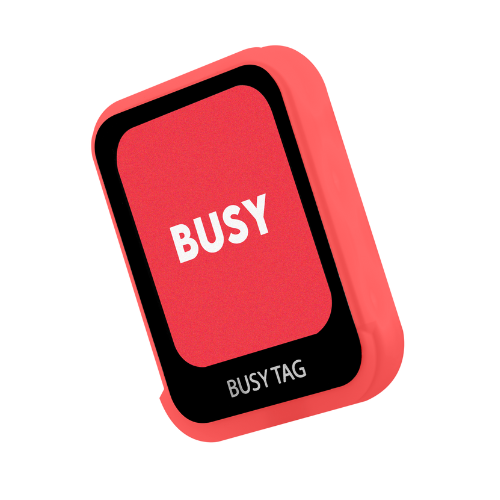
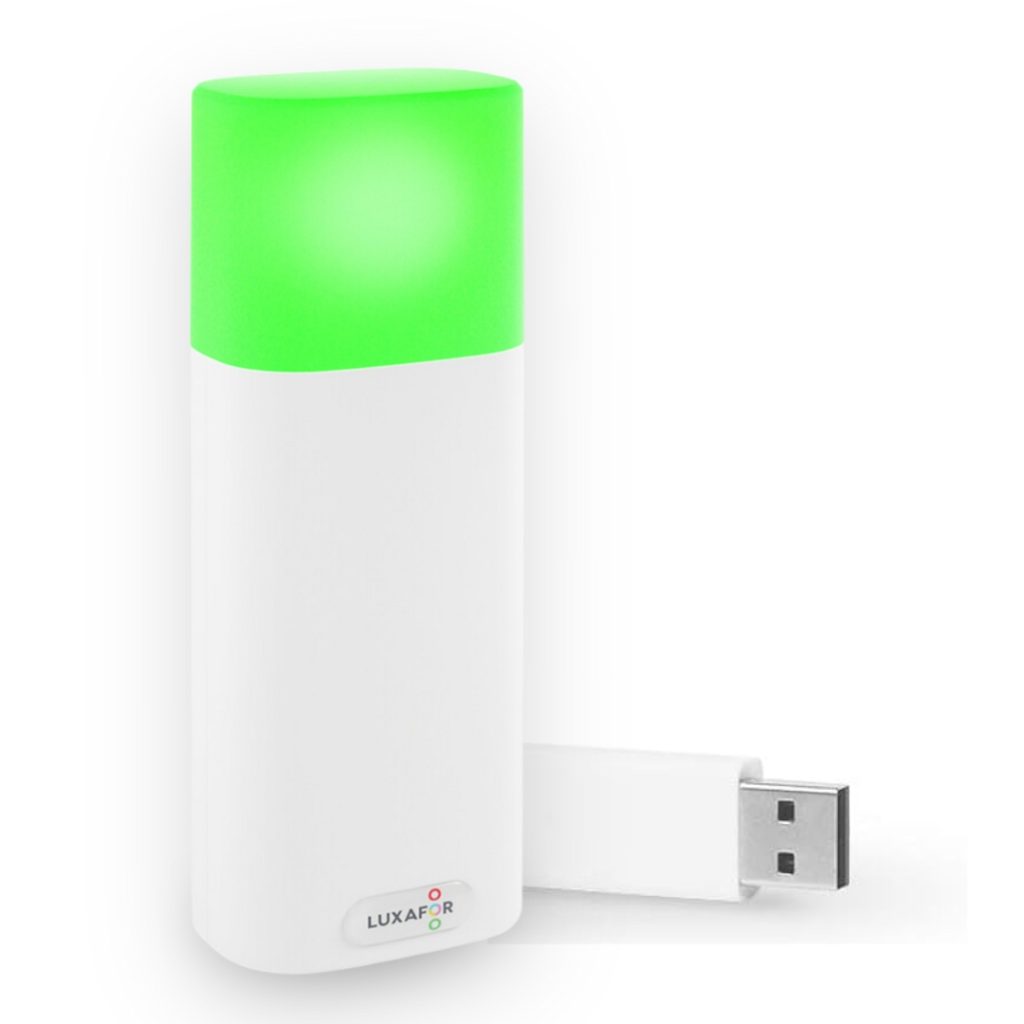
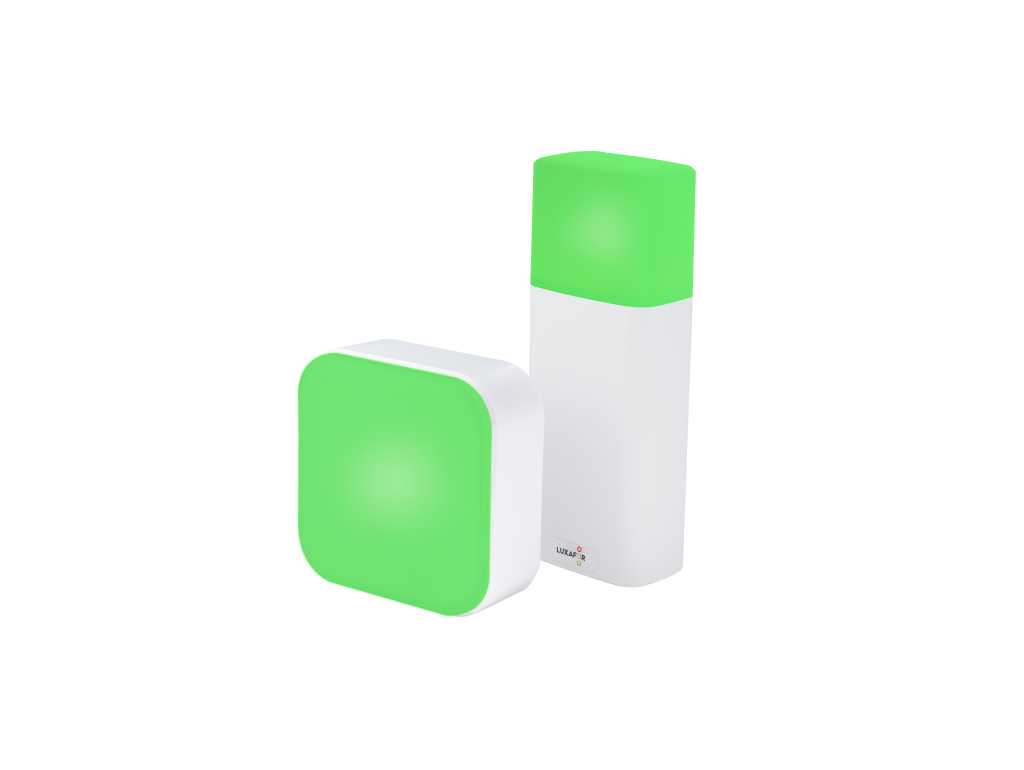
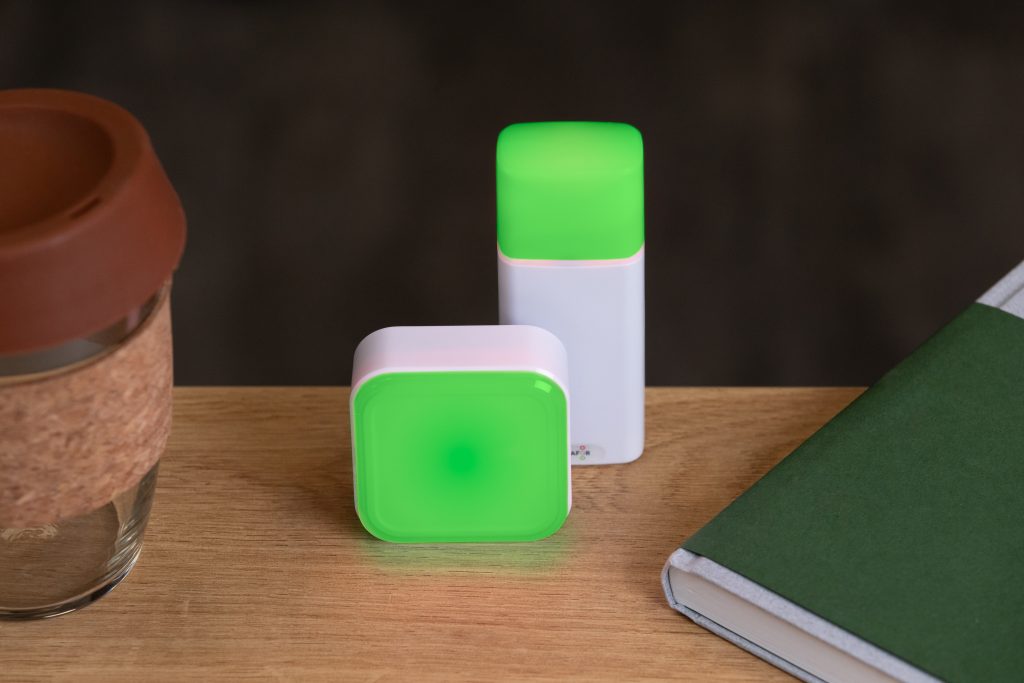
Since the Cube is wireless, no software is required to operate it. Its internal battery needs to be replenished on a regular basis. Unlike Luxafor, Flag does not make use of Luxafor software. It can be used to tell people about their availability or the availability of locations, such as conference and meeting rooms, it is wireless and controlled by a remote. Red, Green, Yellow, and Blue are the four preset color modes that are unchangeable. The Cube is positioned sideways to alter its colors.
The Luxafor Cube 2, which uses simple rotation-based controls to show availability, is built for workspaces and conference spaces. This is crucial for businesses with more stringent internal security policies, as they could forbid connecting external devices or even installing third-party software. The newest device satisfies consumers’ desire for USB-C connectivity while resolving the focus issues in hybrid work situations.
Main Features
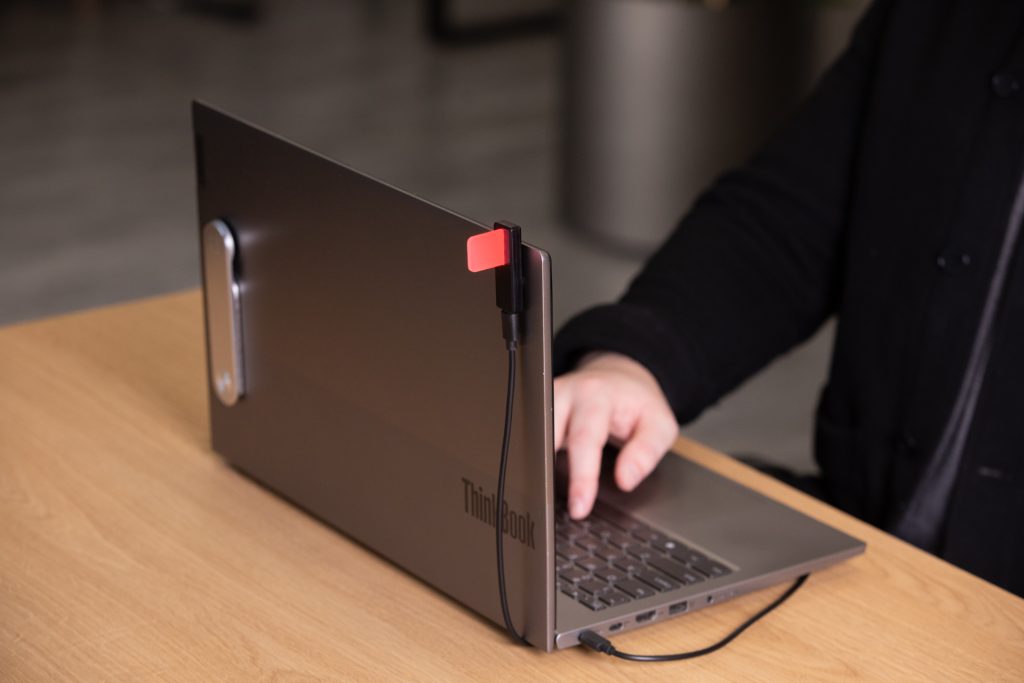
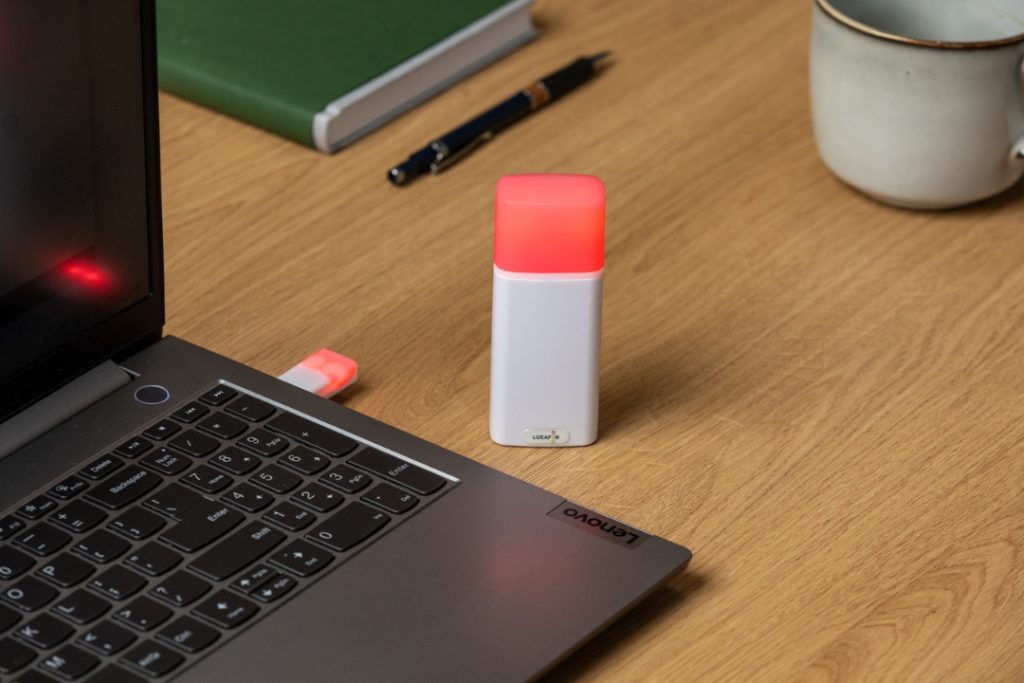
Place it on a desk or use the accompanying magnet to secure it to any surface outside the area where you are working. In no time, create a space free from distractions. By rapidly expressing whether you are occupied or not, you can reduce distractions and improve your focus.
By offering a solution that blends in with any interior style and is visible from a distance, the futuristic design simplifies your task. By taking back control of their distractions, hybrid workers can lower stress levels and enhance their relationships.
Here are the key specifications of the product:
- Dimensions: 52 x 52 x 27 mm (2.05 x 2.05 x 1.06″)
- Weight: 56g
- Light: 6 x RGB LEDs
- Built-in 1200 mAh battery
Charging:
- MicroUSB cable for Cube
- USB-C cable for Cube 2
Average working time: 66 hours, of which 46 hours are spent continuously using the yellow color (58 hours in Eco mode) and 73 hours are spent continuously using the green, red, or blue colors (90 hours in Eco mode). The Cube offers considerable energy savings since smart lighting responds automatically to shifting environmental conditions and intensifies as the amount of natural light outdoors decreases.
Eco Mode
You can save a few hours of electricity by switching to Eco Mode if you and your coworkers don’t mind the light signal pulsing rather than remaining static. To get the most battery life on a single charge, unplug the Dot unit from the Power Bank when not in use. The Dot will use the energy to make sure it can be used the next time the Cube is available for connection if the gadget is turned off but the Dot is still connected to the Power Bank.
You can save a few hours of electricity by switching to Eco Mode if you and your coworkers don’t mind the light signal pulsing rather than remaining static. To get the most battery life on a single charge, unplug the Dot unit from the Power Bank when not in use. The Dot will use the energy to make sure it can be used the next time the Cube is available for connection if the gadget is turned off but the Dot is still connected to the Power Bank.
Use Cases in Remote and Hybrid Teams
For a hybrid workplace to be effective, technology is necessary. To ensure that workers are productive wherever they are, you must have the appropriate hybrid working tools, such as Luxafor Cube, in place. It is imperative that you establish unambiguous policies and processes and ensure that all parties are in agreement. Therefore, it’s critical to have a visual communication plan in place so that workers can stay in touch wherever they are.
In a hybrid workplace, it’s also critical to have programs and technologies that enhance employee engagement. Tools that keep workers connected and involved in their work are essential. This covers resources including productivity software, social networking, and a team coordination tool. You can establish a peaceful hybrid workplace where staff members can work and interact effectively from any workspace by utilizing the Cube (versions 1-2).
Optimized Status Synchronization Across Hybrid Teams
For hybrid teams operating between physical offices and remote environments, the Luxafor Cube (versions 1–2) provides a unified presence management solution. The Cube’s cross-platform compatibility allows integration with collaboration tools such as Microsoft Teams and Google Workspace. This enables automatic synchronization of availability status.
For example, turning red during calls or focus sessions and green when the user is available. In technical terms, the Cube functions as a real-time hardware indicator, pulling API-based presence data from office communication software and displaying it through a multi-LED interface. This ensures that both in-office and remote team members have consistent cues about one another’s status, eliminating ambiguity in distributed collaboration.
Enhanced Focus and Reduced Cognitive Switching
Additionally, the Luxafor Cube supports deep work through programmable automation that aligns with user-defined triggers. Developers and technical professionals can configure the device to switch colors patterns based on active applications or coding environments.
For example, displaying red during compilation processes, and blue when monitoring system performance. This reduces the need for manual status updates, minimizing cognitive load and context-switching overhead. In hybrid settings, where asynchronous workflows dominate, its automated signaling enables smoother transitions between collaboration and concentration modes, improving both task continuity and operational throughput.
How to Operate Luxafor Cube
When charging starts, Luxafor Cube will turn on right away. As soon as the gadget is turned on, the battery level is displayed. The Luxafor Switch Cube device will function normally while charging, so you can use it without risk. Holding the Cube device face-up allows you to check its battery level. The Cube will then become blue, and its power level will be shown by the number of LEDs that are shining overall.
Here is an instruction:
- Plug the Luxafor Dot unit into the Power Bank when both the Cube and the Power Bank unit have reached full charge.
- Attach the magnet to the surface where you want to put the Dot with the Power Bank after removing the plastic from the double-sided tape on it.
- To activate the Luxafor Cube unit, briefly press the button on the rear of the gadget.
The nearest Luxafor Dot device will then be immediately connected to the Cube unit. Connecting Cube to an additional Luxafor Dot device:
- Device version that begins with 01 or without version number (the version number is located next to the bar code on the carton container). Press the tiny black button on the back of the Cube unit for a brief moment; a green running pattern will appear.
- The version that begins with 03 (the version number is located next to the bar code on the carton box). For ten seconds, press and hold the button on the back of the Cube unit; a green running pattern will appear.
By arranging the Cube sideways, you can remotely change the unit’s color. To switch off the Cube:
- Version 1. Hold down the button on the rear. When the color purple is indicated, release.
- Version 3. Press the button located at the rear of the Cube device.
The Cube may not switch on right away when the charging process begins if the battery is sufficiently low. After a brief period of charging, it will switch on when it has sufficient power. Only one Dot can be connected to by the Cube at once.
Note: During the Scanning or Connecting Regimes, the Cube will shut off after one minute if it cannot locate any Luxafor Dot devices in the area. Press the button on the Cube’s back to turn it back on. Wait a minute in the Scanning or Connecting Regimes to locate the closest unit.
Why Choose Cube Over Other Solutions
While other products, like the Luxafor Flag, Bluetooth, and Orb lights integrate with software platforms for real-time status synchronization, and the Luxafor Switch, Smart Button, and Pomodoro Timer provide additional workflow automation and focus management tools, the Cube distinguishes itself through its fully offline, rotation-based operation. This makes it suitable for high-security environments where software networked devices are not permitted.
Compare:
- Operation: Works by simple rotation with no software or drivers required, unlike USB or Bluetooth, a wireless busy light that depend on integrations.
- Responsiveness: Provides immediate, tactile color changes without lag or network delay.
- Compatibility: Platform-independent and usable across Windows, macOS, Linux, and air-gapped setups.
In summary, the Luxafor Cube integrates simplicity, reliability, and security, complementing the broader Luxafor ecosystem of productivity and presence solutions. We offer a plug-and-play visual communication tool for hybrid teams and privacy-focused organizations.
Hardware-Centric Reliability and Security
Unlike software-based presence indicators that depend on continuous network connectivity, background services, or integrations with third-party APIs, the Luxafor Cube functions as a self-contained, hardware-driven signaling system. It requires no software installation or user login, which makes it ideal for corporate environments with strict IT or cybersecurity policies.
Low Latency, Intuitive Operation, and Universal Compatibility
The Cube delivers instant, tactile control through its rotation-based color switching mechanism, ensuring zero latency between user intent and visual output. Competing solutions, such as Bluetooth or USB-connected busy lights, often experience response lag or rely on proprietary software that may not be supported across all operating systems.
Because the Cube’s operation is entirely independent of the stand-alone notification device, it provides consistent behavior across Windows, macOS, and Linux environments, as well as in air-gapped or restricted networks. This makes it particularly suitable for professionals, secure offices, and hybrid setups where reliability and universality are essential.
Energy Efficiency and Sustainability
Competing visual indicators often require continuous USB power or frequent recharging due to higher LED power consumption and lack of energy-saving features. The Cube’s detachable Dot and Power Bank architecture allows independent placement and efficient use of stored charge, minimizing downtime. Its hardware-only design eliminates the need for firmware updates or software maintenance, reducing total lifecycle energy and IT overhead.
Final Thoughts
The Luxafor Cube delivers a simple, reliable, and secure way to manage focus and availability in hybrid and high-security workplaces. Its offline, rotation-based design ensures instant visual communication with minimal setup or maintenance. Complementing the broader Luxafor ecosystem, the Cube helps teams reduce distractions and stay productive.
Take control of your workspace. Get your Luxafor Cube today and create a distraction-free environment.
Show your colleagues when you're busy!
Luxafor Cube Explained: A Smart Light for Productivity and Team Coordination
Tags
Archives
- March 2026
- January 2026
- December 2025
- November 2025
- October 2025
- September 2025
- August 2025
- July 2025
- June 2025
- May 2025
- February 2025
- January 2025
- December 2024
- November 2024
- October 2024
- September 2024
- August 2024
- July 2024
- June 2024
- May 2024
- April 2024
- March 2024
- February 2024
- January 2024
- December 2023
- November 2023
- October 2023
- September 2023
- August 2023
- July 2023
- June 2023
- May 2023
- April 2023
- March 2023
- February 2023
- January 2023
- December 2022
- November 2022
- October 2022
- September 2022
- August 2022
- July 2022
- June 2022
- May 2022
- April 2022
- March 2022
- February 2022
- January 2022
- December 2021
- November 2021
- October 2021
- September 2021
- August 2021
- July 2021
- June 2021
- May 2021
- April 2021
- March 2021
- February 2021
- January 2021
- December 2020
- November 2020
- October 2020
- September 2020
- August 2020
- July 2020
- June 2020
- May 2020
- April 2020
- March 2020
- December 2019
- November 2019
- October 2019
- September 2019
- August 2019
- July 2019
- April 2019
- March 2019
- January 2019
- December 2018
- November 2018
- October 2018
- September 2018
- August 2018
- July 2018
- June 2018
- August 2017
- May 2017
- April 2017
- February 2017
- January 2017
- November 2016
- October 2016
- September 2016
- August 2016
- July 2016
- June 2016
- May 2016
- April 2016
- March 2016
- February 2016
- January 2016