5 Ways How Productivity Gurus Use Zapier and Luxafor Smart Tools for Maximum Efficiency

When it comes to your work you probably already use a couple of apps and services on a daily basis. Whether you’re looking to optimize your digital footprint or simply streamline your workflow for maximum productivity, automation is a key thing to consider.
Automation is one of the latest trends in the modern workspace, and for a reason. And while you can figure out how to automate your workflow on your own, there is a much easier alternative, and it’s called Zapier.
Together with Luxafor smart devices, they become a digital productivity powerhouse, a superpower quite possibly you never knew you needed.
What does Zapier do?
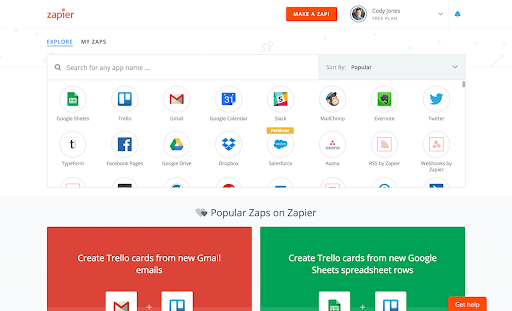
Source: Zapier
Zapier is essentially the bridge between any digital workplace tools, allowing seamless integration between each and every app or software you could imagine. Asana, Slack, Google Calendar, Trello, Miro, or even your company’s own email software — you name it! Zapier allows integration to more than 2,000 web services.
These automated connections called Zaps help to automate your day-to-day tasks and build workflows between apps that otherwise wouldn’t be possible. And what’s even better — you can set them up in just a few minutes with no coding skills at all!
All that is needed is to pick a pre-made template from thousands of options, a few clicks, and voilà! You have a Zap that offers tailored, automated workflow solutions. You also get the choice of streamlining processes by automating several tasks using a single trigger so that you can save valuable time.
The Coveted Zapier/Luxafor Connection
Luxafor has earned itself a reputation as a leader in producing high-end productivity tools. Zapier and Luxafor have been known to work together to help their customers achieve peak performance at work.
How does it work?
In short, Zapier lets you connect your Luxafor device to various apps of your choice, including calendar apps, email apps, video call apps, voice assistants, e-commerce platforms, and even social media platforms.
It helps you move data between your apps, so you can automate your work to free up some time for yourself. At the end of the automation, the information that you need can be signaled through your Luxafor device. Meaning that you can notify yourself and others with a custom LED signal whenever automation is triggered or complete, leaving you with extra time and a smoother workflow.
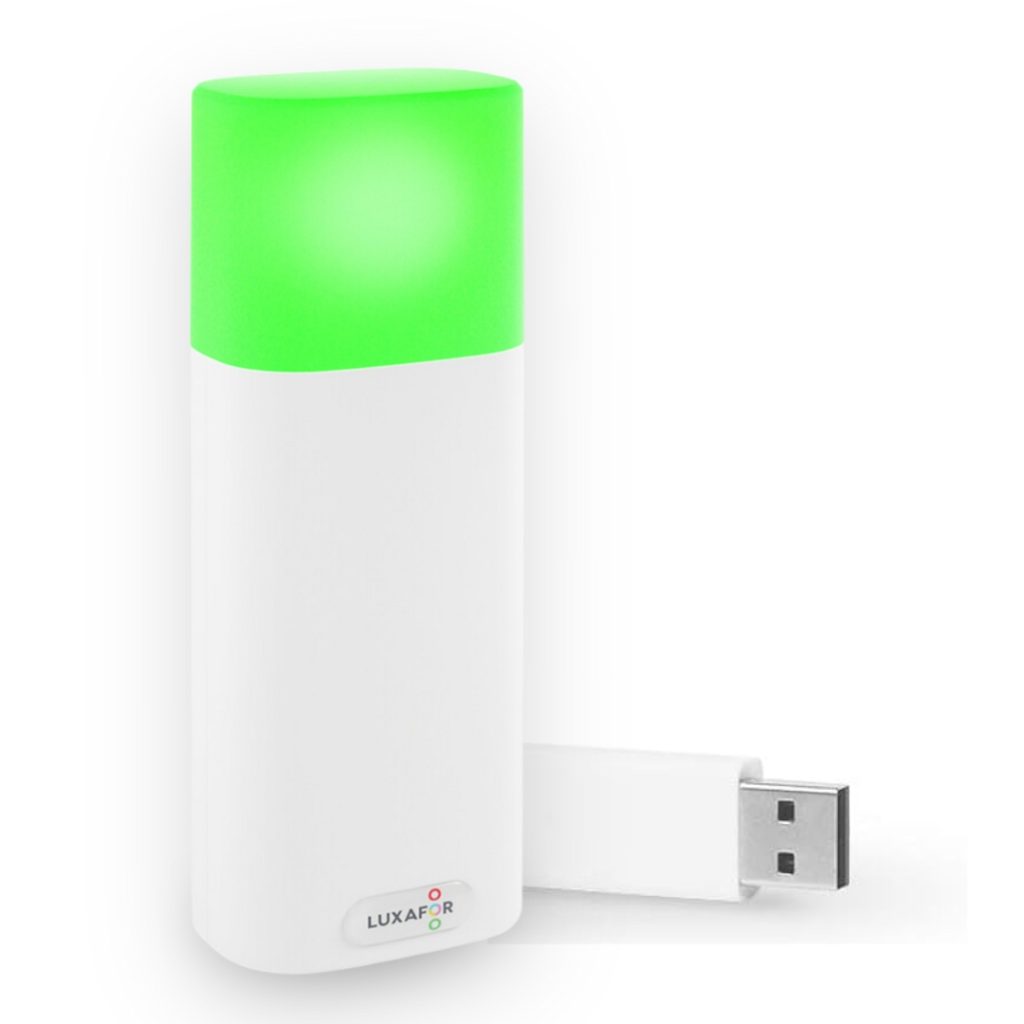
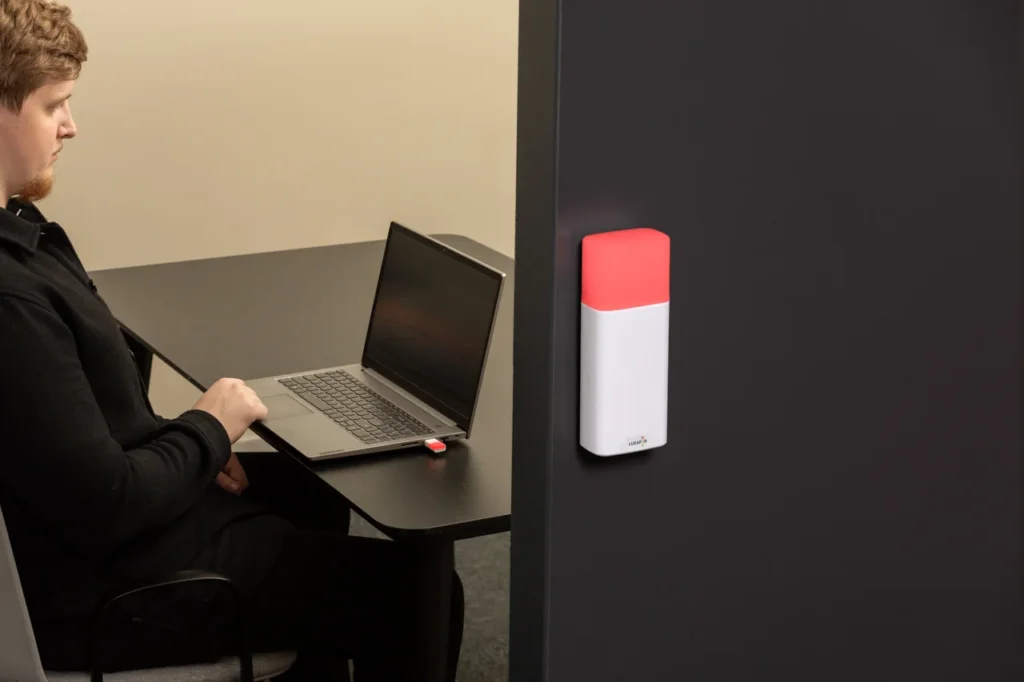
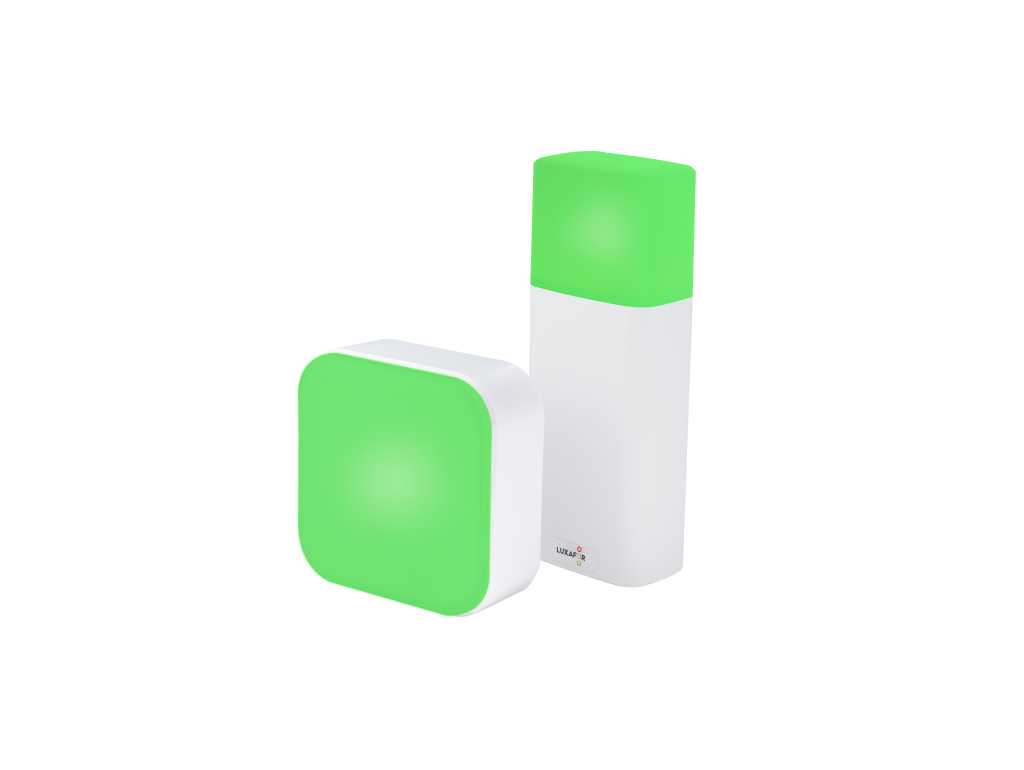
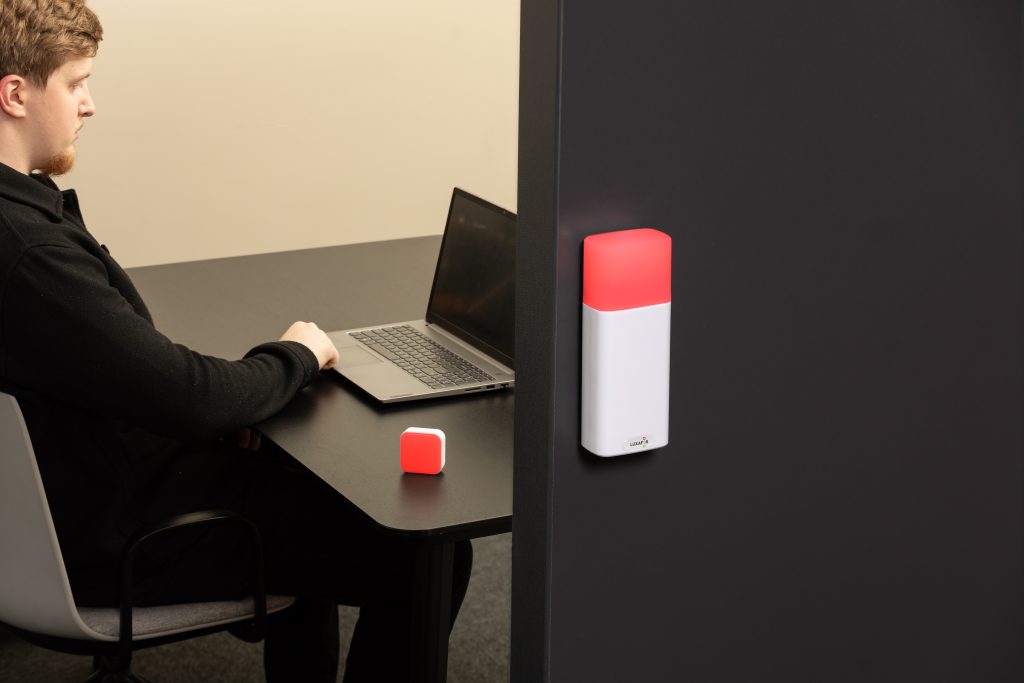
Once again — integrating Zapier with Luxafor software is super simple, as no coding is required, and you can make the most of Zapier even just using the free version. Our top 3 recommended Luxafor devices for Zapier + Luxafor connection are:
There is no doubt that Zapier is the must-have app for connecting all your other apps and services. Let’s dig a bit deeper and explore several use cases of how Zapier and Luxafor integration helps to automate workflows and routine tasks for maximum productivity.
1. Be notified on what’s important and when it’s important
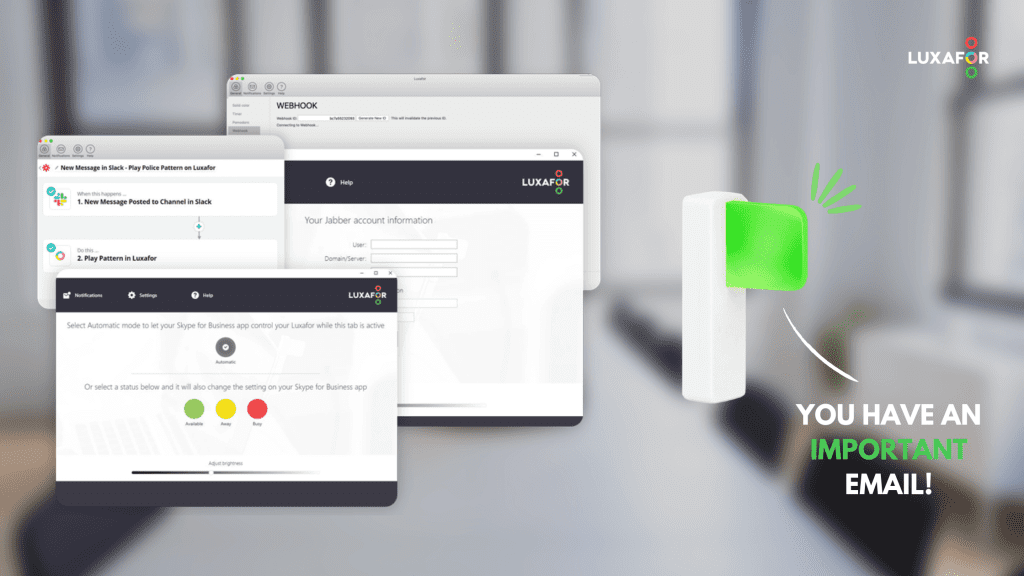
If you already use a team task management system like Basecamp, Asana, or Todoist, then you probably know the drill of delegating tasks and following up on them. Create a task, send it to your coworker via e-mail or Slack, and then follow up on them by constantly reminding yourself.
While most task management platforms have an in-built notification panel, experience shows that people rarely check notifications on platforms like Asana, if most communication happens via e-mail or Slack. Minutes, hours, and whole days are wasted on this back-and-forth communication, which could’ve happened in seconds if you know how to automate it.
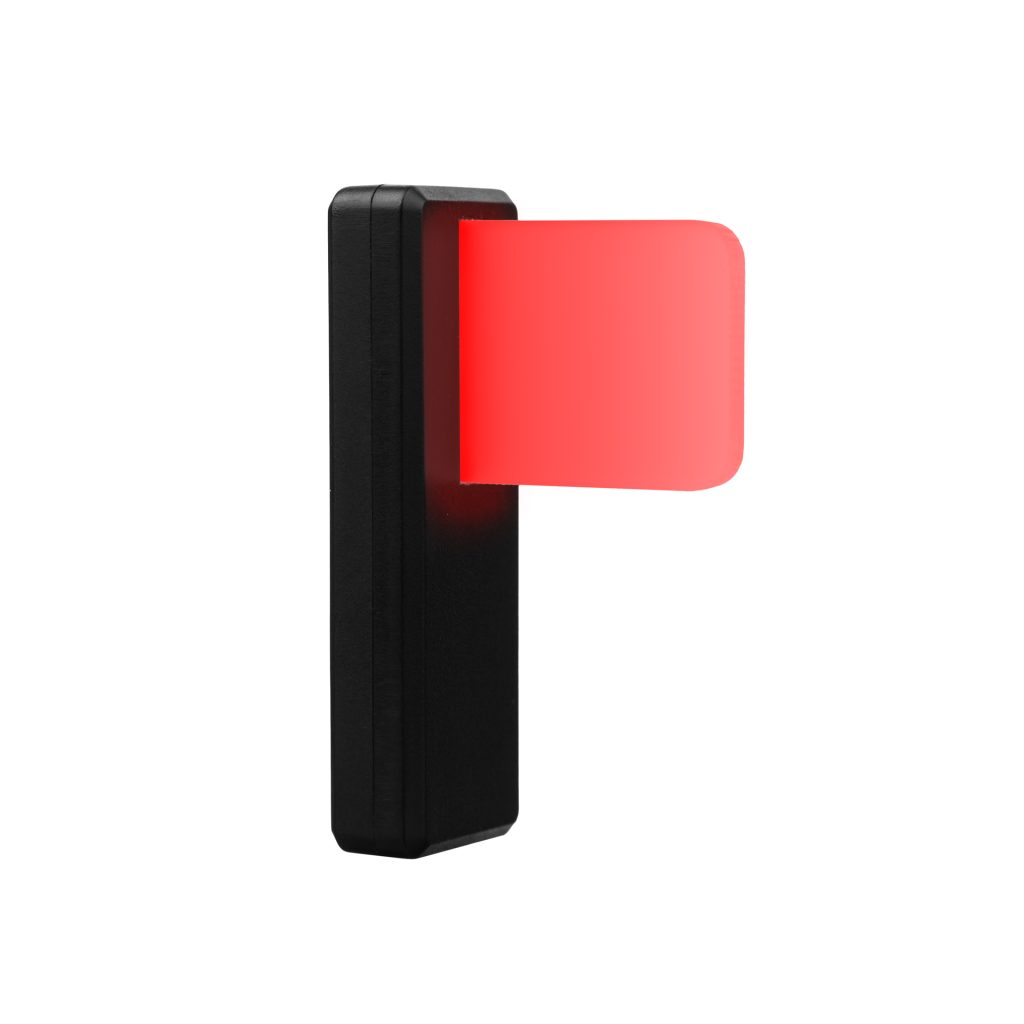
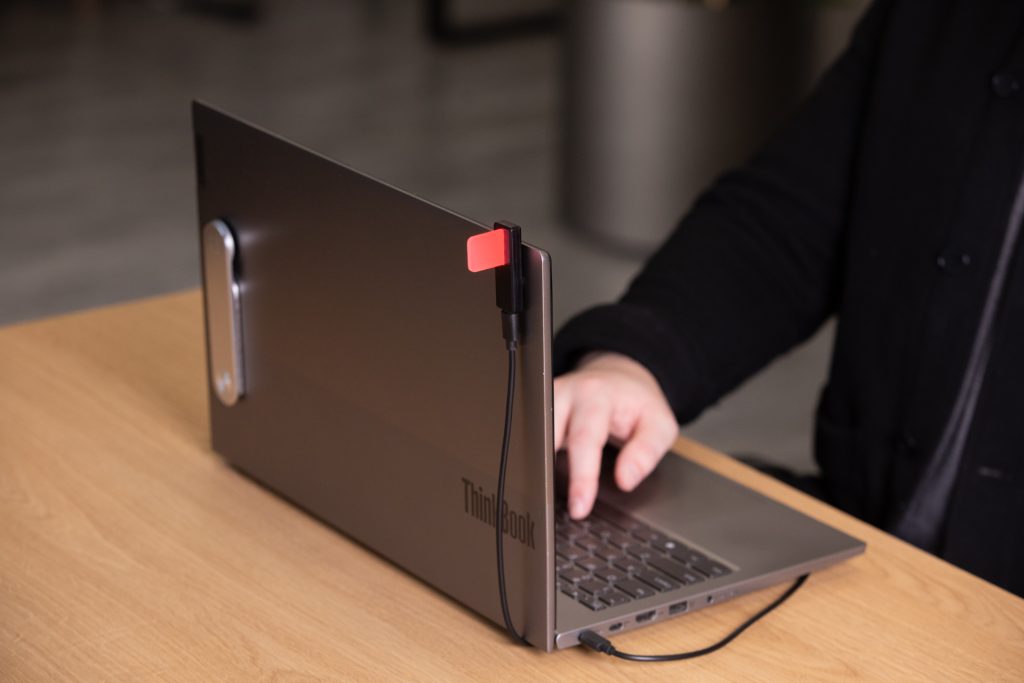
A good idea is to equip your team with Luxafor Flags and connect them with your favorite task management service through Zapier. Think about it – everyone gets automatically notified when a task has been assigned, a Trello card is updated, or when somebody leaves comments on the Basecamp project. Plus, these LED notifications really help to send a message in a non-intrusive way — no popups, no sounds, just a blink of your favorite color.
2. Get updates on essentials only

Source: Pexels
Ever experienced being super focused, eyes on the task, riding that flow, only to be interrupted by your coworkers rapidly messaging about something unrelated? As much as email & Slack have become staple tools for professional communication, they’re also among the most common workplace distractions.
Very often it’s not so much a question of breaching workplace etiquette, it’s rather your casual FOMO that gets you out of the flow and right into the notifications. And turning off all notifications just won’t do, because what if you miss something that’s truly important?
Simply set up your Luxafor Orb to flash a specific signal whenever a keyword, like “Urgent” or “ASAP” (or any other) appears in your emails or Slack. You can even connect it to your social media or any task management service through Zapier so that while you’re in the flow you are notified only of the things that truly matter.
3. Schedule time blocks dedicated to specific activities and set up automatic reminders

Source: Unsplash
What if there was a specific time when you checked your email, instead of every 20 minutes? Sounds crazy? It’s not. Julie Lee, managing director of Maxus Chicago reveals: “Each day, I set a time to check my email and address as much as I can. But I always set an end time, and stick to it.”
This is also called time blocking — the practice of dedicating specific times of the day for specific tasks so that you can stick to the plan and not be carried away by minor distractions. It’s essential for those people who constantly struggle to stay productive when there are so many things going on like back-and-forth email communication and other minor tasks spread out throughout the day. Simply chunk smaller tasks into one block so that you can fully dedicate your attention to them.
Once you’ve allocated time for your task via, for example, Google Calendar, you can set up your Luxafor Bluetooth to flash a specific color whenever it’s time to get down to it. Streamline it even further and let Zapier connect this automation to trigger a do not disturb mode on the platform of your choice. When configured with Zapier, Luxafor Bluetooth easily becomes your personal assistant that helps you achieve more work in less time!
4. Notify others on your availability, automatically
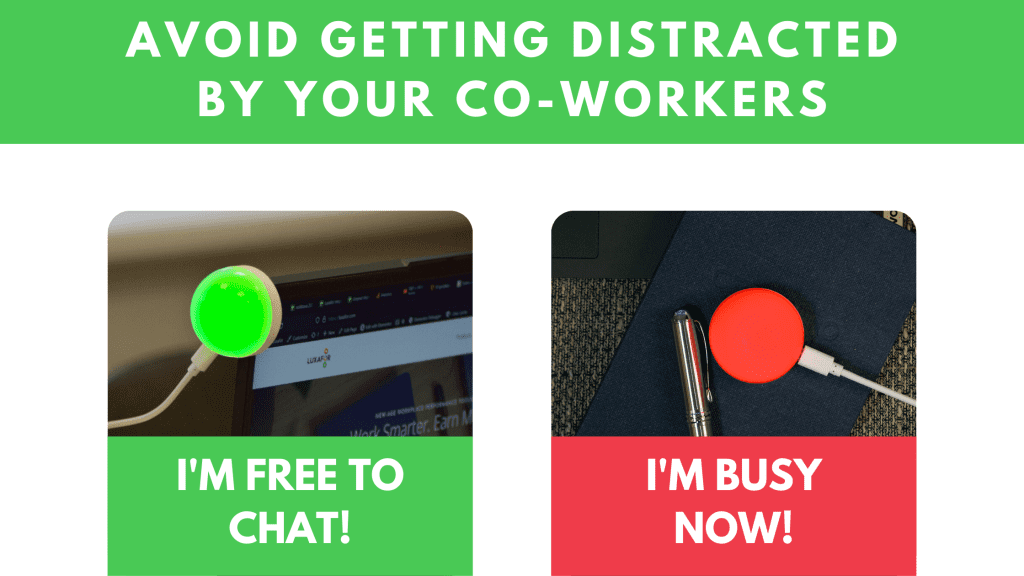
A fairly simple advice, but still worth reminding. If you don’t tell people that you’re busy, how are they to know you aren’t available for chitchat? A huge challenge of open offices is exactly this — coworkers not respecting each other’s boundaries simply because there is no way to signal them.
Luckily for every problem, there is a solution! Luxafor Orb is an availability indicator that lets your co-workers know when you are busy or available to interact with them. In the default mode, it simply flashes green when you are available and red when you are busy, so your co-workers know when to engage with you or not.
Just toggle your availability in Luxafor software with a click, and you’re sending a very clear message very effectively. You can also customize the LED lights to any other color or pattern if you’d like.
However, when you cross-integrate your task management and workplace tools with Zapier, Luxafor Bluetooth can automatically indicate your availability status. For example, if you use the time-blocking method for your productivity, all you have to do is trigger automation whenever your calendar event starts and your Luxafor device will automatically show your coworkers you’re currently working on a high-importance task.
5. Streamline your meeting routines

Meetings — one of the most valuable ways of wasting your company’s time. There’s no doubt they are essential to getting your team on board, but there are a few tips and tricks to make them really worth every cent of your time.
Sometimes the routine actions of meetings (like sending out invitations by email, sending out follow-up emails and minutes) take up a significant chunk of time. As a result, the tasks related to organizing the meeting add up to the time spent in the meeting.
To save yourself some time, you can set your Zaps to trigger a new Google Docs or an Evernote document, or a Miro board at the start of the meeting. Or set it up to send out an automated email to Google Calendar event attendees.
If you get an email prior to a meeting in Gmail with an agenda attached, Zapier can copy the attachment from that email to your Trello board while immediately alerting you in, say, Slack.
Finally, with the help of Luxafor devices, you can notify yourself and others with a custom LED signal whenever automation is triggered or complete, leaving you with extra time and a smoother workflow of a meeting. Especially if your meetings take place in Zoom or other virtual rooms, just think about it — now everyone knows who is attending a meeting and is currently unavailable!
Summary
To sum it up, Luxafor productivity tools are very versatile, especially when integrated with Zapier. They allow users to connect to thousands of productivity apps to make it easy to stay focused on the tasks at hand. All you need to do is to connect, customize and automate so you can have more time for what matters most.
When Luxafor tools are integrated with Zapier, workflows are centralized yet personalized to the needs of each employee. Plus, distractions are eliminated, deep work is promoted and workflows become more efficient. All but with a few clicks, your office becomes the workplace of the future.
LUXAFOR HELPS PEOPLE TO ACHIEVE THEIR GREATEST PRODUCTIVITY LEVELS WITH A WIDE VARIETY OF OFFICE PRODUCTS. LET’S BE PRODUCTIVE TOGETHER!
Do you want to build and maintain new habits? Get your free PDF version of the Don't Break The Chain calendar and start today!
Do you want to build and maintain new habits? Get your free PDF version of the Don't Break The Chain calendar and start today!
5 Ways How Productivity Gurus Use Zapier and Luxafor Smart Tools for Maximum Efficiency
Busy Tag – Your Digital Canvas
Tags
Archives
- June 2026
- May 2026
- March 2026
- January 2026
- December 2025
- November 2025
- October 2025
- September 2025
- August 2025
- July 2025
- June 2025
- May 2025
- February 2025
- January 2025
- December 2024
- November 2024
- October 2024
- September 2024
- August 2024
- July 2024
- June 2024
- May 2024
- April 2024
- March 2024
- February 2024
- January 2024
- December 2023
- November 2023
- October 2023
- September 2023
- August 2023
- July 2023
- June 2023
- May 2023
- April 2023
- March 2023
- February 2023
- January 2023
- December 2022
- November 2022
- October 2022
- September 2022
- August 2022
- July 2022
- June 2022
- May 2022
- April 2022
- March 2022
- February 2022
- January 2022
- December 2021
- November 2021
- October 2021
- September 2021
- August 2021
- July 2021
- June 2021
- May 2021
- April 2021
- March 2021
- February 2021
- January 2021
- December 2020
- November 2020
- October 2020
- September 2020
- August 2020
- July 2020
- June 2020
- May 2020
- April 2020
- March 2020
- December 2019
- November 2019
- October 2019
- September 2019
- August 2019
- July 2019
- April 2019
- March 2019
- January 2019
- December 2018
- November 2018
- October 2018
- September 2018
- August 2018
- July 2018
- June 2018
- August 2017
- May 2017
- April 2017
- February 2017
- January 2017
- November 2016
- October 2016
- September 2016
- August 2016
- July 2016
- June 2016
- May 2016
- April 2016
- March 2016
- February 2016
- January 2016