How to Use Luxafor Flag to Improve Productivity in Open Offices

Image from Pexels
Going "heads down" and finishing tasks can be somewhat challenging when working alongside coworkers in an open office setting. Even if you put on headphones and turn on music to block out background noise, your coworkers can still approach you and try to talk.
"Interruptions occur frequently." A typical office worker is actually interrupted every three minutes and five seconds, according to researchers from California. Over 155 disruptions each day could result from that! Regardless of the figure, you can see how disruptions swiftly deplete your most precious resource, time, which we have worked so hard to safeguard.
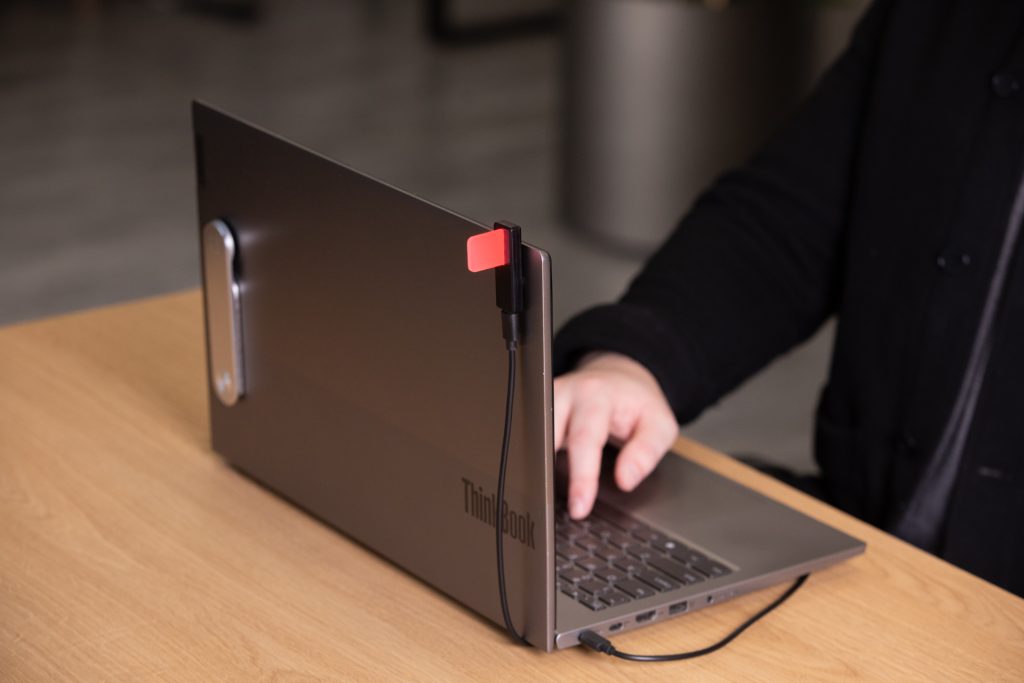
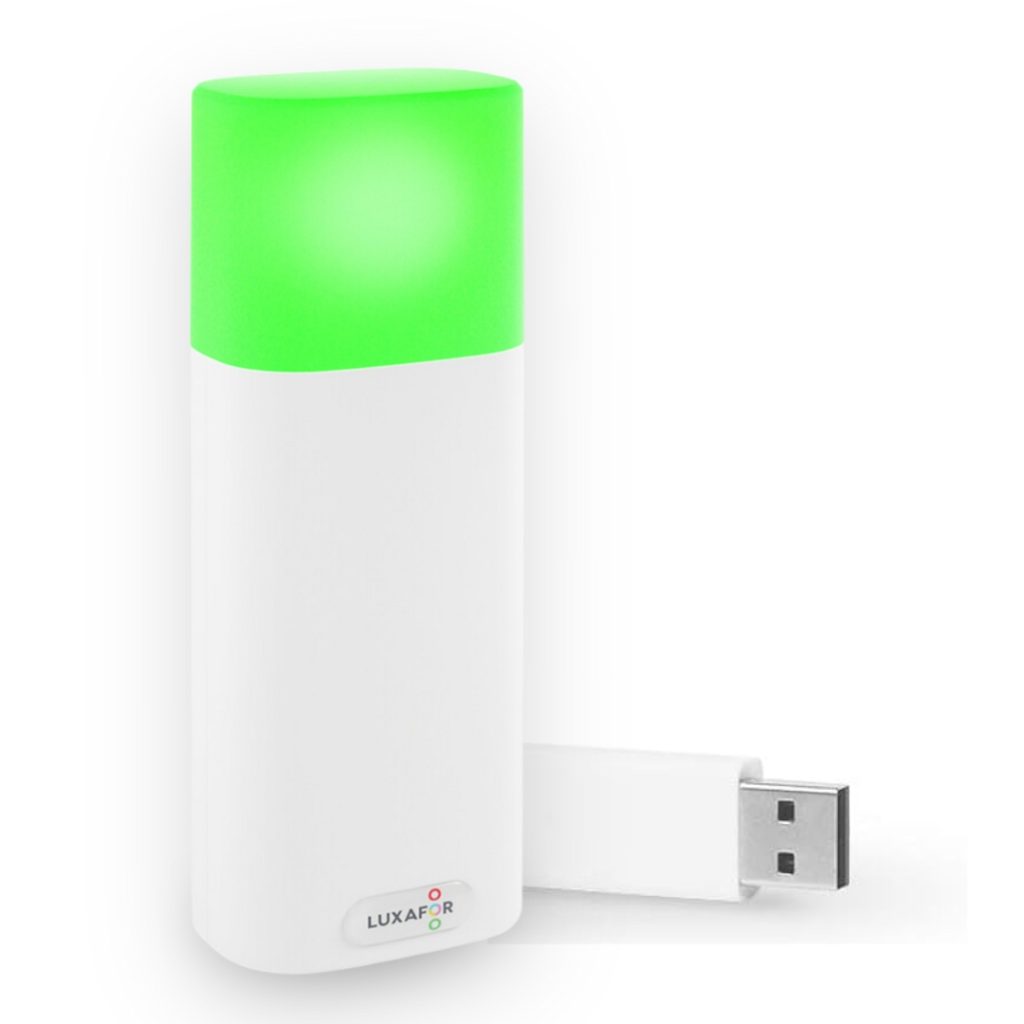
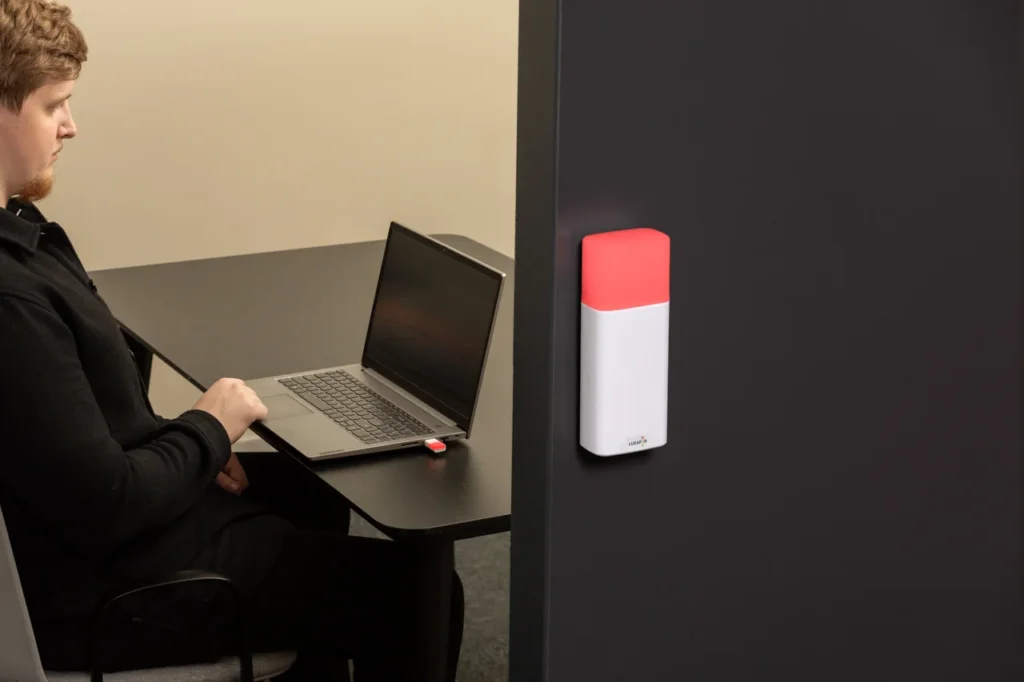
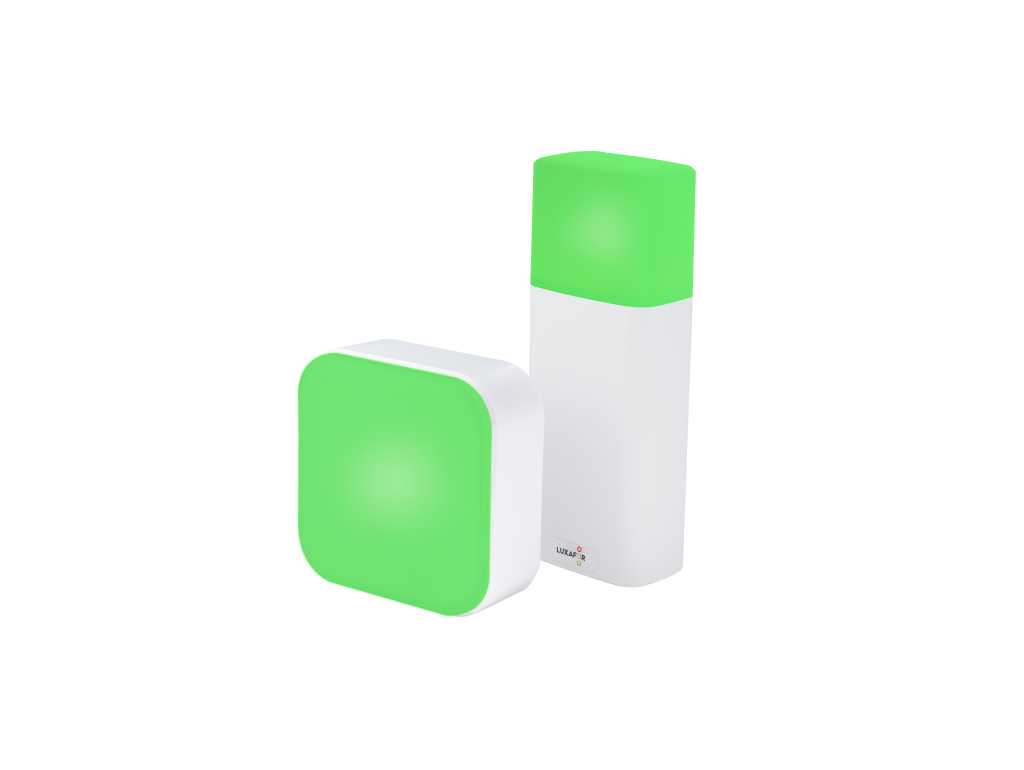
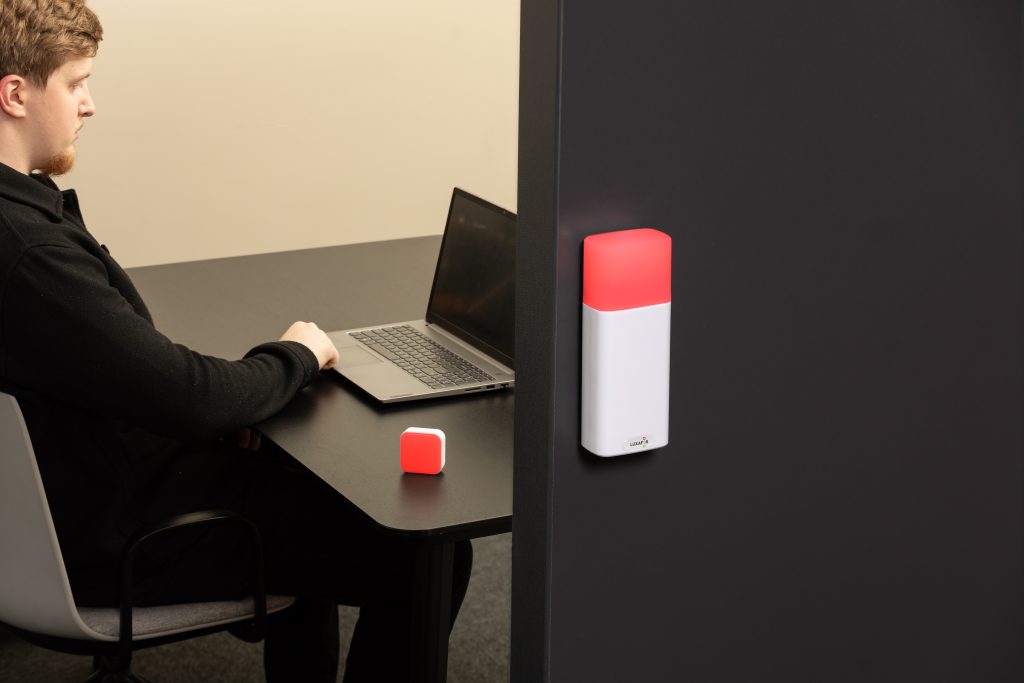
A technology to communicate to people that you don't want to be bothered is by flying the Luxafor Flag. This little USB light turns red or green and is attached to the side of your monitor. Your colleagues can tell if you have time for them by this LED indication.
What is the Luxafor Flag?
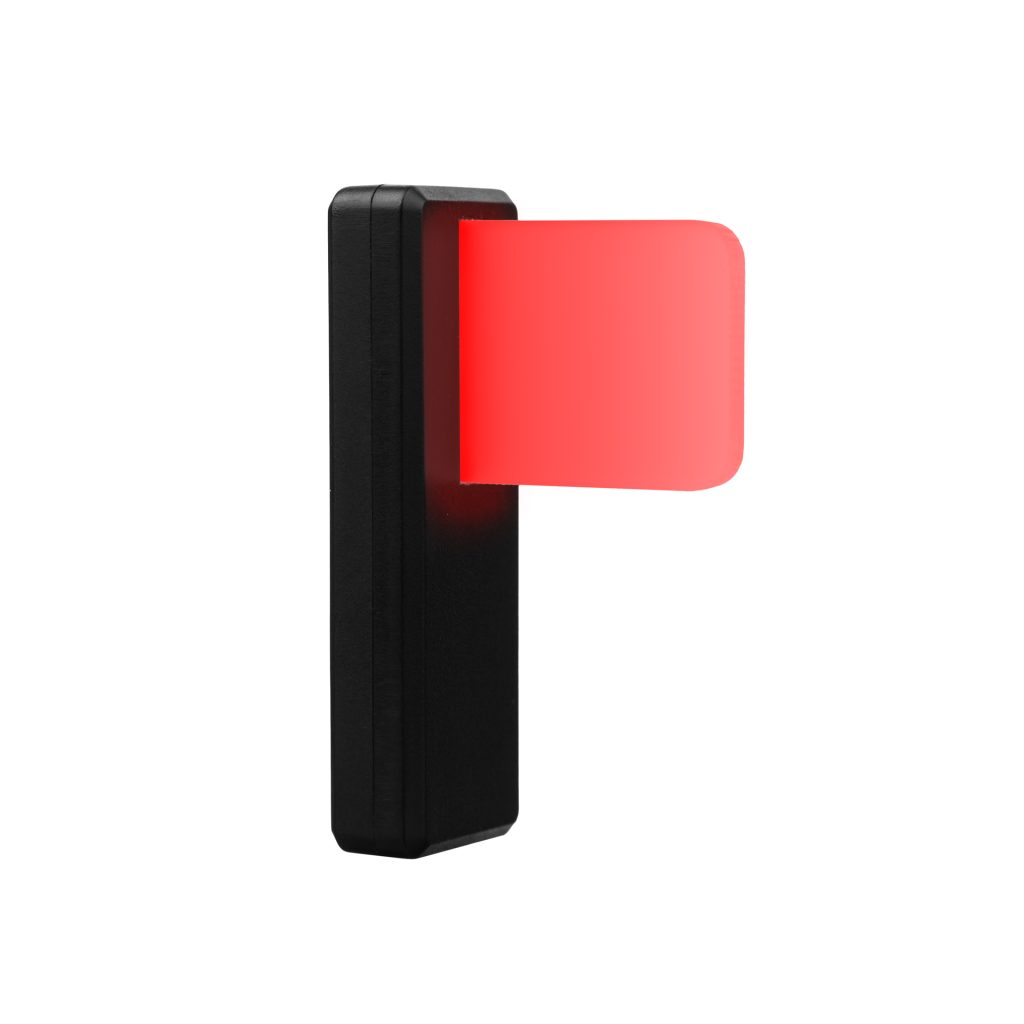
The Luxafor Flag is an electronic device that uses colorful LED lights to display the user’s availability status. The majority of Flags are utilized in open-office settings, and innovative applications of them are not unusual. The gadget itself is quite easy to use, and experts can change the colors and technical features. Although you can choose which color corresponds to which condition, you are unable to change or add new colors to the software.
Based on the integration and approach selected. For instance, phone call notifications appear almost instantly after a few seconds of delay. Whether you have premium access to either site and the settings you have selected will determine whether you receive notifications generated by Zapier or IFTTT. Nearly instantaneous notifications are displayed for the Google Calendar integration.
Think about this: The Flag functions with the Luxafor software unless you have programming knowledge (such as Webhooks or Node.js) that enables you to operate it differently.
Key Features and Specifications
The goal of the Flag is to avoid distractions. It reduces interruptions by clearly displaying your availability, which is quite helpful in hectic office settings. It is a flexible time management tool because it integrates with productivity strategies like the Pomodoro Technique. The busy light for office functions as a nonverbal communication tool in open office layouts, letting everyone know when you’re focused and when you’re available for a talk.
The key specifications are:
- Dimensions: 48 x 15 x 34 mm (1.88 x 0.59 x 1.33″ )
- Weight: 8g
- Light: 6 x RGB LEDs
- Power: USB cable
- Consumption: Up to 0.5 W
Using the provided micro-USB-to-USB cable, you connect the Flag to your laptop or desktop computer so that it may receive power and instructions on which color to display. The gadget has a tiny circular anchor magnet with glue on the back to secure it to the side of your external display or the rear of your laptop lid.
If more than one notification comes in, the notification sound will play as many times as there are notifications. Although there isn’t a hard restriction, utilizing a much longer cable could make it take longer for the Flag to display notifications or update its status light.
The flag’s white body contains another magnet that adheres to the computer’s magnet. Because of this, removing the flag itself is simple. However, if you need to remove the permanent magnet from your computer, you will need to pry it off, which will leave residue on your devices. Since there is only one anchor magnet included with the device, you are unable to relocate the flagged LED notification device between computers.
Benefits for Open Offices
In the open-office environment, integrating busy lights into your office setup offers numerous benefits. First, the Luxafor Flag helps create a culture of respect for personal space and focused work time. It fosters not only individual productivity but also overall team efficiency. What’s more, busy lights can reduce the cognitive load of constantly having to signal your availability verbally. This means less mental energy spent on social interactions, allowing you to allocate more brainpower to your tasks. Examine more benefits of the productivity tool for open space.
Enhanced Workflow Management
For development teams and technical professionals, the Luxafor Flag integrates seamlessly into workflow management systems, providing real-time visual cues about an individual’s status. When synced with communication tools such as Slack, Microsoft Teams, or Jira, the light automatically updates to reflect ongoing activities like coding, debugging, or deployment. This minimizes unnecessary interruptions, allowing developers to stay in a state of deep work — crucial for maintaining code quality and development velocity.
Optimized Team Communication
The busy light for office facilitates asynchronous, non-intrusive communication within teams. Instead of sending messages or walking over to check team availability, teammates can instantly see whether someone is available, busy, or in a meeting. This simple visual layer reduces latency in collaboration and prevents context-switching, which is a major productivity drain in technical environments. As a result, team interactions become more structured and efficient, supporting agile methodologies and sprint planning processes.
Improved Focus for Hybrid Workers
For remote workers, the Luxafor Flag acts as a physical boundary indicator, signaling to others in the household or shared workspace when focused work or calls are in progress. This helps replicate the professional cues found in an office environment, supporting better work-life boundaries. Additionally, by integrating with calendar events and project management tools, the productivity tool for open space can automate focus periods — for example, turning red during scheduled coding sessions or green when available for collaboration.
Data-Driven Productivity Insights
Beyond visual signaling, Luxafor’s software suite can provide usage analytics, offering data-driven insights into work patterns. Teams can use this data to identify workplace focus distribution, collaboration bottlenecks, and potential burnout indicators. This quantitative feedback loop supports continuous process improvement, especially valuable for engineering leads and project managers overseeing distributed teams.
Increased Efficiency in Distributed Environments
In both open offices and distributed setups, integrating the busy light for office establishes a culture of respect for concentration and efficient communication. It reduces cognitive overhead: developers no longer need to repeatedly explain their availability or set manual “Do Not Disturb” status lights. By automating these signals, employees conserve mental energy, reduce friction in collaboration, and maintain steady progress on complex tasks.
How to Set Up and Use Luxafor Flag
To configure a Luxafor Flag, take the following actions:
- Use the USB cord that was included with the Flag or bring your own to connect it to your computer.
- Your computer will display the Flag as a connected device.
- Installing the Luxafor app will control it. You will be allowed to proceed when the Luxafor app indicates that it is connected.
You may also designate hot keys to facilitate color changes. The light can be made red by setting CTRL + ALT + R, and green by setting CTRL + ALT + G.
In addition to adjusting the flag’s hue by hand, you can set timers to automatically adjust the light at specific times of day. You can only specify hours, not days, so you’ll need to go in and adjust the settings Thursday night if you want your light to turn red from 1 to 3 p.m. on Thursday but stay green at the same time on Friday.
Third-party productivity trackers can also be coupled with the Luxafor software to adjust the light to indicate when you are working on a project. Additionally, developers can use our disclosed APIs for Mac and Windows to access the productivity tool for open space with the app.
Note: A magnet that is connected can be moved to any other surface without leaving any trace, but if you try to remove it later, the glue might leave stains and the magnet might be difficult to remove. The magnet will probably not adhere to another surface or the connection will be very weak if it has been affixed to one surface for an extended period of time.
Notifications
Consider Luxafor to be a small personal assistant rather than just an LED indicator. It can be configured to provide real-time digital notifications for essential tasks. Anything from calendar events to emails and messages. This ensures that you don’t overlook any crucial information. Thankfully, your office setting will be in sync with your priorities, deadlines, tasks, and ambitions.
As soon as you receive new messages, the Luxafor software’s alerts feature will blink and log in to your Gmail or other email account. This feature is very helpful for teams who work in open offices. If your computer blinks when you’re across the room from it, you’ll know an email has arrived and will quickly head to your laptop to check.
User Case-Study
Although the Luxafor Flag is technically effective, individuals could not appreciate its meaning and refuse to leave you alone. People in the department seemed unconcerned about interrupting someone else’s heads-down time, even after a group email was sent out explaining the meaning of the various light colors. Given that a new technology is being introduced and that a workflow change may appear challenging, it is crucial to implement the flag gradually.
Begin by clearly communicating the purpose of the flag and establishing consistent color conventions across the organization. Rather than relying on a single email, reinforce the system through ongoing demonstrations, team discussions, and managerial modeling of proper use. Encourage early adopters to share positive experiences and productivity gains to build cultural buy-in. Over time, this gradual integration helps normalize the tool within daily workflows, making the red light’s “do not disturb” signal both respected and effective.
Final Thoughts
The Luxafor Flag must be used in conjunction with a broader initiative to establish an office culture that prioritizes designated heads-down time if it is to be effective. Businesses that wish to create this kind of atmosphere should purchase Luxafor devices for each employee and train them on when and how to set their lights to red. Additionally, users would need to indicate themselves as occupied in email and chat platforms to prevent both online and offline interruptions from their supervisors and coworkers.
This LED notification device is less likely to be effective for people looking for some quiet in busy offices. Although it seems like the best-case scenario, you might see a benefit if you’re in a position of authority and can effectively explain the purpose of the light to your coworkers and persuade them to leave you alone. The flag can indicate your current state, but it is powerless to change the actions of others.
Show your colleagues when you're busy!
Article author

Kaspars S.
Productivity tool developer, corporate leader, and technical director at Luxafor
How to Use Luxafor Flag to Improve Productivity in Open Offices
Tags
Archives
- June 2026
- May 2026
- March 2026
- January 2026
- December 2025
- November 2025
- October 2025
- September 2025
- August 2025
- July 2025
- June 2025
- May 2025
- February 2025
- January 2025
- December 2024
- November 2024
- October 2024
- September 2024
- August 2024
- July 2024
- June 2024
- May 2024
- April 2024
- March 2024
- February 2024
- January 2024
- December 2023
- November 2023
- October 2023
- September 2023
- August 2023
- July 2023
- June 2023
- May 2023
- April 2023
- March 2023
- February 2023
- January 2023
- December 2022
- November 2022
- October 2022
- September 2022
- August 2022
- July 2022
- June 2022
- May 2022
- April 2022
- March 2022
- February 2022
- January 2022
- December 2021
- November 2021
- October 2021
- September 2021
- August 2021
- July 2021
- June 2021
- May 2021
- April 2021
- March 2021
- February 2021
- January 2021
- December 2020
- November 2020
- October 2020
- September 2020
- August 2020
- July 2020
- June 2020
- May 2020
- April 2020
- March 2020
- December 2019
- November 2019
- October 2019
- September 2019
- August 2019
- July 2019
- April 2019
- March 2019
- January 2019
- December 2018
- November 2018
- October 2018
- September 2018
- August 2018
- July 2018
- June 2018
- August 2017
- May 2017
- April 2017
- February 2017
- January 2017
- November 2016
- October 2016
- September 2016
- August 2016
- July 2016
- June 2016
- May 2016
- April 2016
- March 2016
- February 2016
- January 2016