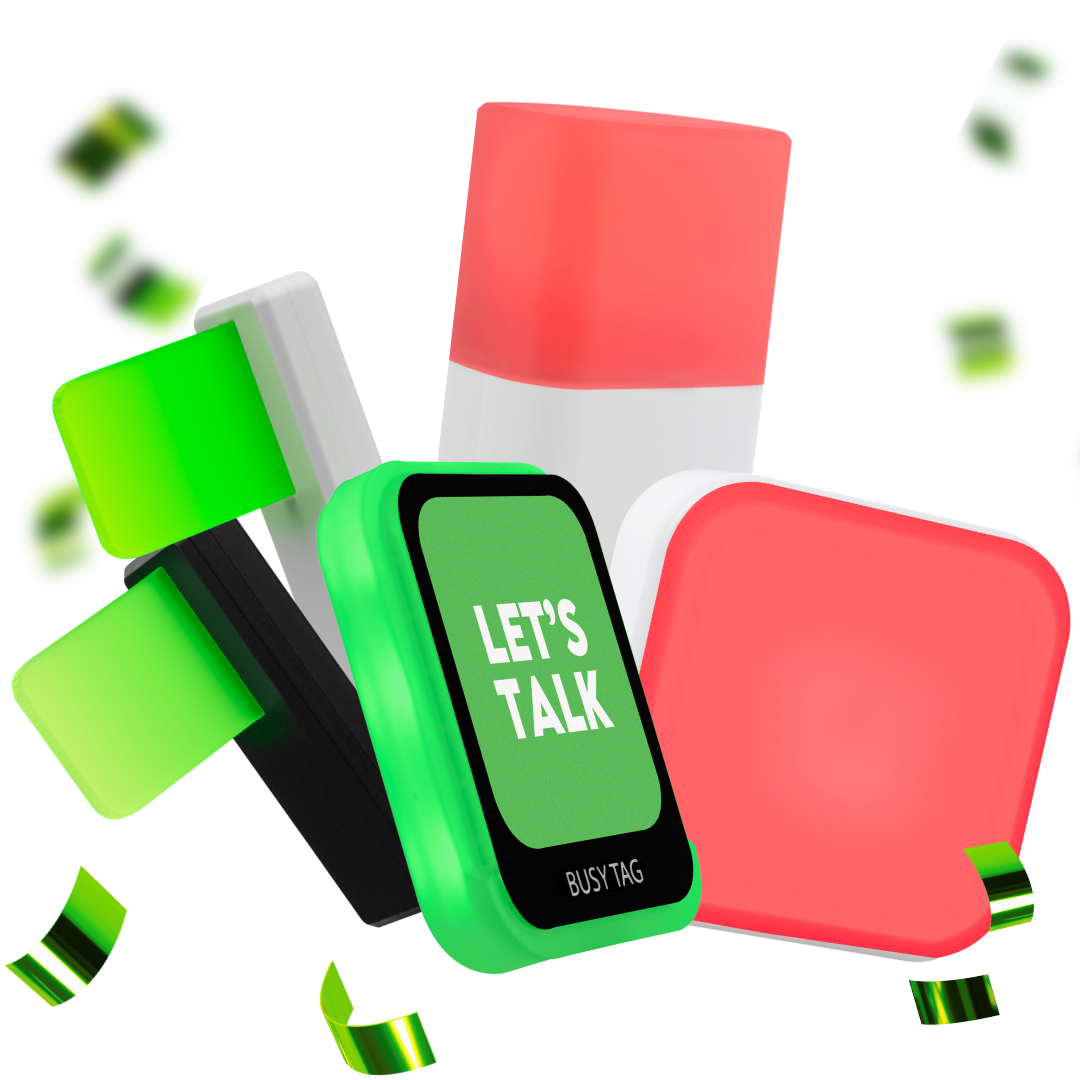
Control Your Luxafor Device from Your Phone

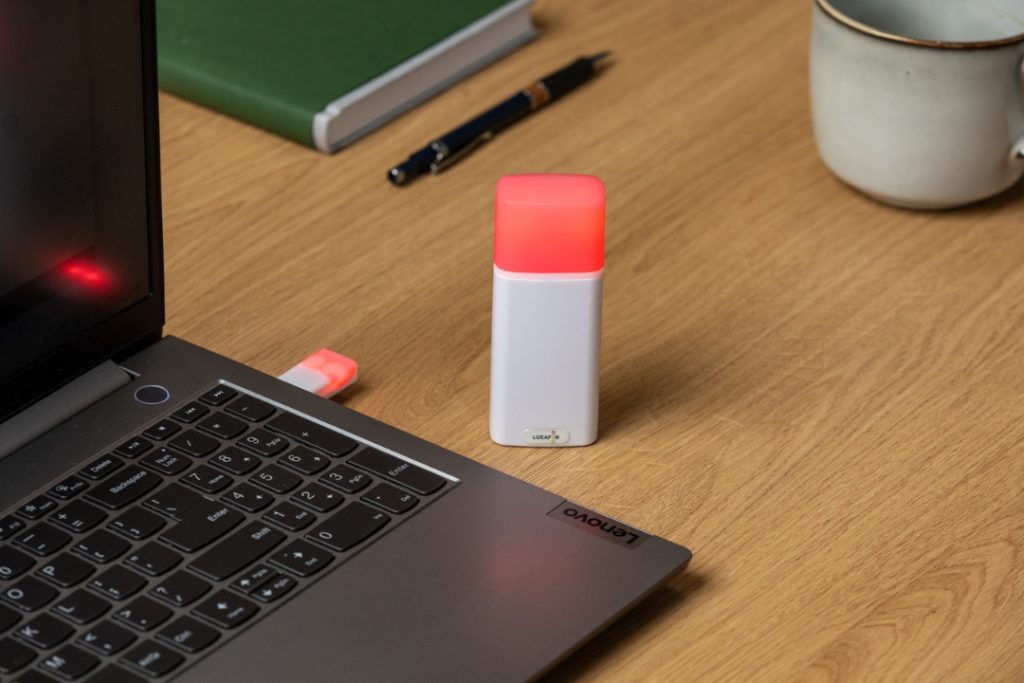
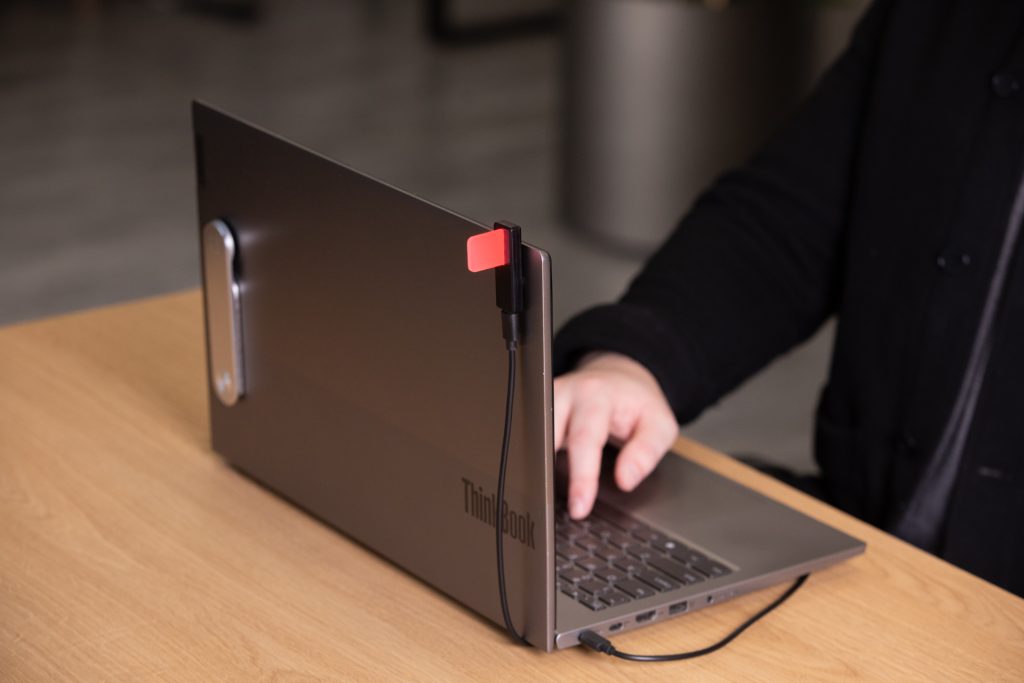
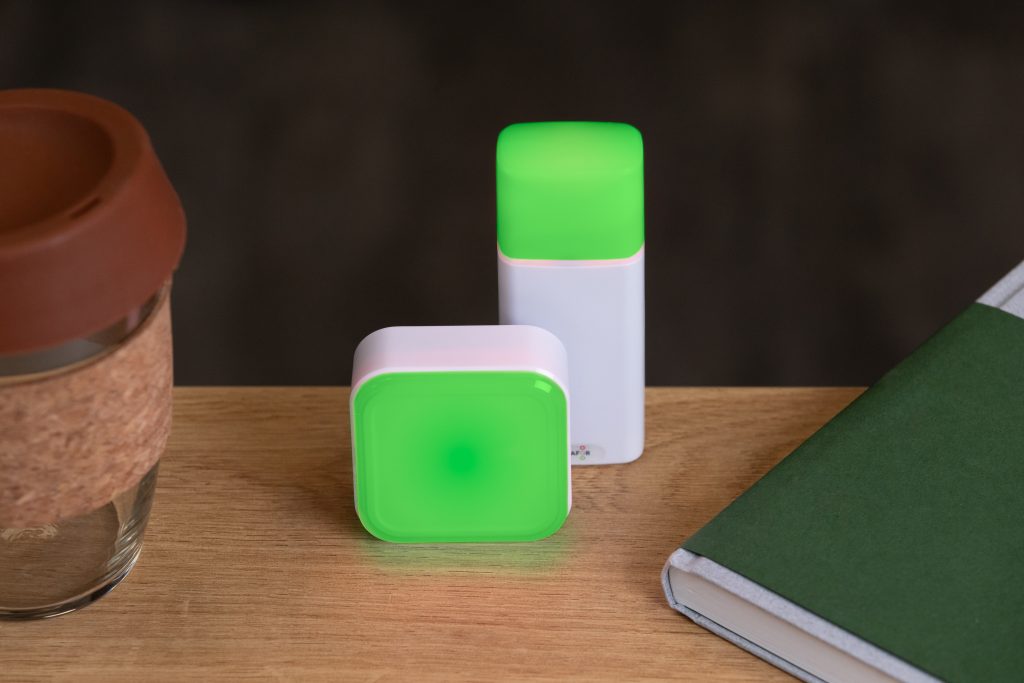
We’re excited to introduce a new feature that gives you even more flexibility when using your Luxafor device. You can now control the color of your Luxafor device connected to your computer directly from the Luxafor phone app!
How It Works
Setting it up is quick and easy:
1️⃣ Open the Luxafor app on your phone. Available for Android & Apple.
2️⃣ Go to the Settings tab (gear icon) and toggle on “Allow to send commands to computer.”
3️⃣ Tap the smaller gear icon next to the toggle. A window will open with instructions.
4️⃣ Tap the QR code icon to open your phone’s camera.
5️⃣ On your computer, open the Luxafor software for the computer and go to the Webhook tab.
6️⃣ Scan the QR code displayed in the Webhook tab with your phone.
✅ That’s it! You can now change the solid color of your Luxafor device connected to your computer from your phone app.
Important: Your phone can send commands only while the Webhook tab is open in the Luxafor computer app. To use other features like MS Teams to control your busy light, switch to the relevant tab in the app.
Since the Luxafor device that’s connected to your computer is controlled with webhooks, it only needs an internet connection. No Bluetooth range limitations.
Compatible Devices
- Luxafor Flag (Original & Flag 2)
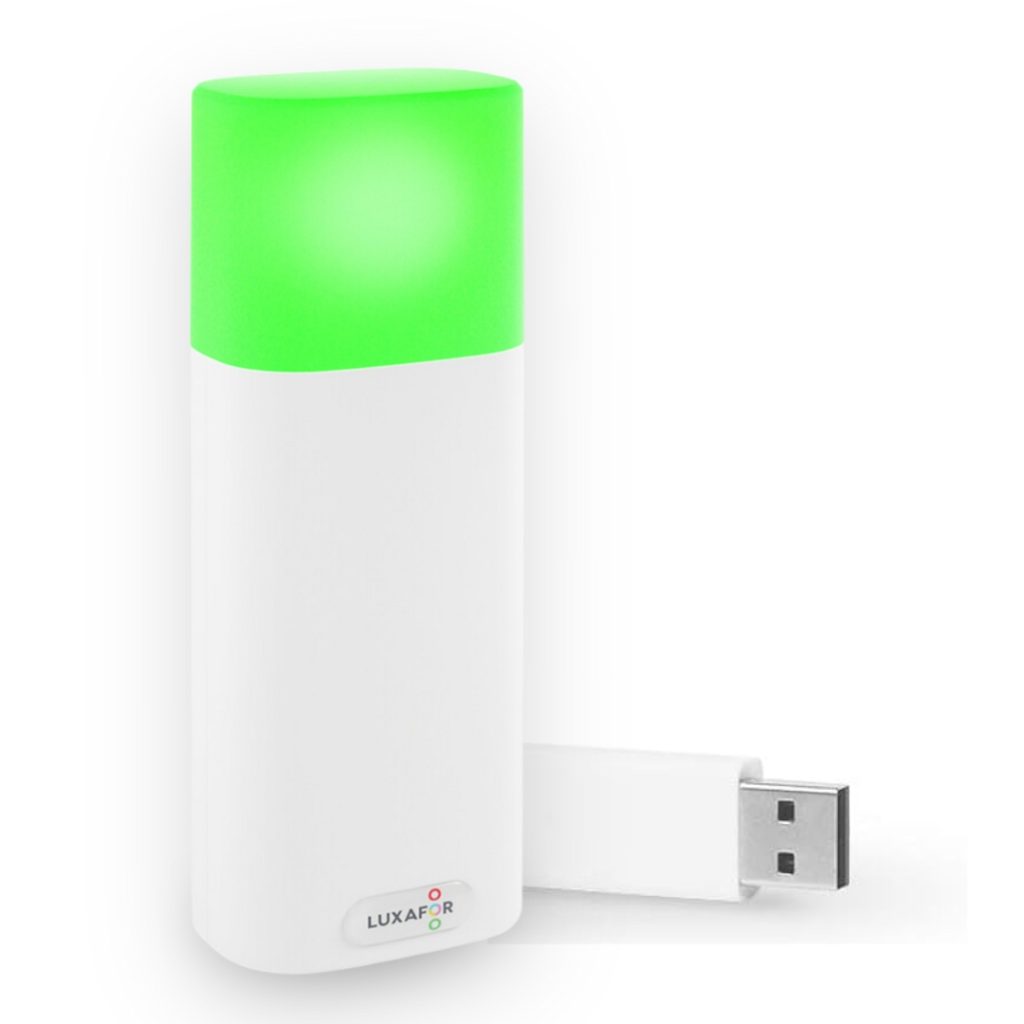
- Luxafor Bluetooth
- Luxafor Bluetooth Pro – Wireless busy light with automation options.
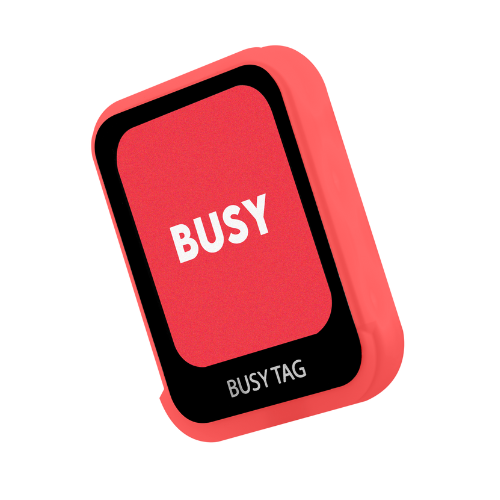
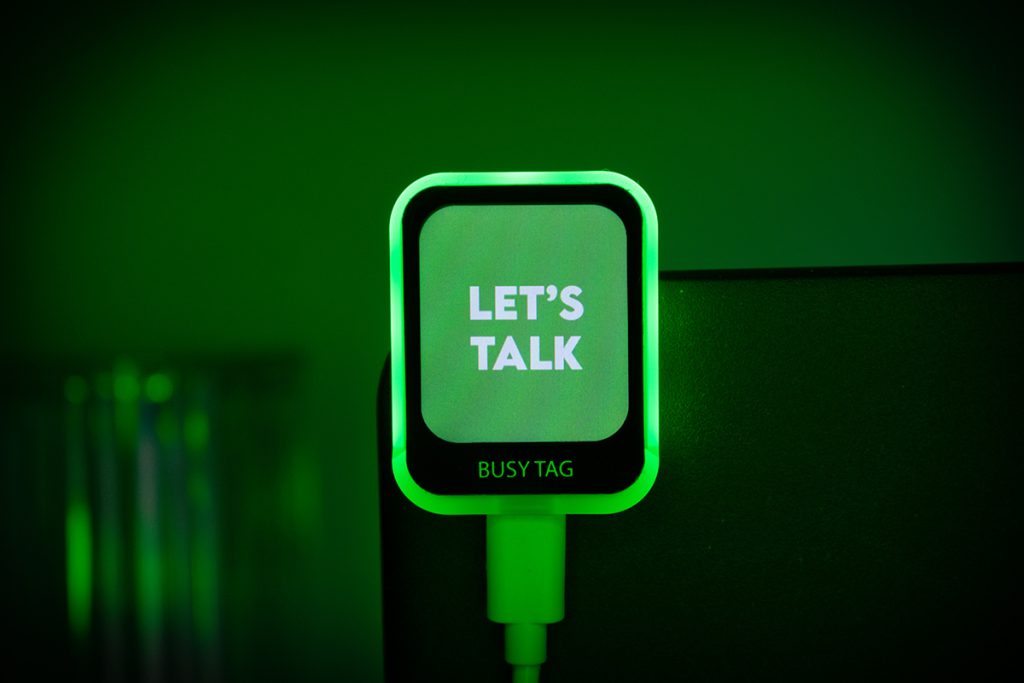
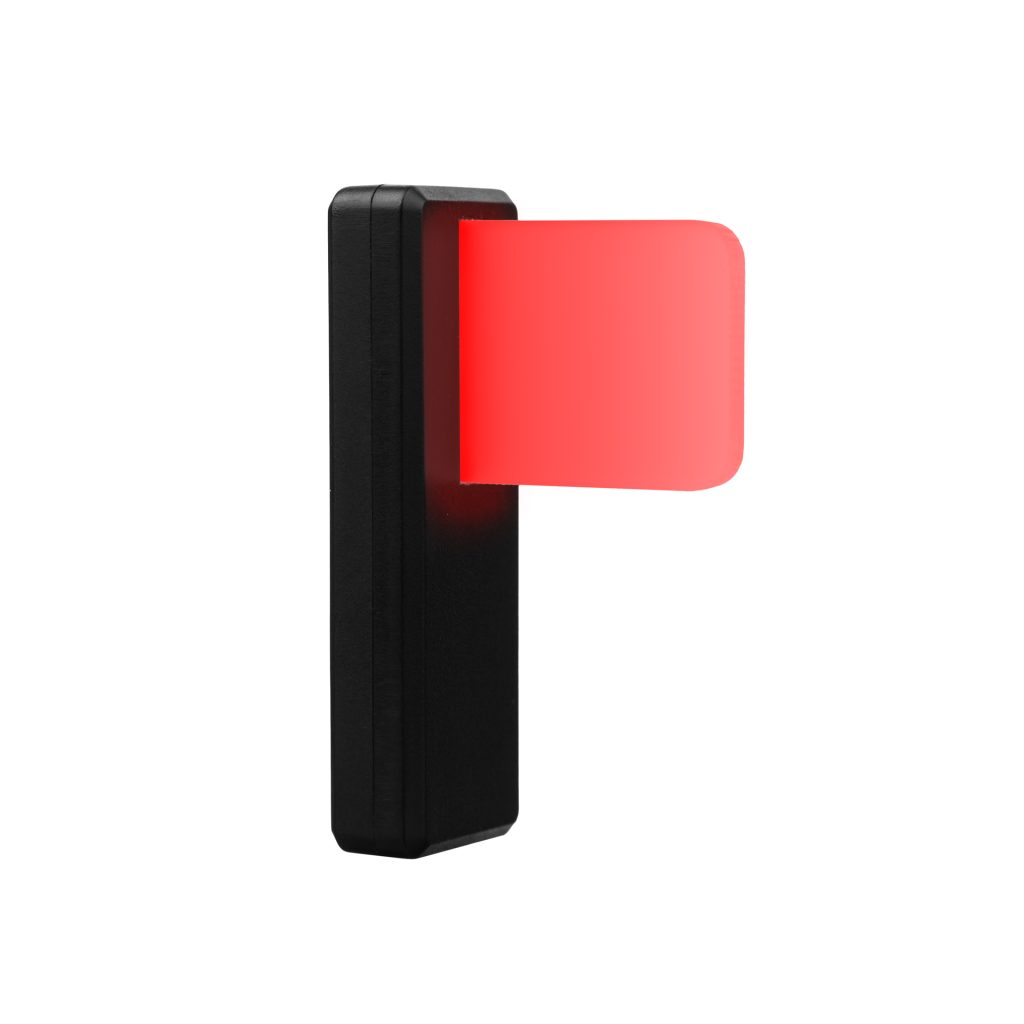
- Luxafor Busy Tag
- Luxafor Orb
- Luxafor Coloblind Flag

More Ways to Use the Luxafor Mobile App
The Luxafor app offers more than just manual controls—it also automates your workflow:
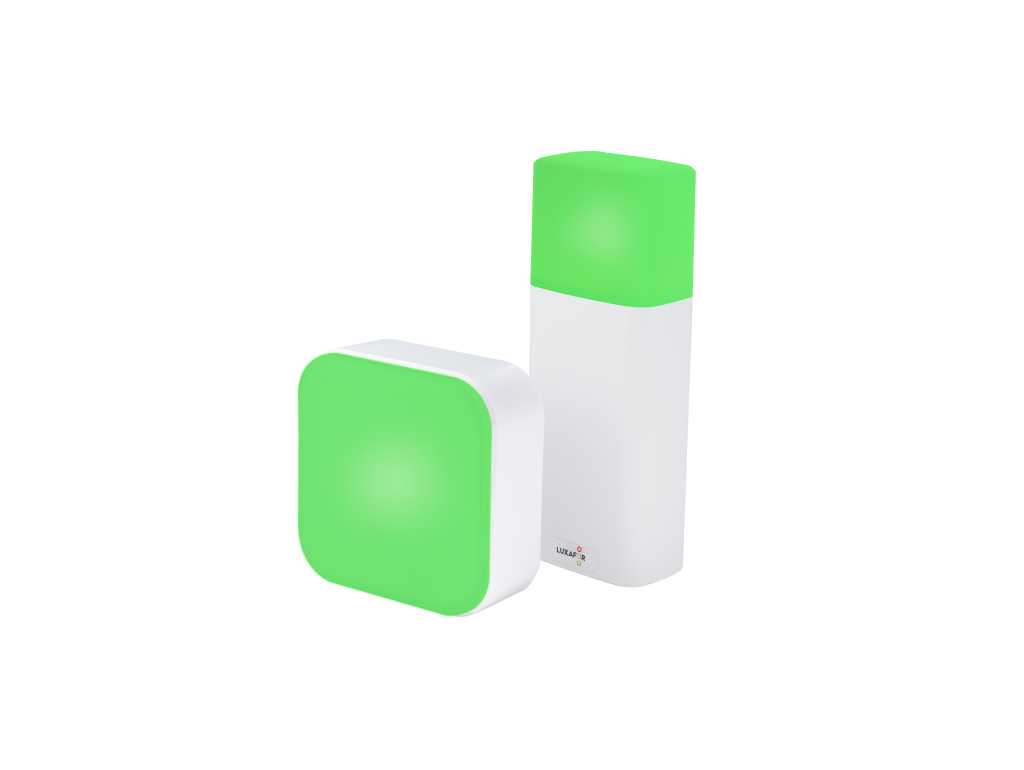
🔴 Call Status Integration (Android & iOS) – Your Luxafor device can automatically change color when you’re on a call, turning red when busy and green when available.
⚡ Apple Shortcuts App Integration (iOS) – Automate Luxafor device with:
- Siri voice commands
- Color changes for notifications
- Busy light control with home screen widgets
- Double-tap to the back of your iPhone to switch colors
- Custom triggers for light changes
And many more automation possibilities. Learn more in the Apple Shortcuts integration guide.
This update makes Luxafor even more versatile, helping you stay focused, productive, and interruption-free. Try it out and let us know how you’re using it!
Show your colleagues when you're busy!
Control Your Luxafor Device from Your Phone
Tags
Archives
- March 2026
- January 2026
- December 2025
- November 2025
- October 2025
- September 2025
- August 2025
- July 2025
- June 2025
- May 2025
- February 2025
- January 2025
- December 2024
- November 2024
- October 2024
- September 2024
- August 2024
- July 2024
- June 2024
- May 2024
- April 2024
- March 2024
- February 2024
- January 2024
- December 2023
- November 2023
- October 2023
- September 2023
- August 2023
- July 2023
- June 2023
- May 2023
- April 2023
- March 2023
- February 2023
- January 2023
- December 2022
- November 2022
- October 2022
- September 2022
- August 2022
- July 2022
- June 2022
- May 2022
- April 2022
- March 2022
- February 2022
- January 2022
- December 2021
- November 2021
- October 2021
- September 2021
- August 2021
- July 2021
- June 2021
- May 2021
- April 2021
- March 2021
- February 2021
- January 2021
- December 2020
- November 2020
- October 2020
- September 2020
- August 2020
- July 2020
- June 2020
- May 2020
- April 2020
- March 2020
- December 2019
- November 2019
- October 2019
- September 2019
- August 2019
- July 2019
- April 2019
- March 2019
- January 2019
- December 2018
- November 2018
- October 2018
- September 2018
- August 2018
- July 2018
- June 2018
- August 2017
- May 2017
- April 2017
- February 2017
- January 2017
- November 2016
- October 2016
- September 2016
- August 2016
- July 2016
- June 2016
- May 2016
- April 2016
- March 2016
- February 2016
- January 2016